
On this page
Banner images are the images on the home page of your site.
Different versions of Orbit have different banner layouts, the number of banner images vary.

How do I turn on / off the Mega Banner? #
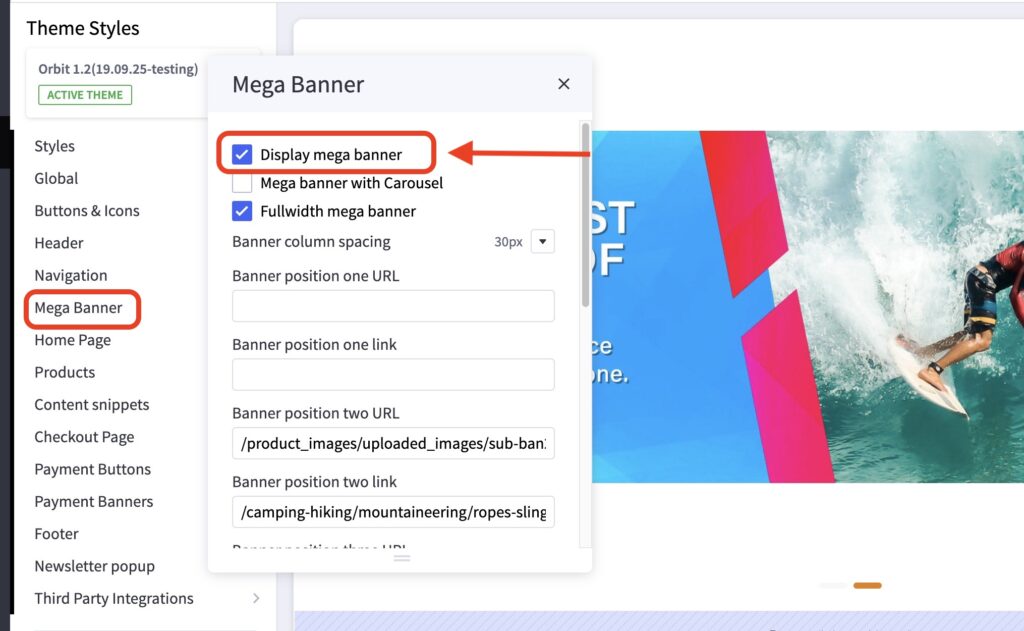
- In the theme customizer, go to the Mega Banner section.
- Check or uncheck the box Display mega banner to toggle the mega banner visibility.
- The Mega banner with Carousel toggle allows you to choose between 2 styles, either 1 large image or a Carousel and 6 smaller images.
In what order are my banners displayed? #
Banners are numbered left to right, top to bottom. See image below.
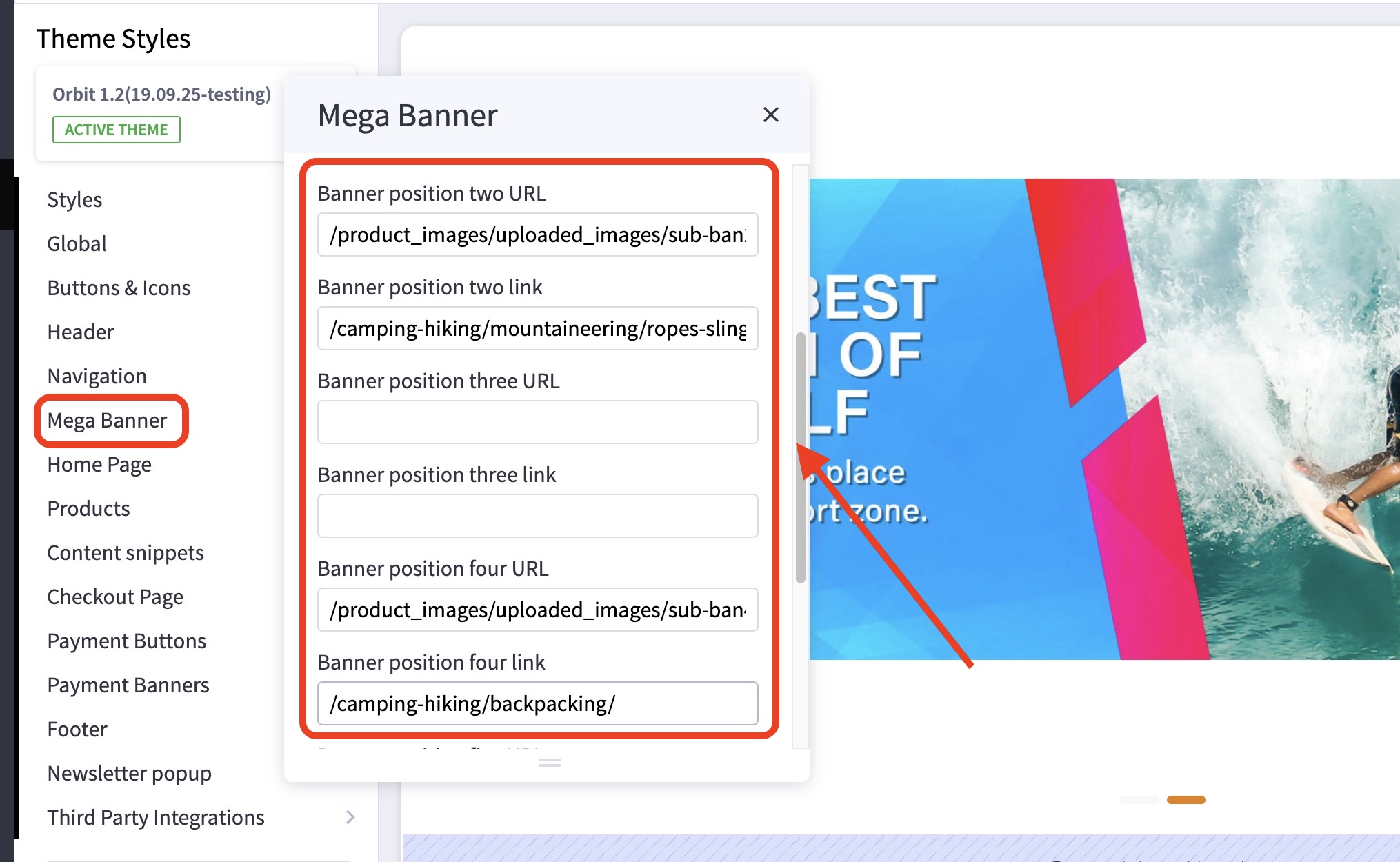
Different versions of Orbit have different banner layouts so the specific numbers will vary.
How do I change my banner images, links, or alt text? #
- In the theme customizer, under the section titled Mega Banner, scroll down to the correct banner slot number and change the image URL, link, or alt tag.
- Images are loaded in the BigCommerce image manager using partial filepaths.
Click here to view our guide on how to use Partial Filepaths. - If you don’t want to display a specific banner, leave the Image URL blank.
- For the Carousel, it is using the native Carousel feature in BigCommerce.
Please check the guide here for more info: Carousel Builder
What size should my banner images be? #
- Depending on the layout, your banners will vary in size. Generally though, we recommend images with 800×800 or higher.
- On the demo site for your theme, right click and inspect the image for the right dimensions.


