When a customer adds something to their cart, automatically adds other products to the cart. Also automates gift and coupon integration for effortless customer rewards.
How to add a surcharge? #
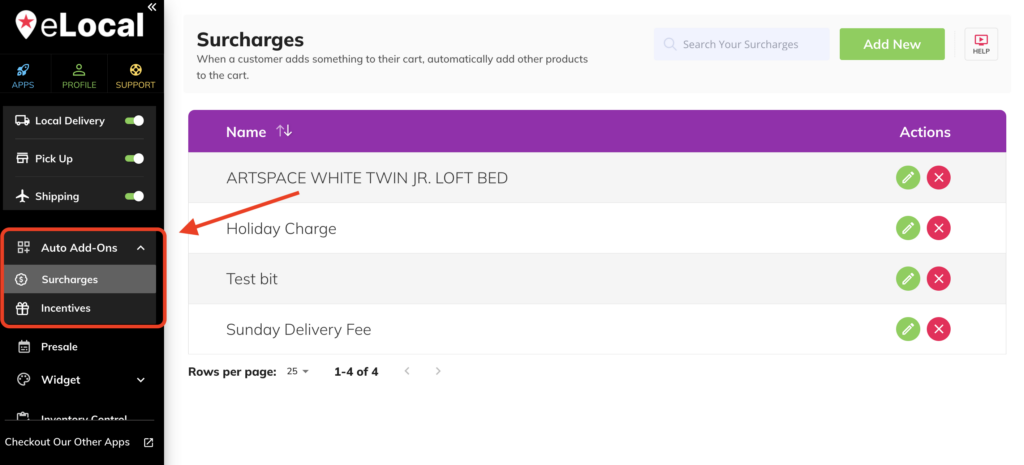
First, log in to epicApps and go to eLocal. On the left panel, click the Auto Add-Ons > Surcharges. Then, click the Add New button located on the top right part of the page.
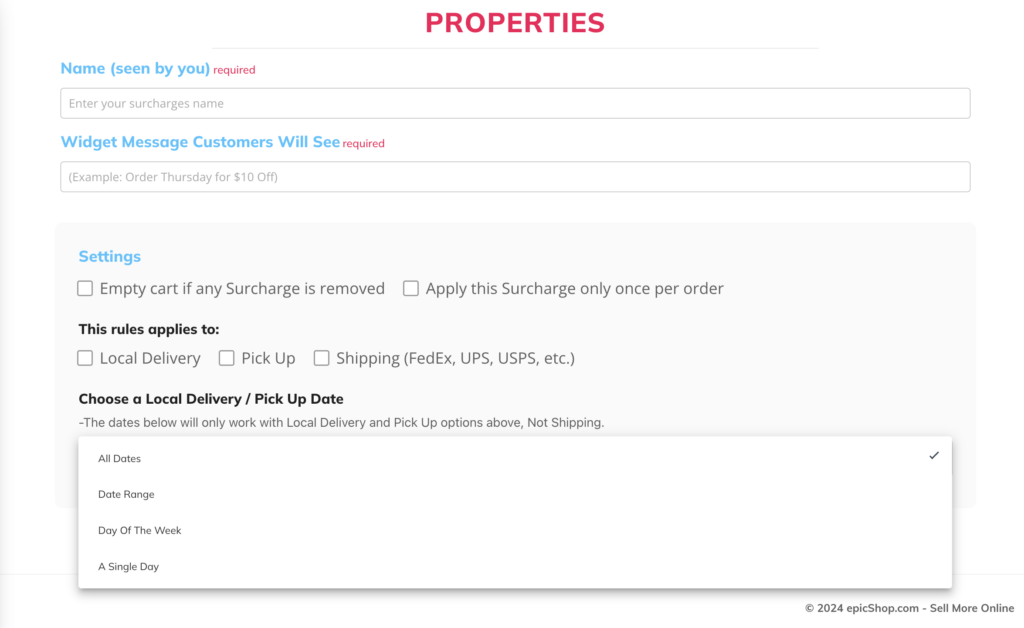
Once done, the Properties section shows up where you will need to fill in the details for the surcharge. Next, is to proceed to the Build your Surcharges tab/section.
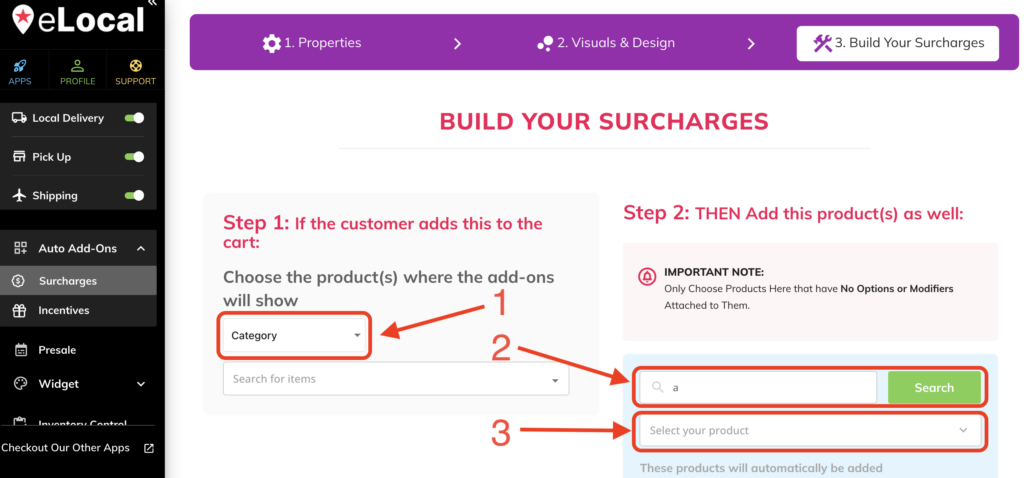
On the Build Your Surcharges section, you will need to choose the product/category where the add-on/s will show. Lastly, you will then search for the add-on product you will use. Don’t forget to hit the Save button located on the top right part of the page.
* Kindly create the add-on product (holiday/special fee) inside BigCommerce first and then follow the steps above.
How to add an incentive? #
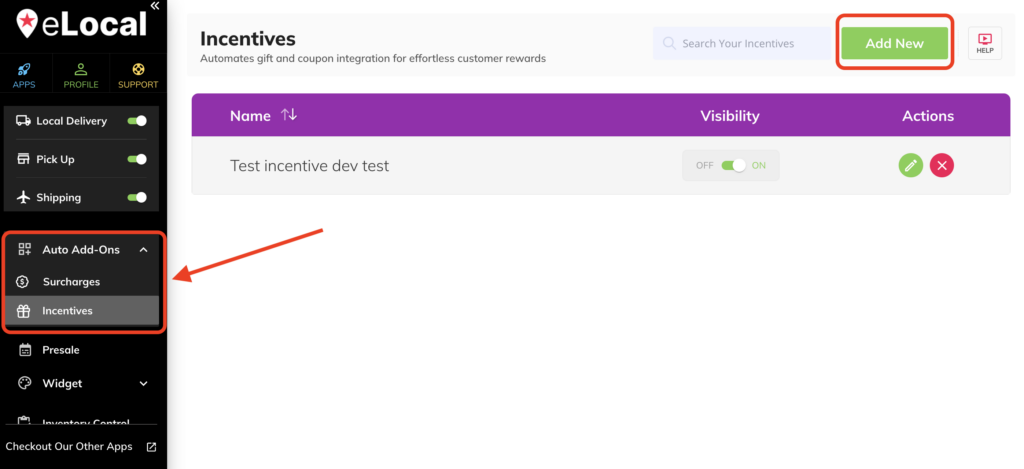
First, log in to epicApps and go to eLocal. On the left panel, click the Auto Add-Ons > Incentives. Then, click the Add New button located on the top right part of the page.
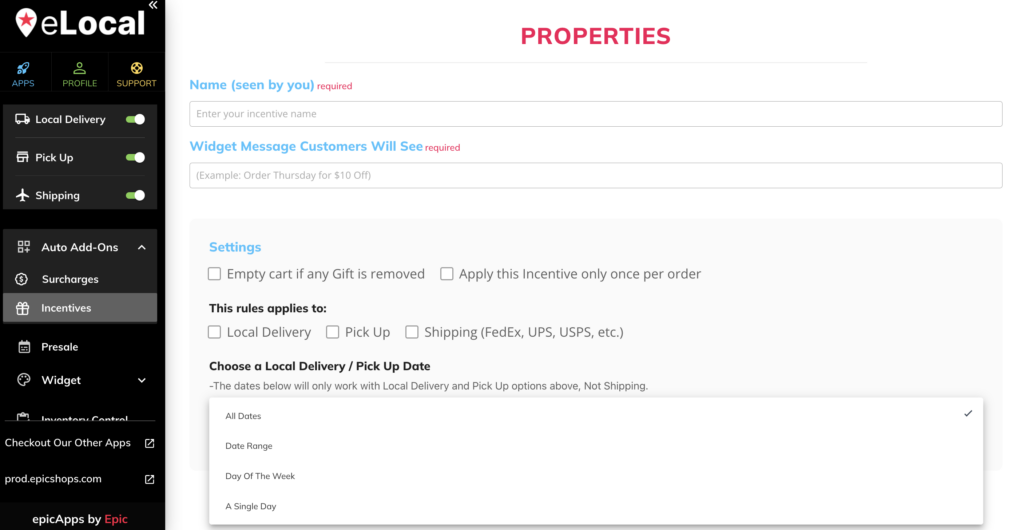
Once done, the Properties section shows up where you will need to fill in the details for the incentive. Next, is to proceed to the Build your Incentives tab/section.
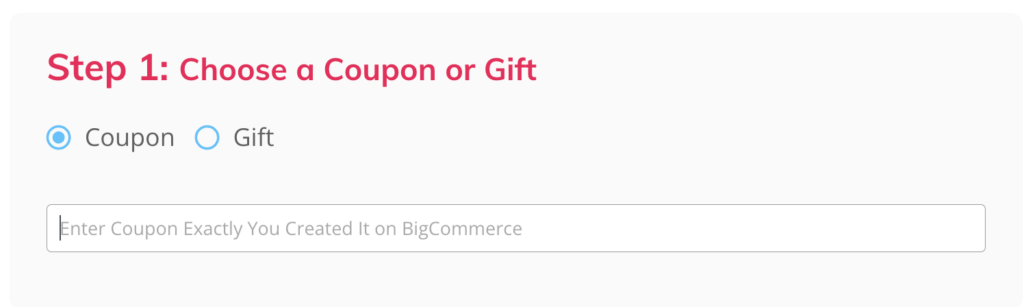
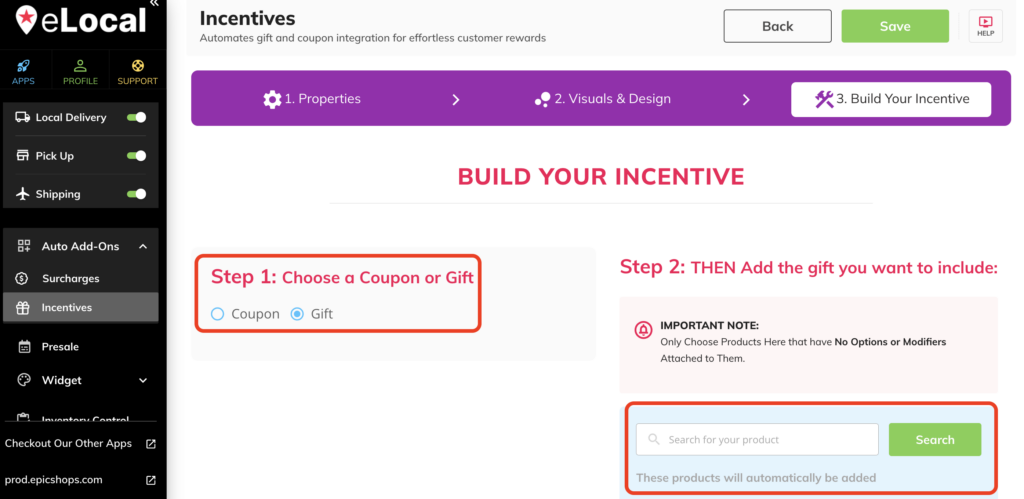
On the Build Your Incentive section, you will need to choose if the incentive is a Coupon or Gift. If you choose Coupon, you will have the option to enter the coupon you already created in BigCommerce. If it’s a Gift, you will then search for the add-on product you’ll use.
* Again don’t forget to hit the Save button located on the top right part of the page.