On this page
Adding and configuring delivery zones #
To add a new delivery zone #
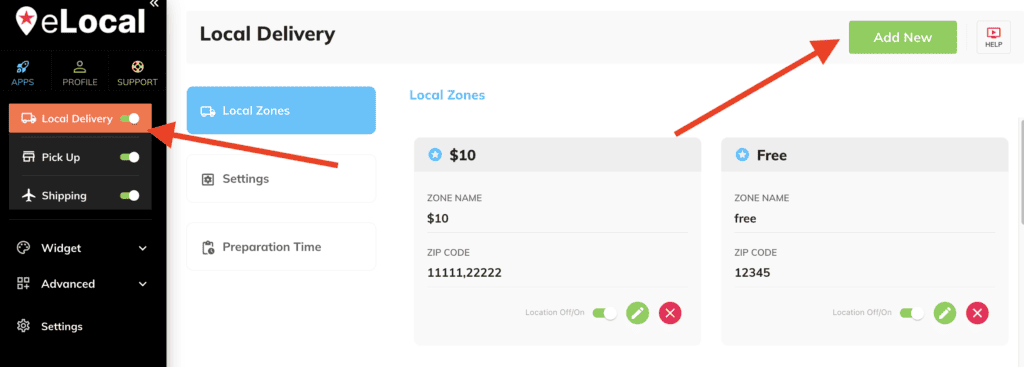
- Login into your epicApps dashboard and go to eLocal.
- Next, go to the Local Zones section and click the Add New button.
- You can choose to create a custom or a NO delivery zone.
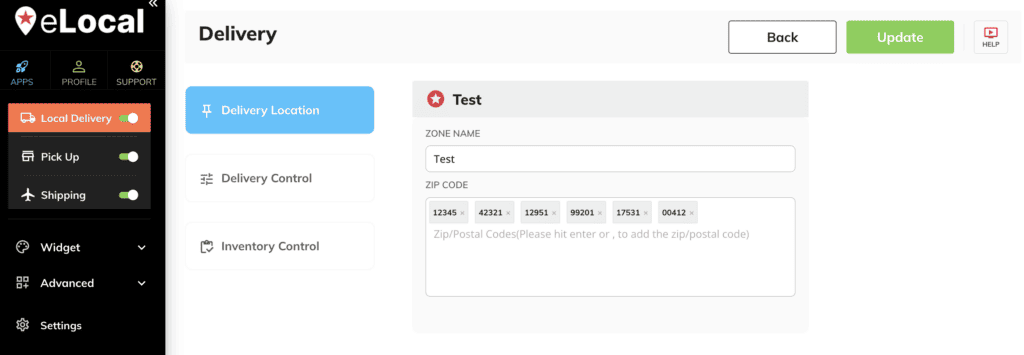
- Once done, you can then add the zip codes under this local zone.
To edit a local zone #
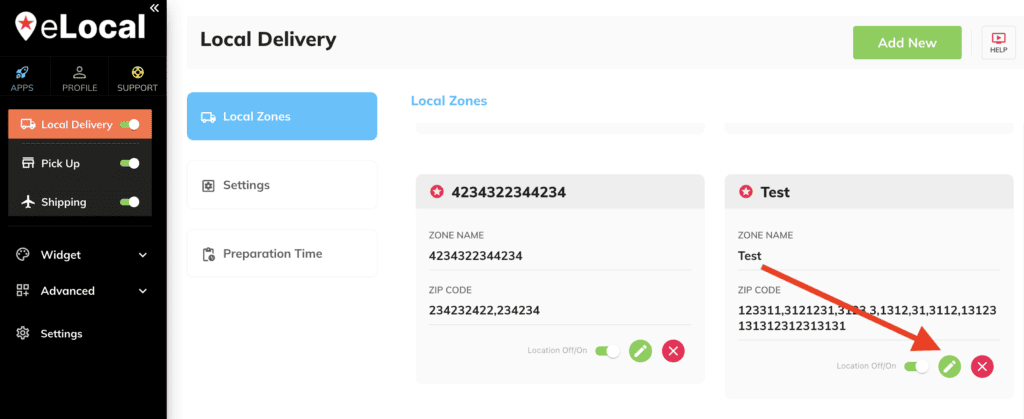
- Click the green pencil icon on the right side as shown below.
- Use the fields to rename and/or add zip codes to your delivery zone.
If you’re manually typing in the zip codes, please be sure to press Enter/Return key on your keyboard after every code. If you’re copying and pasting them, please be sure they are separated by lines or commas. - If your area is using 9-digit format zip codes, you can use wildcards.
Guide here: ZIP and post codes wildcards
Blocking dates and cutoff times #
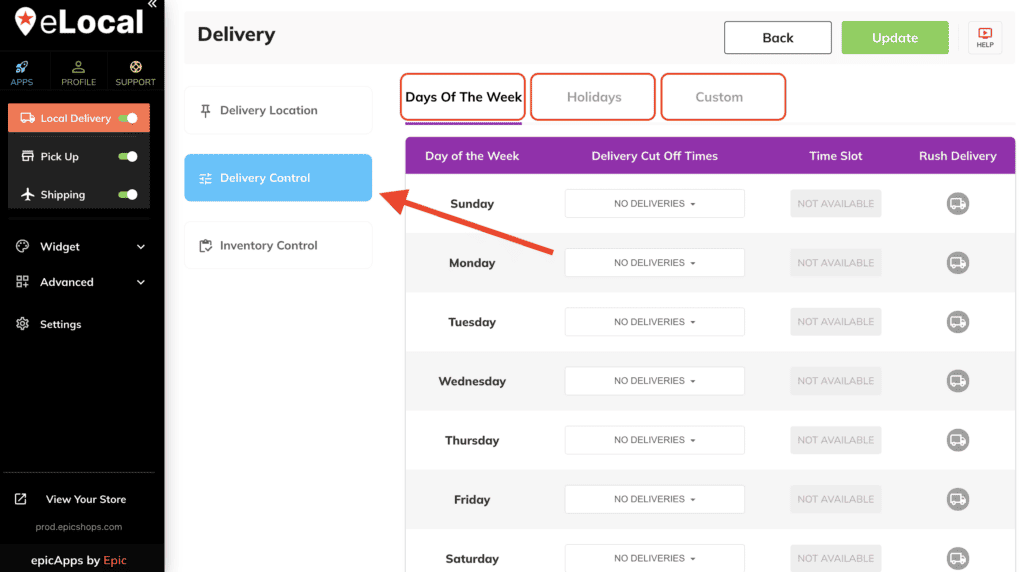
- Go to Local Delivery > Delivery Control.
- There are 3 tabs: Days Of The Week, Holidays, and Custom.
- We recommend setting up the Days of the Week tab as your “regular” or standard schedule for cutoff times.
HOLIDAYS is there for convenience, it has a list of common holidays that you can set specific cutoff times – this overrides the DAYS tab. The CUSTOM tab as the name suggests, is a custom date – this can come in handy if you need to block off a date or adjust a cutoff for specific dates. - For overlapping cutoff times/dates, the following hierarchy is Custom > Holidays > Days