On this page
Setting up your store location #
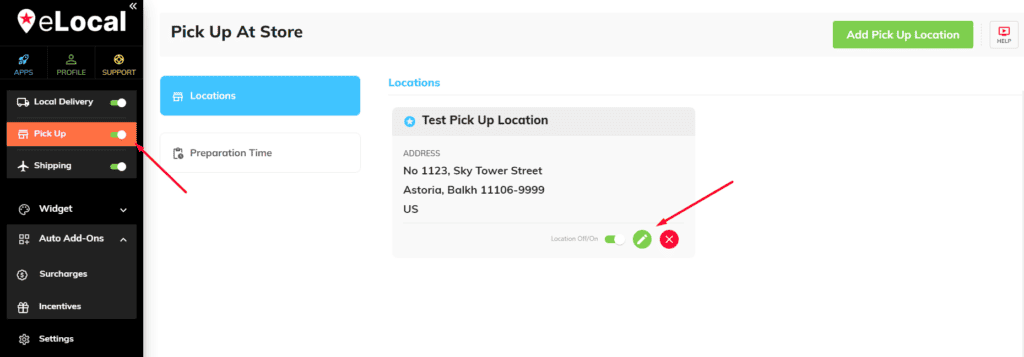
- Click the pencil icon below your store location on the left sidebar.
- Append -9999 to your zip code. For example, if your postal code is 11106, then it would now be 11106-9999. Once done click Update and Exit.
- To set up the shipping zone and fee.
Login to your BigCommerce store, go to Settings > Setup > Shipping > click on Add shipping zone and then choose to Add Custom zone.
You may refer to BigCommerce’s guide here: Shipping Zones - Name this zone something that matches your store location, like Pick Up In Store Oak Street.
Next, under Type, choose Advanced Selection and choose Multiple postcodes. - Select your country and then add your custom postal code here you just set up in your eLocal store location settings, for example, 97442-9999. Click Submit.
- Click Configure to the right of your new shipping zone.
Now click the toggle to on, to the right of the Pick Up In Store, and then click Submit. - Click the Done button in the lower right-hand corner.
You will need to repeat this instruction above if you add more Store Locations here in eLocal.
Blocking dates and adding pickup timeslots #
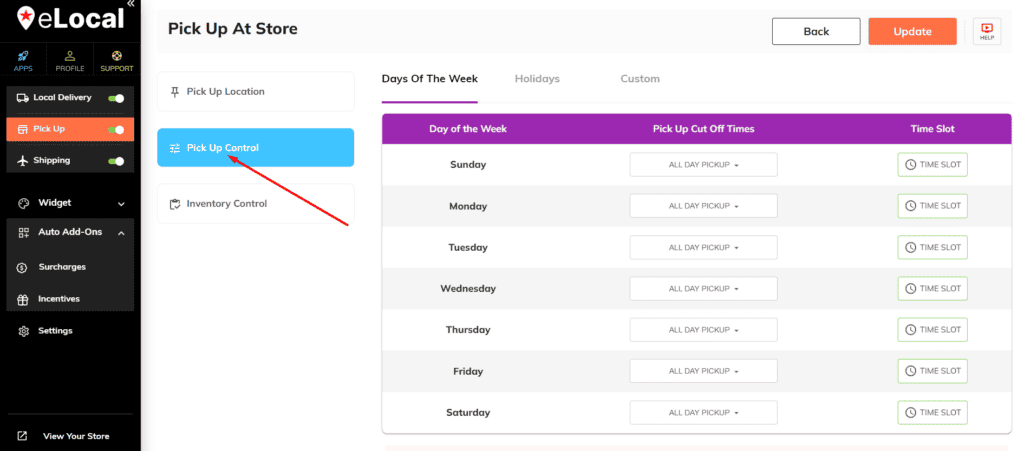
- There are 3 tabs: DAYS OF THE WEEK, HOLIDAYS, and CUSTOM
- We recommend setting up the DAYS OF THE WEEK tab as the “regular” or standard schedule of your pickup hours.
HOLIDAYS is there for convenience, it has a list of common holidays that you can set specific timeslots – this overrides the DAYS OF THE WEEK tab.
The CUSTOM tab as the name suggests is a custom date – this can come in handy if you need to block off a date or adjust slots for specific dates. - For overlapping cutoff times/dates, the following hierarchy is Custom > Holidays > Days Of The Week
Pickup Settings #
To show the Pickup widget on the product page #
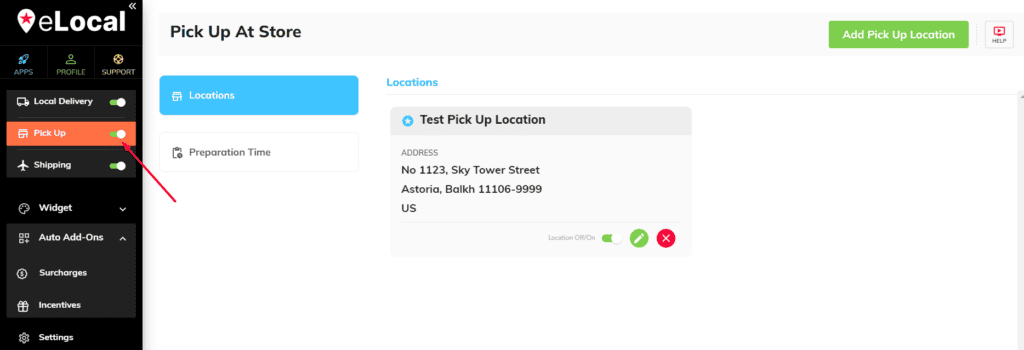
- Go to eLocal
- Then, click the toggle(green means it’s turned on).
To enable Pick up at the store on checkout #
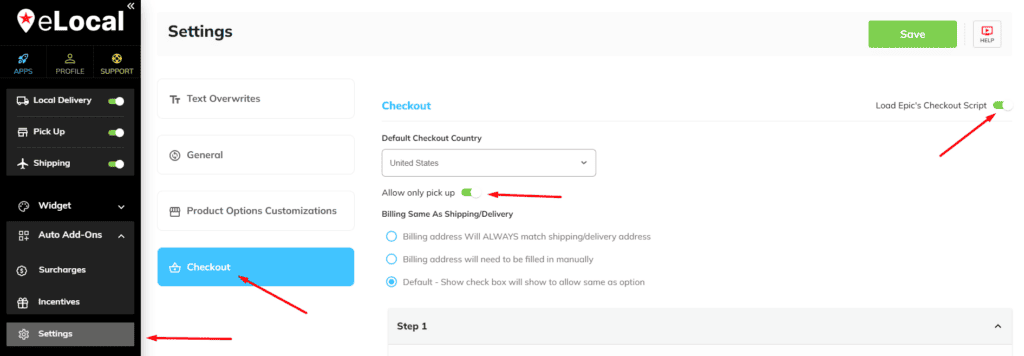
- Go to Settings > Checkout tab
- Click the toggle(green means it’s turned on) > set your default checkout country and billing options.
- Once done, hit Save and Exit.