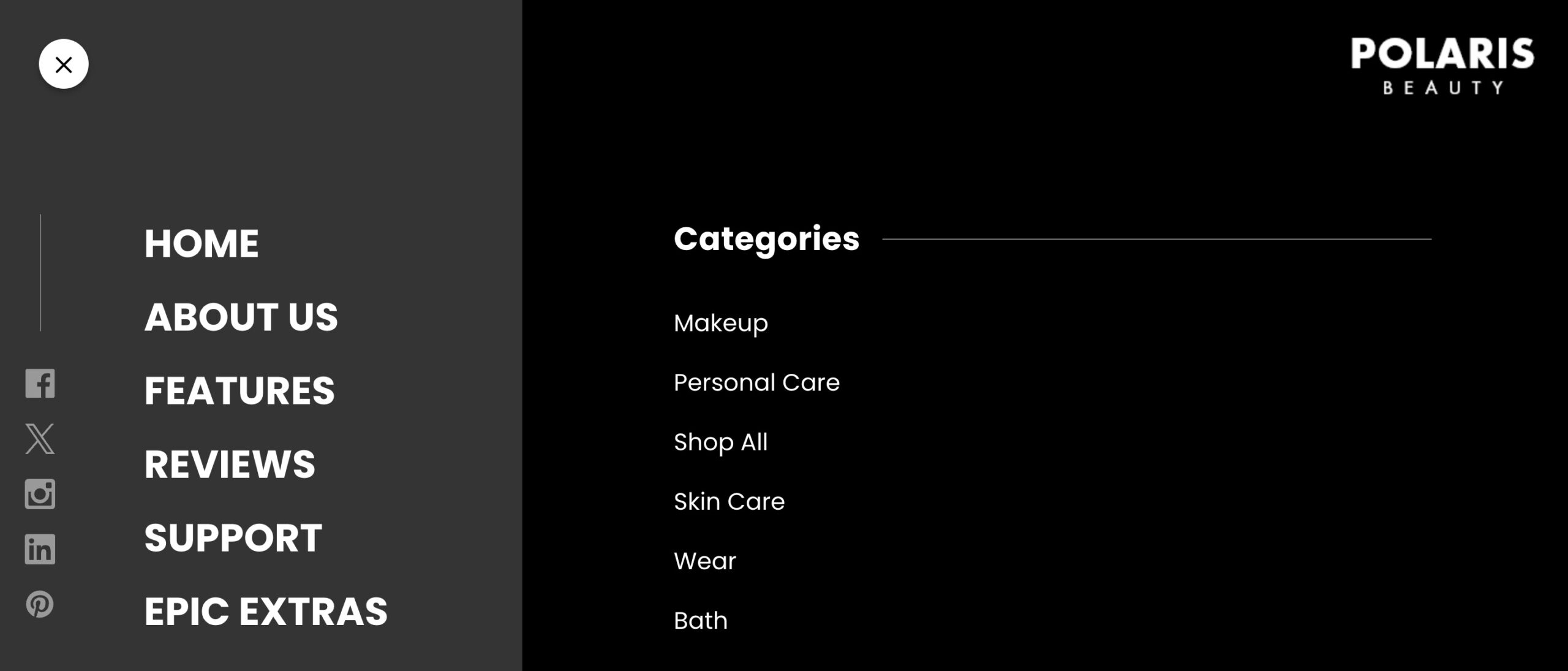
Customize the Hamburger Menu feature that appears from the “Hamburger” button
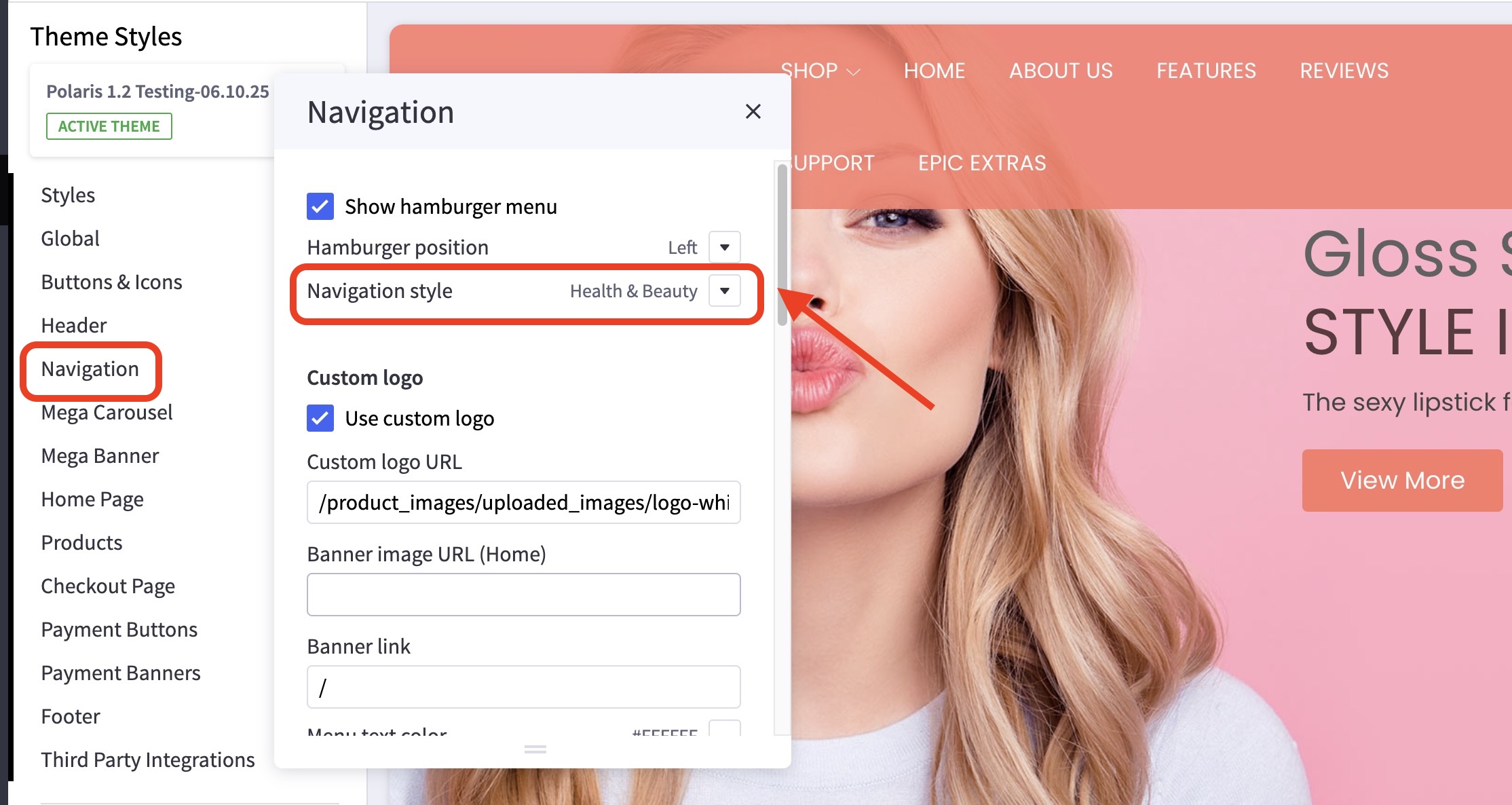
What are the available navigation styles? #
Here are the 4 available navigation styles in Polaris.
- Home
- Hemp
- Fashion
- Health & Beauty
Just go to the Theme Customizer and go to Navigation > Navigation style. Click the drop-down icon and choose the style you wish to use.
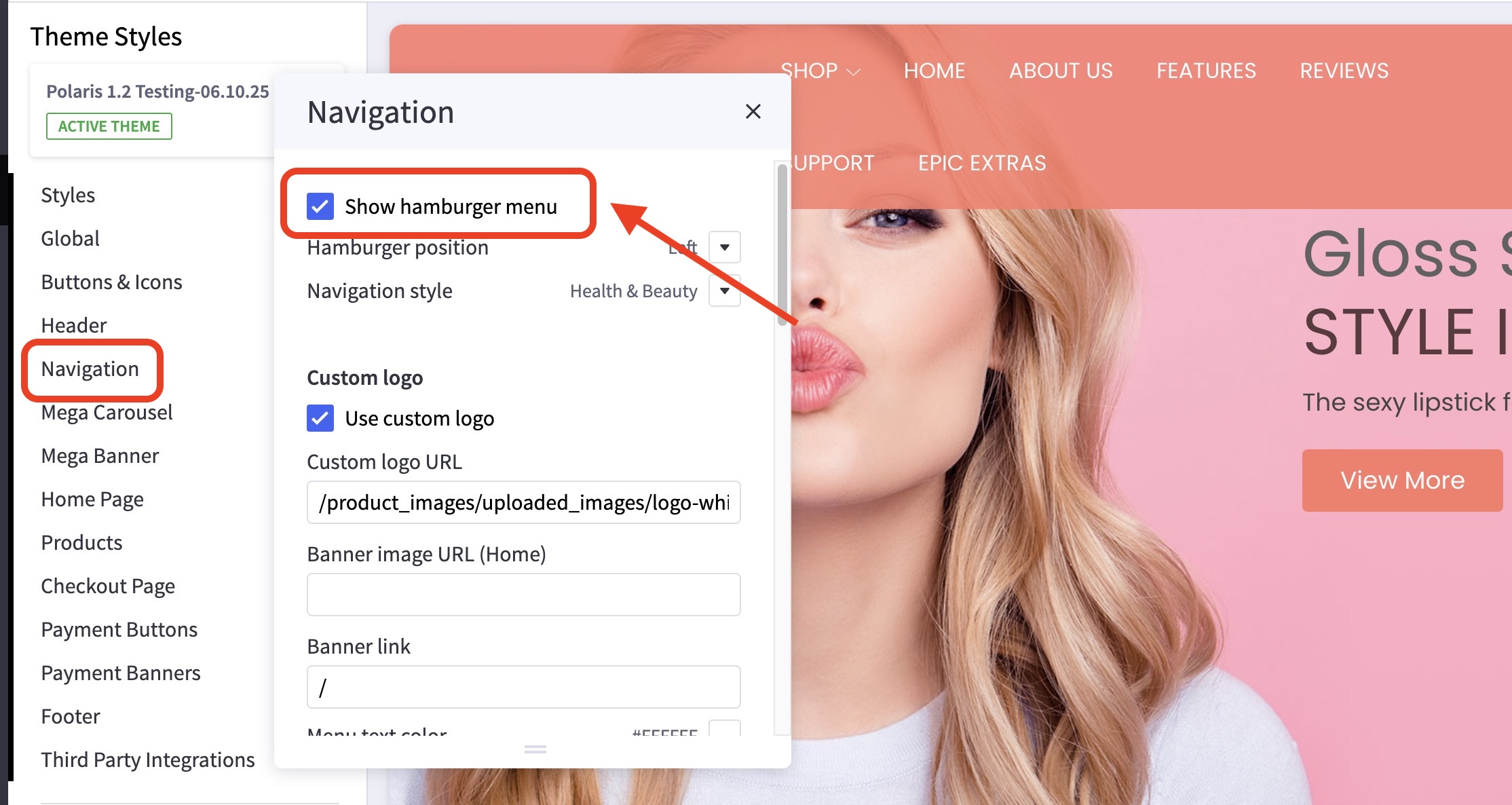
Where can I enable/disable the Hamburger Menu? #
Go to the Theme Customizer and go to Navigation. Check the box Show hamburger menu.
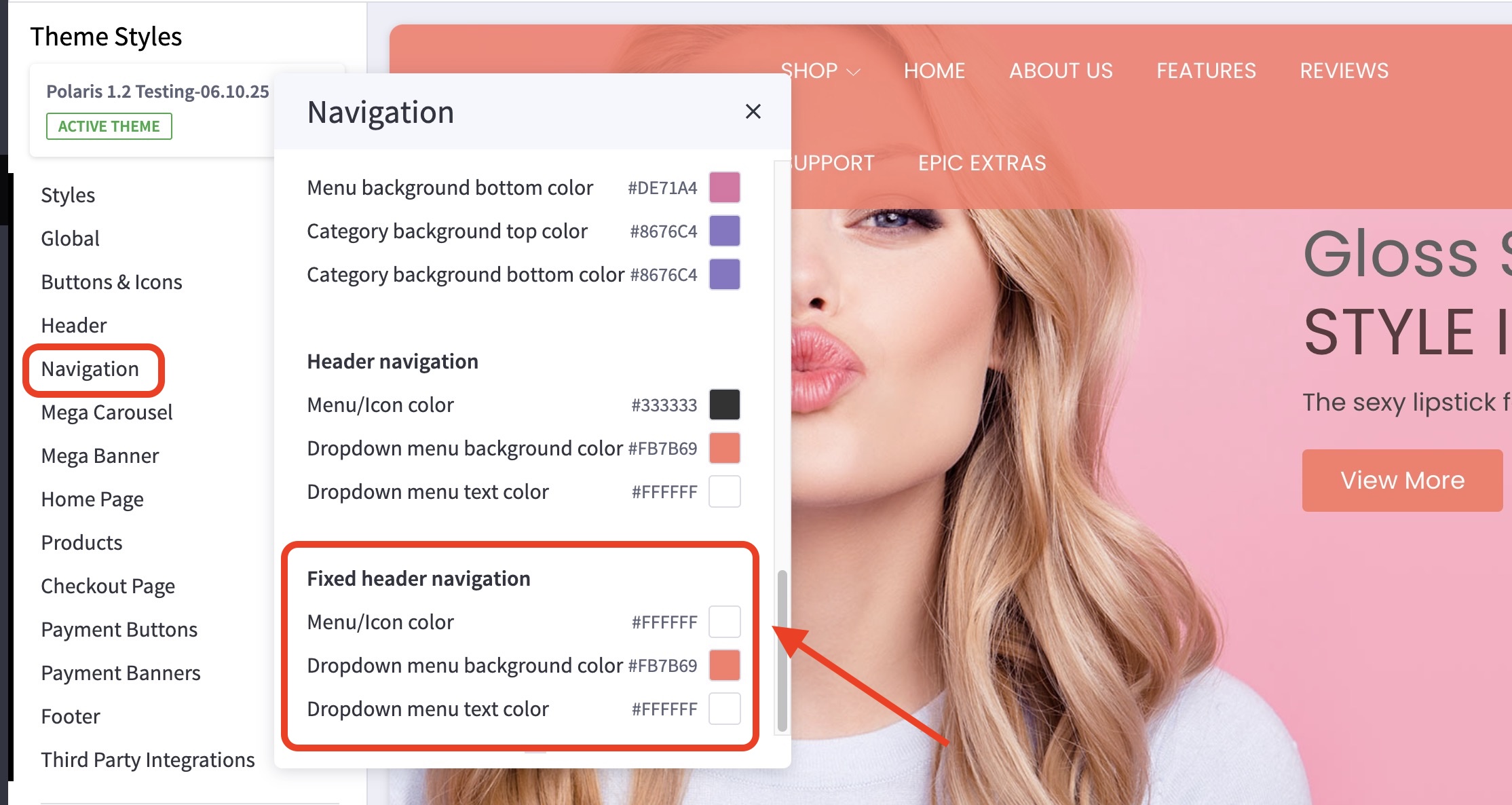
Where can I edit the fixed header navigation? #
Go to the Theme Customizer > Navigation. Scroll down and look for the fixed header navigation settings.
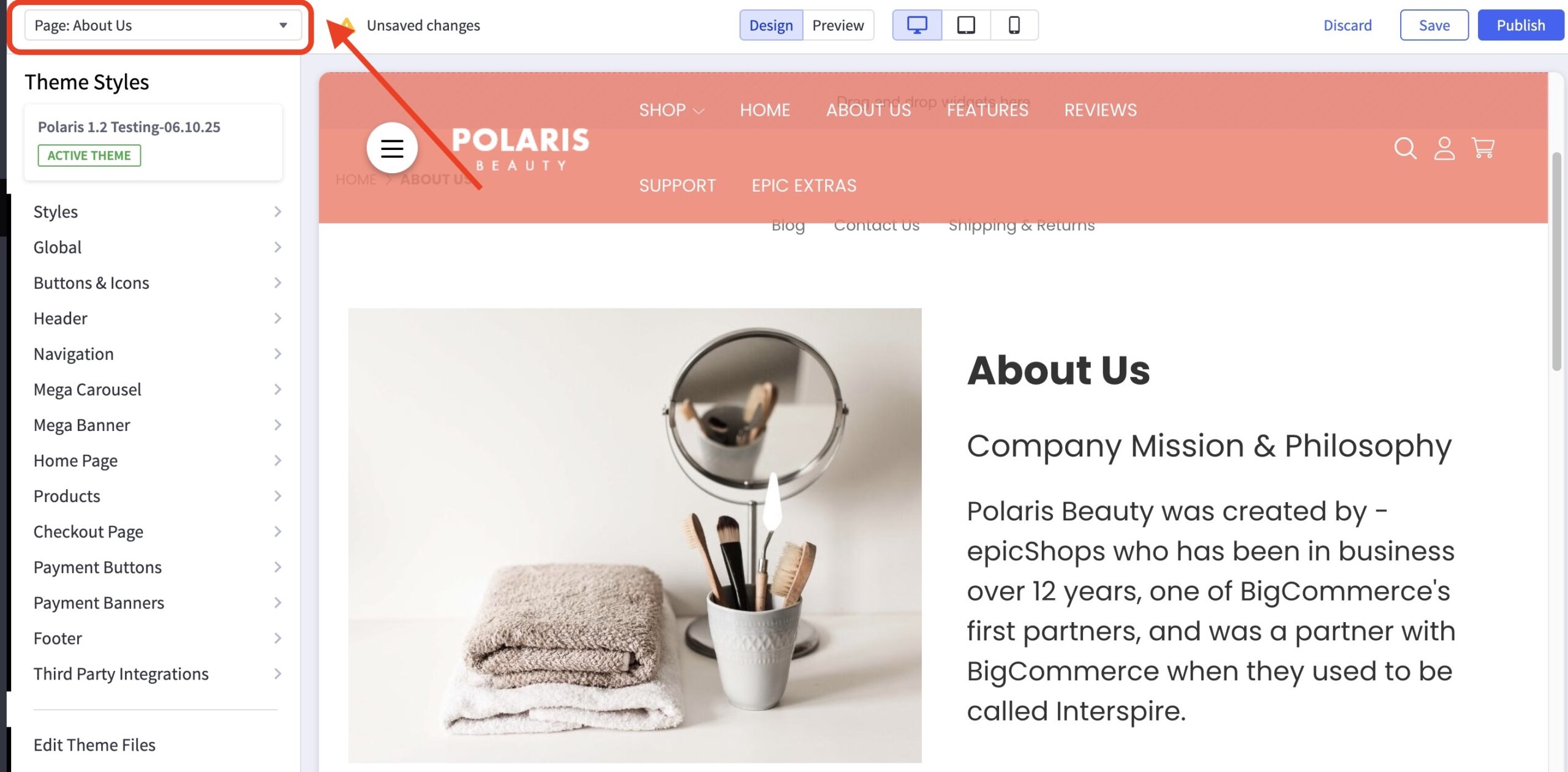
Where can I edit the “About Us” page? #
Go to Storefront > Themes. Click the Customize button. Once inside the Theme Customizer, kindly click the dropdown icon for you to go to the page you wish to update.
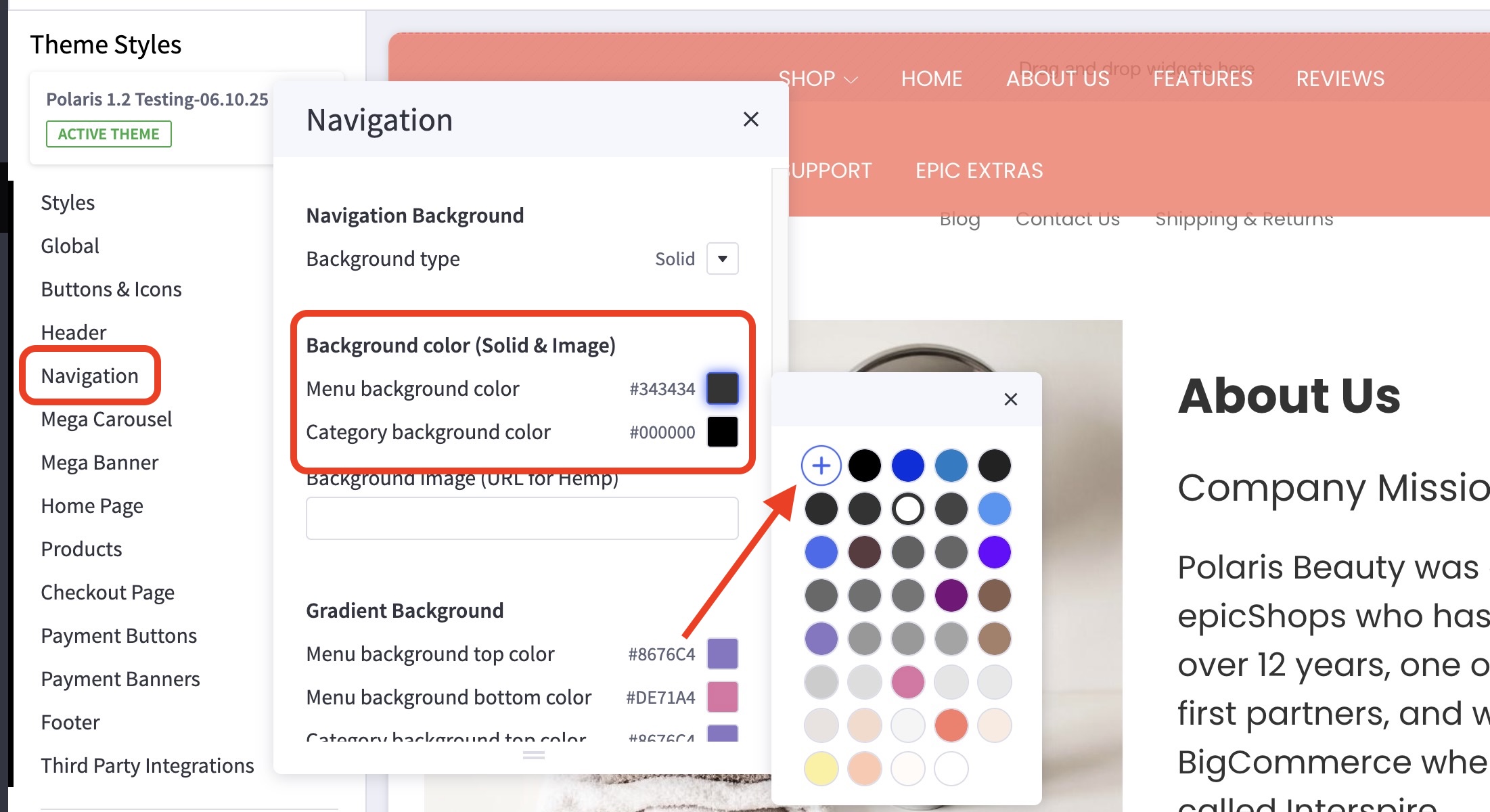
How can I change the background or text color for the navigation? #
- In the theme customizer, go to the Navigation section.
- Scroll down to the Background Color subsection.
- Click the color icon beside Background Color to pull up the palette. You may also click the (+) button to enter a Hex code or use a slider instead.
How to edit each Navigation Style? #
Polaris Beauty #

If you wish to edit the Navigation Menu, you can do this by going to the Menu/Category settings:
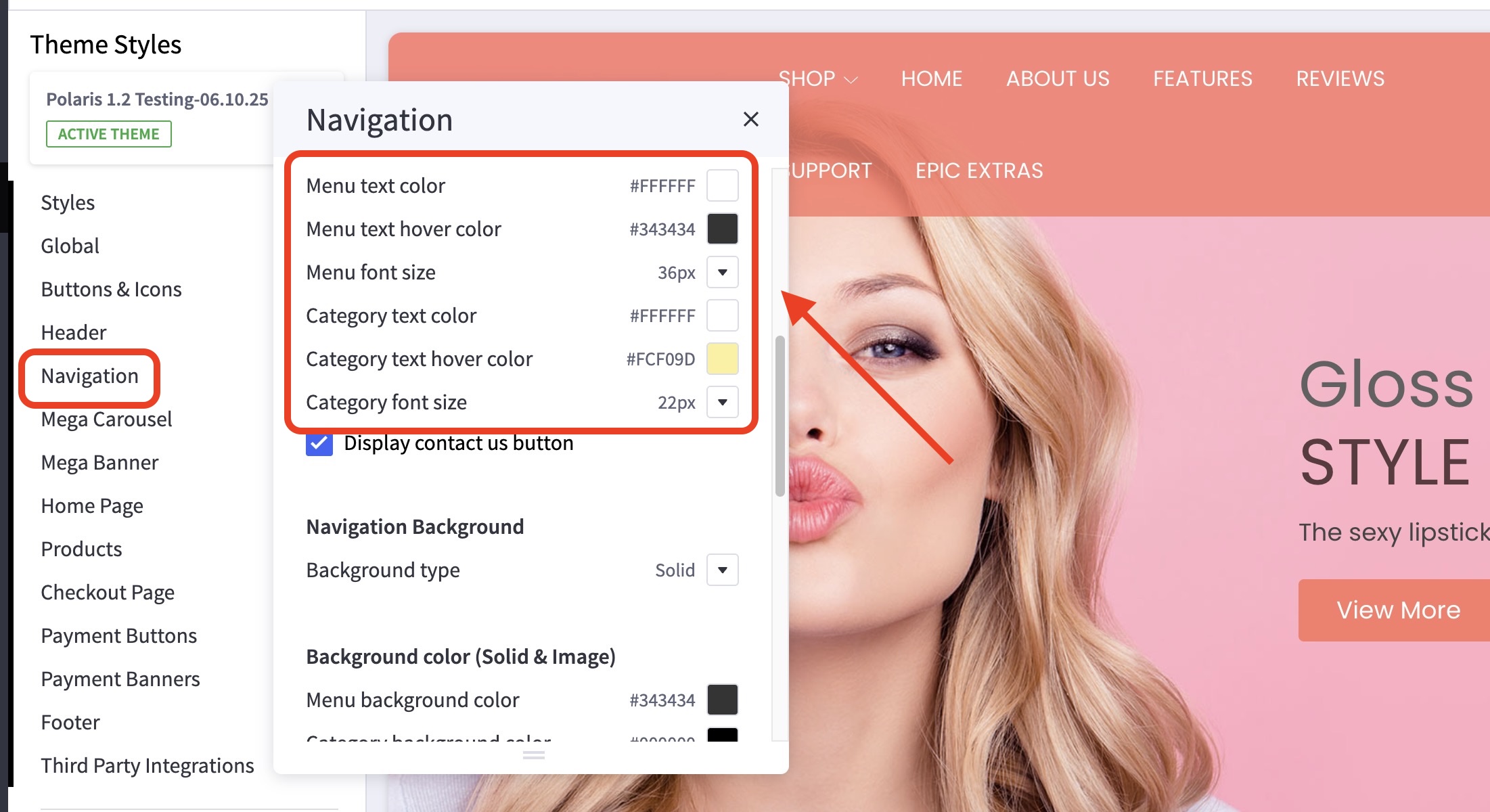
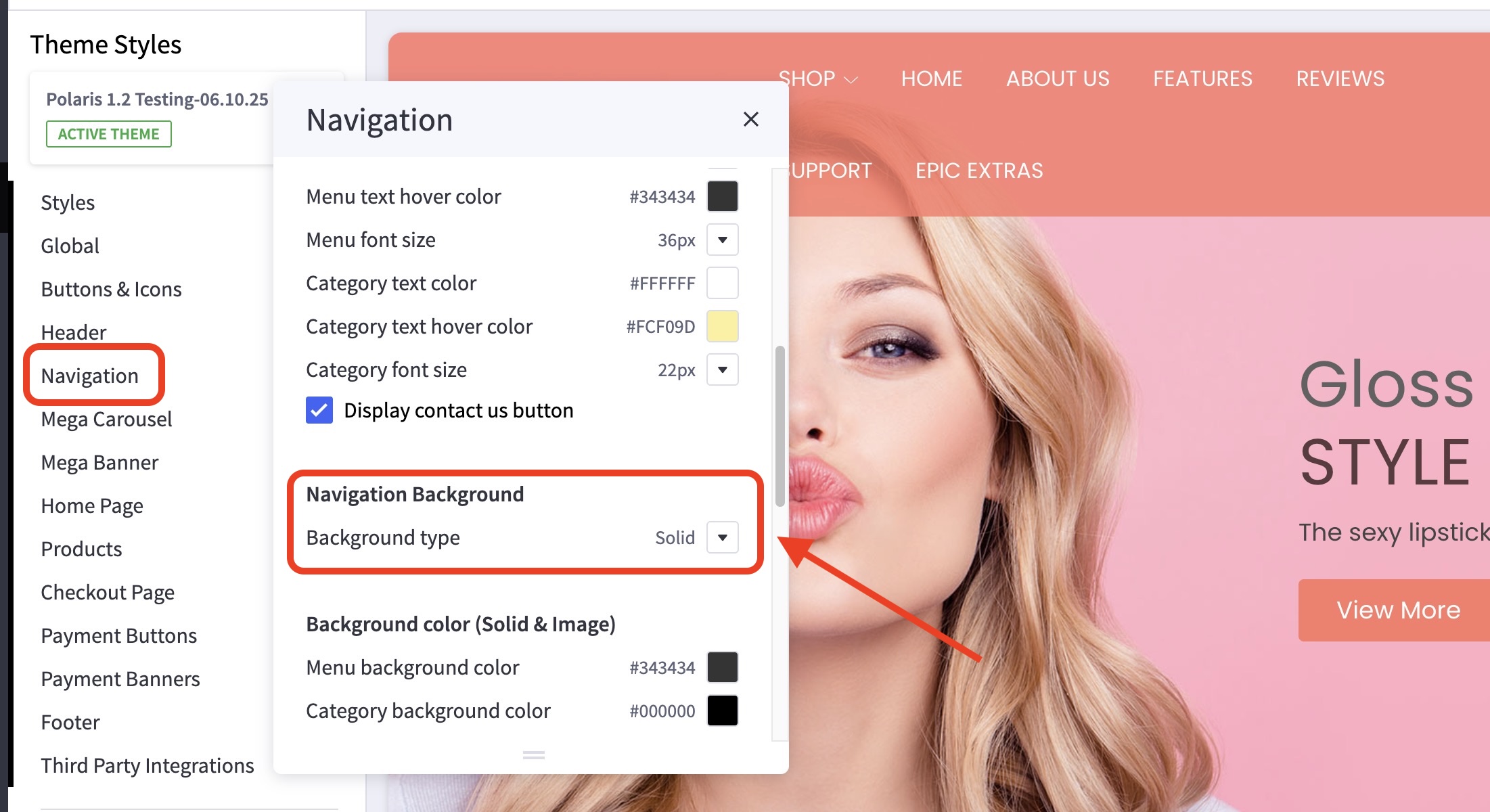
You can also change the Navigation Menu Background Type (Solid, Gradient, and Image)