On this page
- How can I change the background color for the footer?
- How can I turn on or off the copyright notice or theme credits?
- How can I include my social media links in the footer?
- How do I configure the content snippets?
- How can I add or remove payment icons?
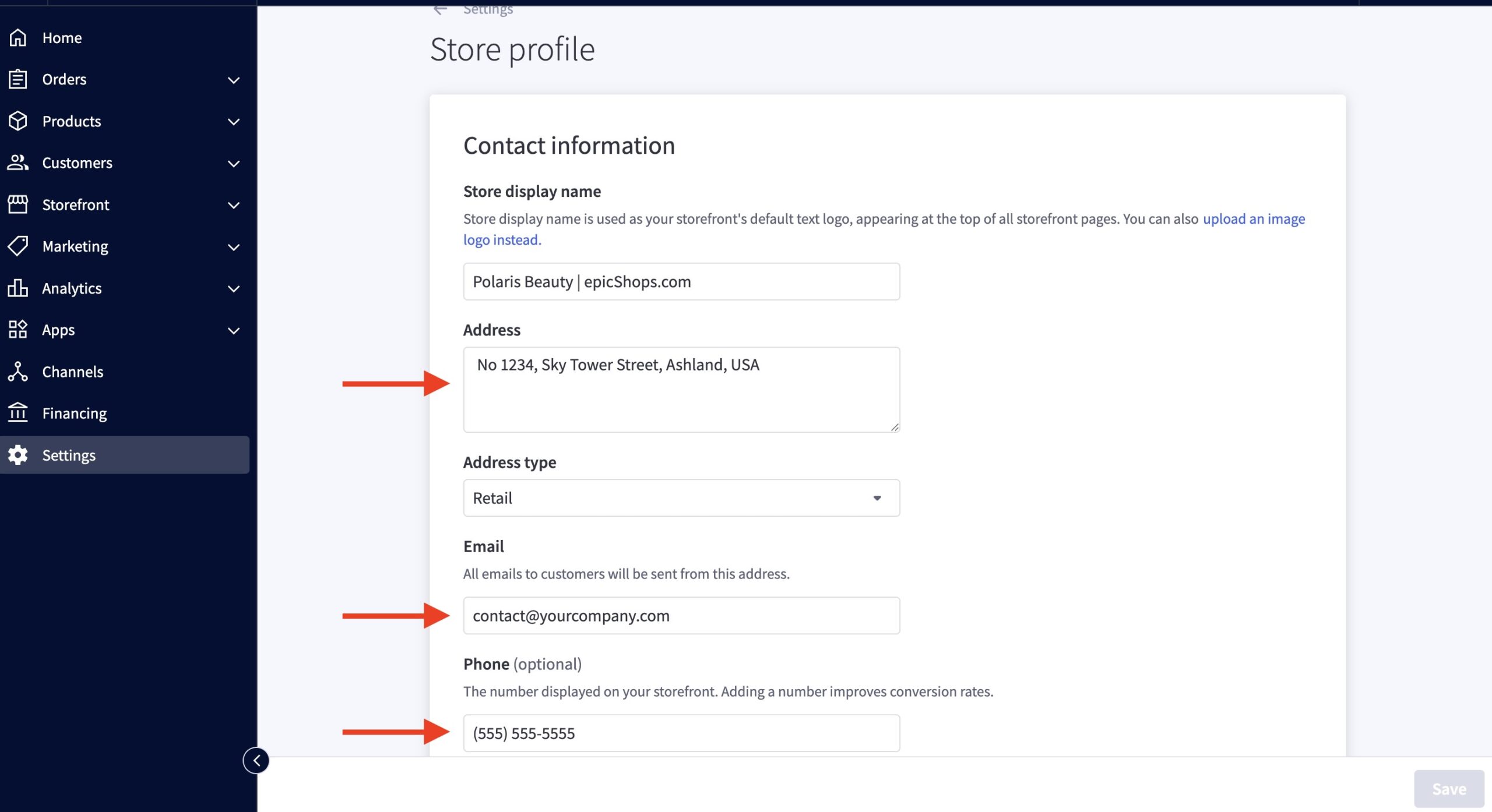
- Where can I change the content in the "Store Information" section?
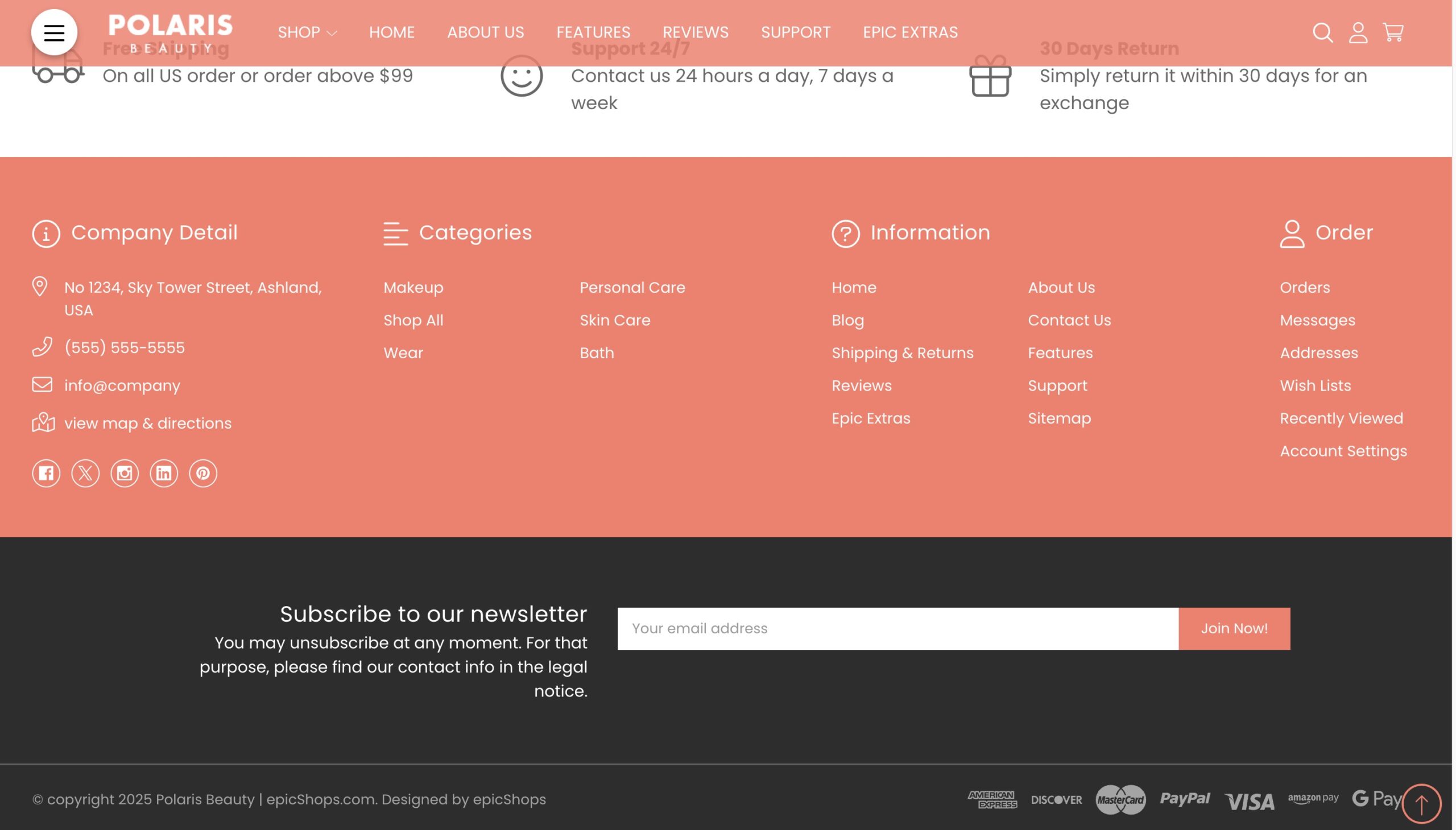
Footer content that displays at the bottom of every page on your site
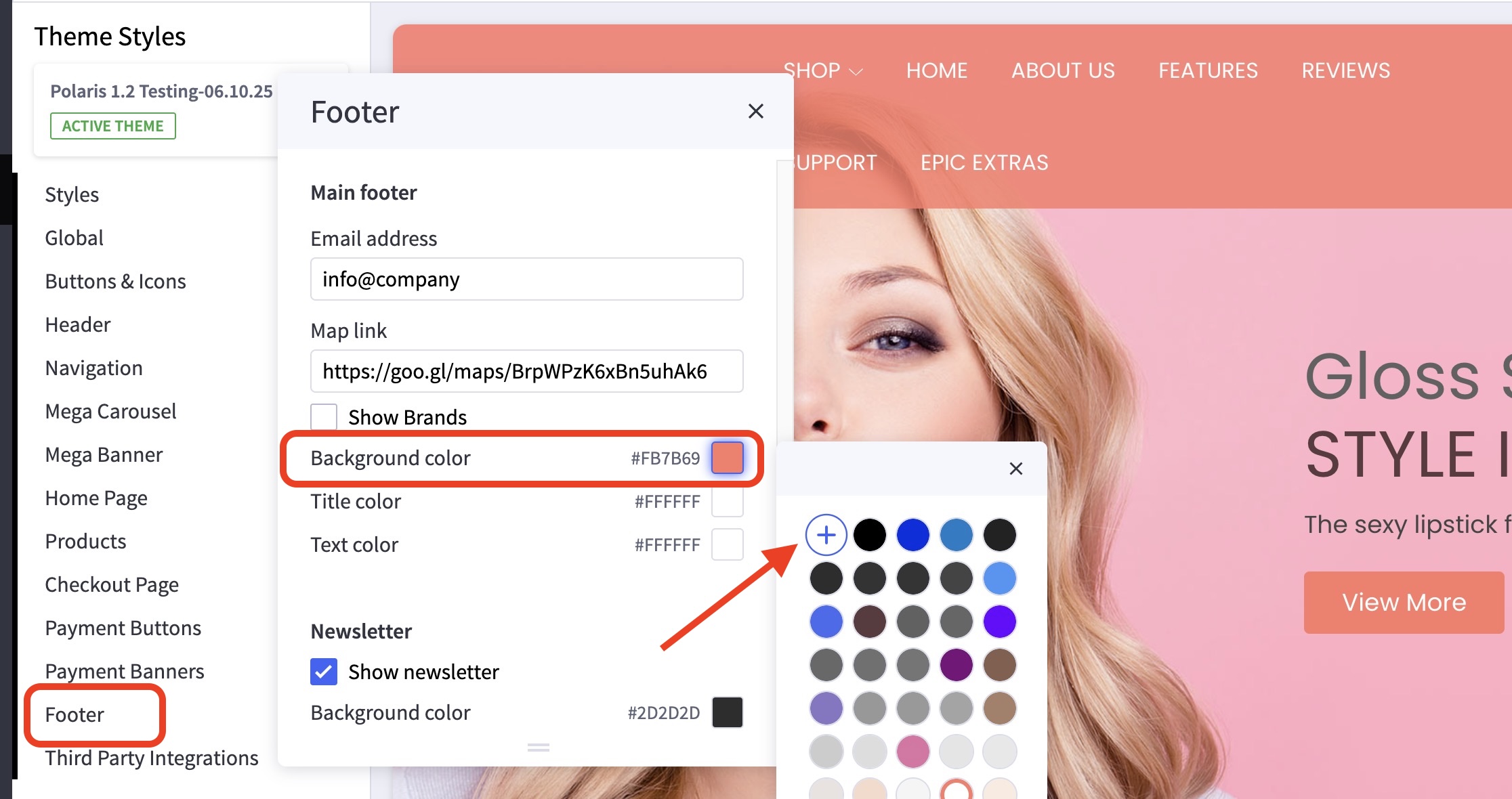
How can I change the background color for the footer? #
- In the theme customizer, go to the Footer section.
- In the Main footer subsection, click the color icon to pull up the picker.
- You may also click the (+) button to enter a Hex code or use a slider instead.
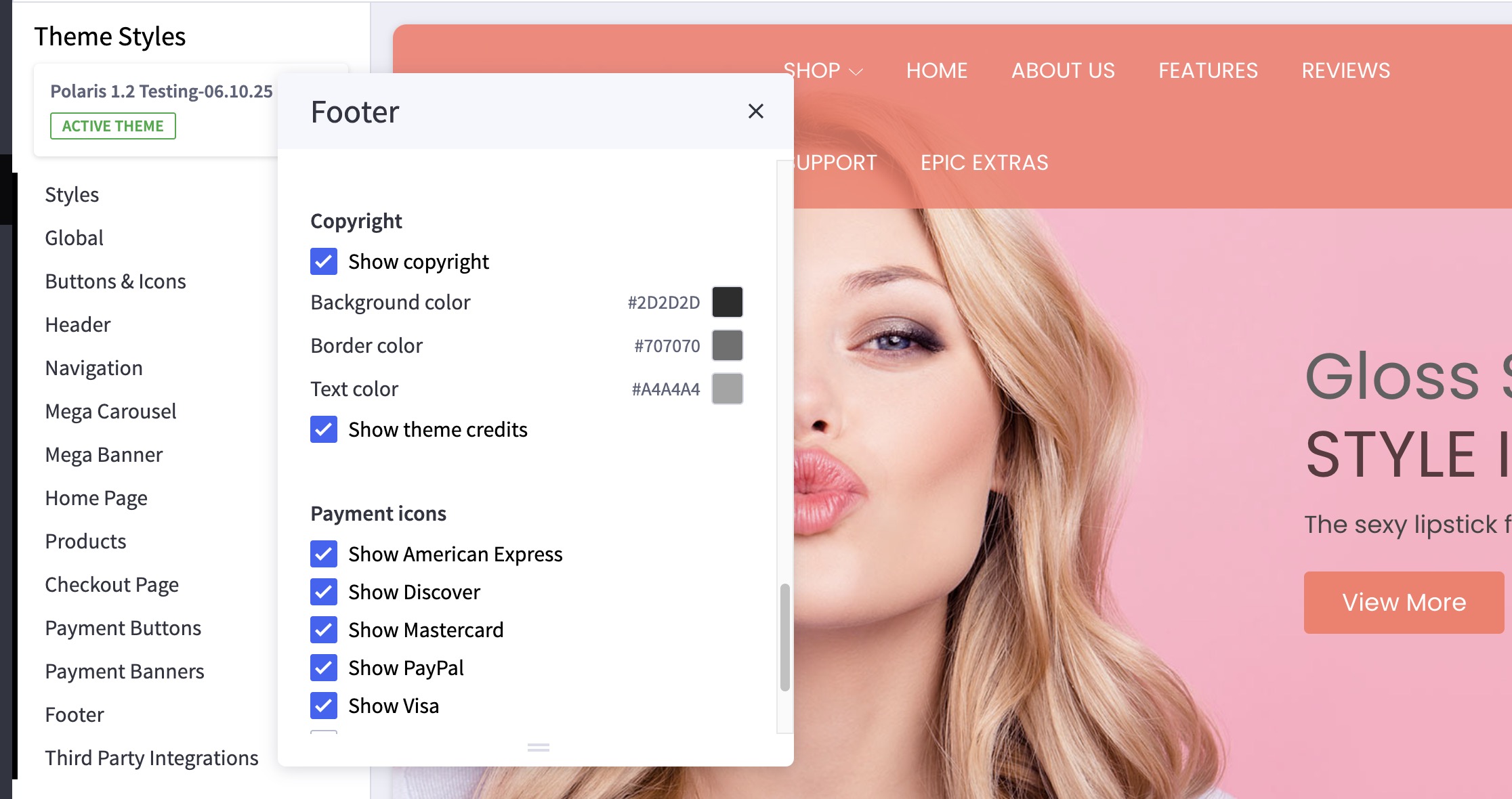
How can I turn on or off the copyright notice or theme credits? #
- In the theme customizer, go to the Footer section.
- In the Copyright subsection, check/uncheck the boxes for these features.
How can I include my social media links in the footer? #
- In the BigCommerce backend, go to Storefront > Social Media Links
- Input your appropriate information in the fields provided.
- Don’t forget to click Save at the bottom right corner.

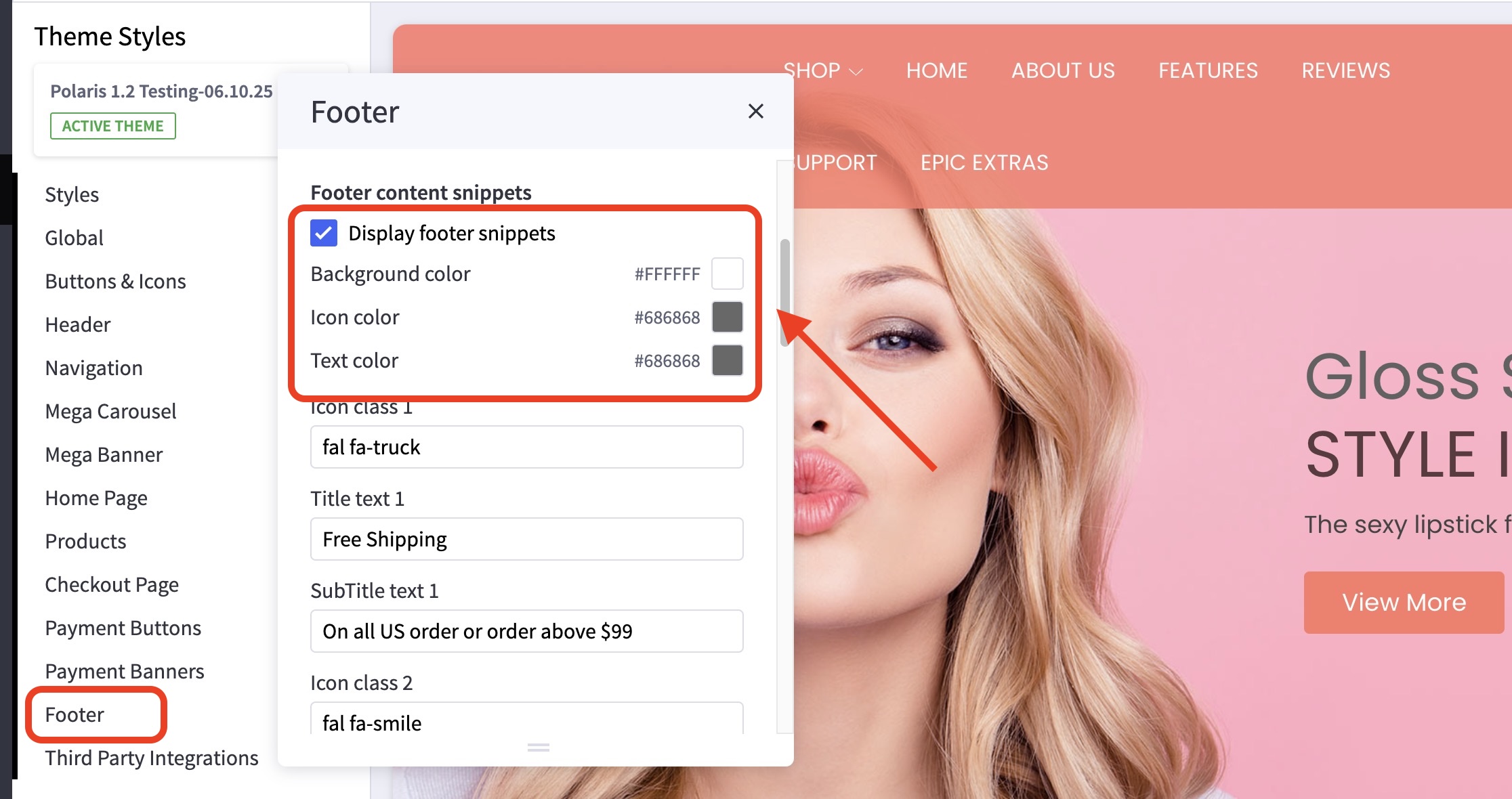
How do I configure the content snippets? #
- In the theme customizer, go to the Footer section.
- Scroll down to the Footer content snippets subsection.
- Check/Uncheck the box for Display footer snippets to show/hide the feature.
- The snippets are numbered 1-3, left to right. See image below.
- In the appropriate box, edit title text, body text, text and background color, background image, the image flip direction if desired, your font icon, position, and size, and the attributes of your button if desired.
Only put in the class name. e.g. fas fa-bell not including the tags.
The icon library may be found here: https://fontawesome.com/icons/
How can I add or remove payment icons? #
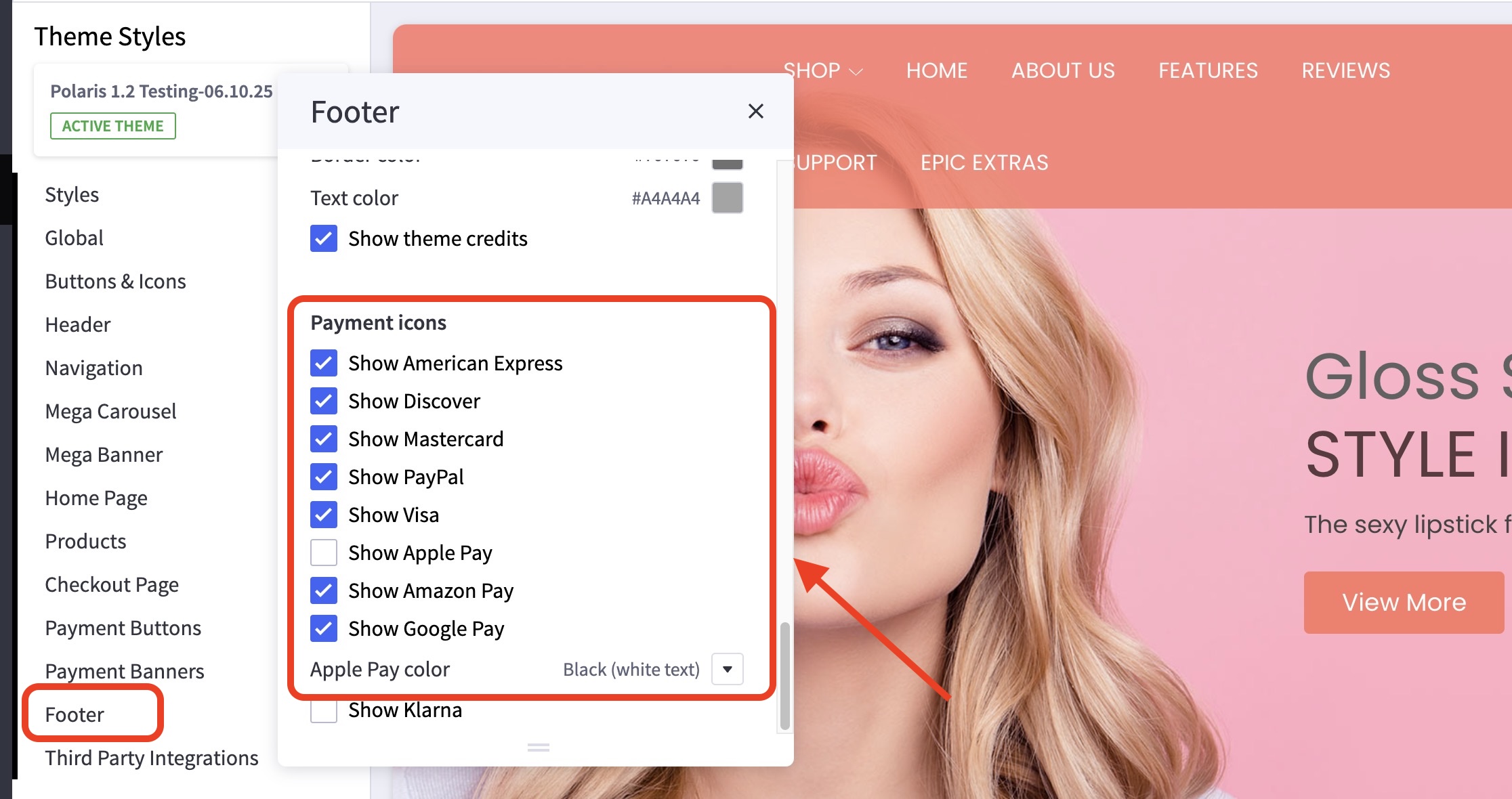
- In the theme customizer, go to the Footer section.
- Scroll down to the Payment Icons subsection.
- Toggle the checkboxes to enable the payment icons you’d like to display.
Where can I change the content in the “Store Information” section? #
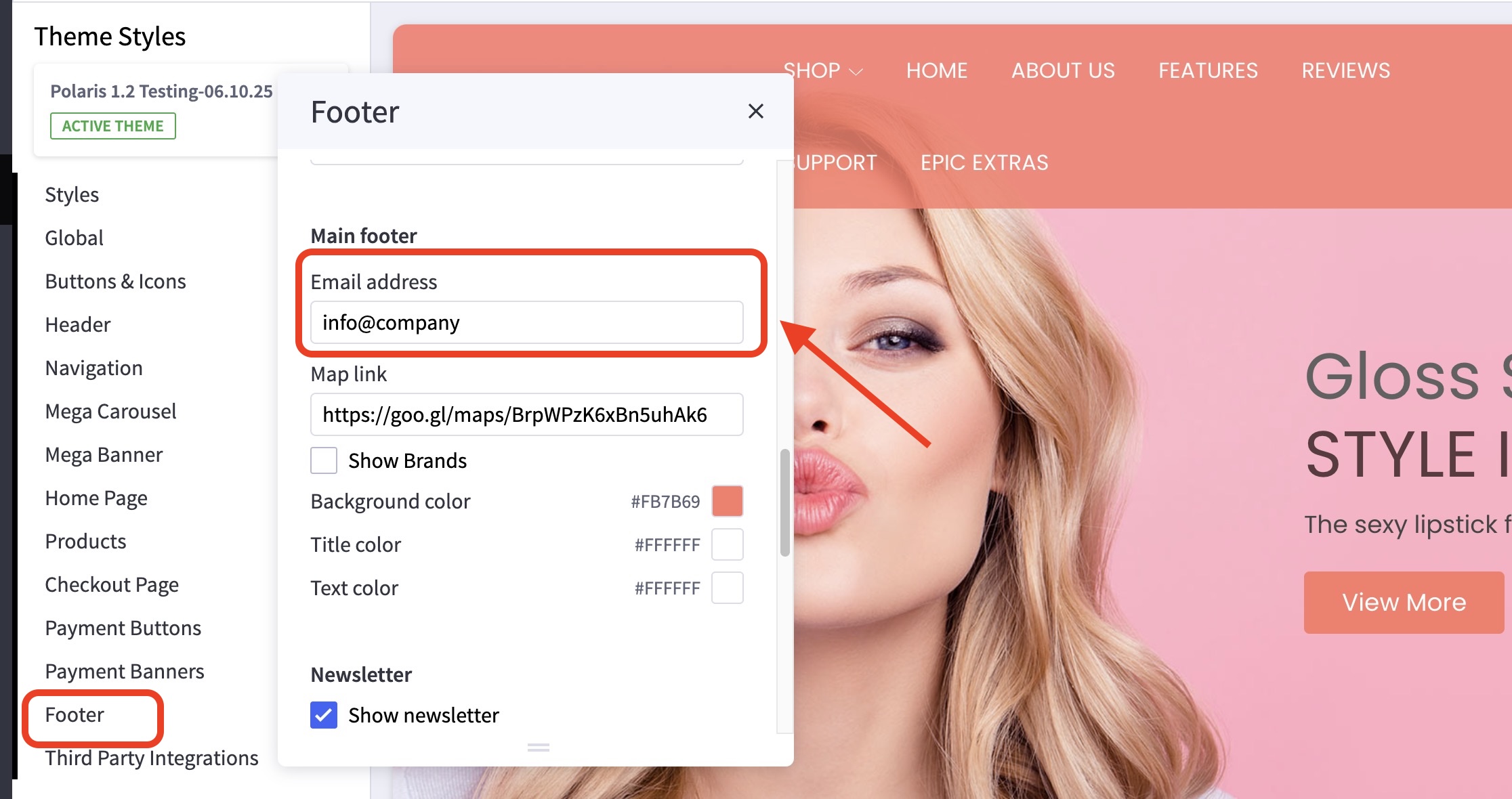
- You can change the email address shown in the footer under the Footer section > Email Address
- In the BigCommerce dashboard, go to Settings > Store Profile.
- Enter the address and phone number in the fields provided.