Overview #
Now that you’ve set up your store locator, here’s what your customers can experience when they use it to find a store location.
This guide gives you a quick look at the customer experience so you can see how your store information, filters, and other features appear on your website.
Store Locator Page #
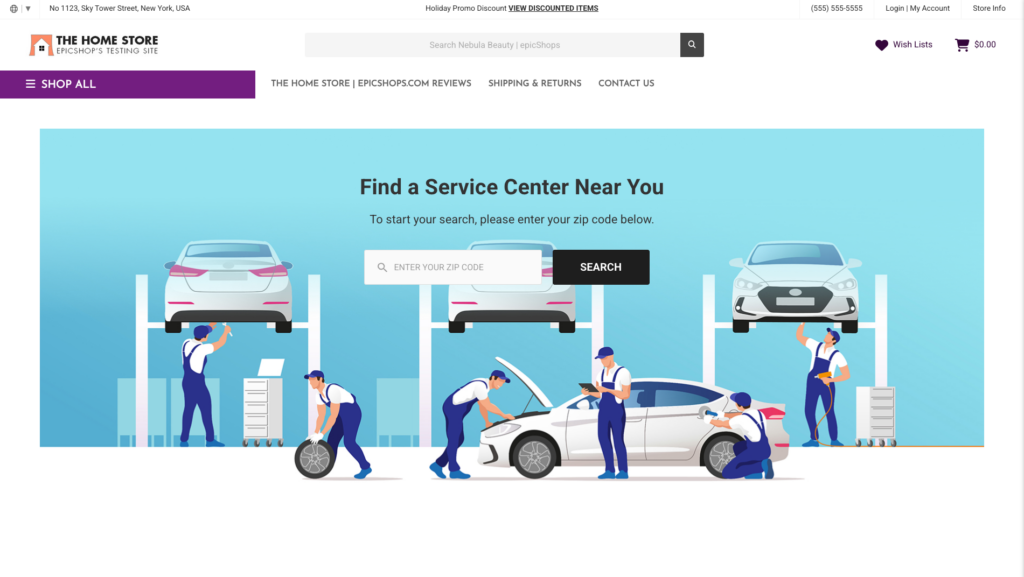
When customers open your store locator page, they’ll see your customized search header and a search field where they can enter their ZIP Code to find a nearby store location.
Store locator page showing the customized search header and search field customers use to find a nearby store.
Want to customize this page?
Learn more: Design
Search Results
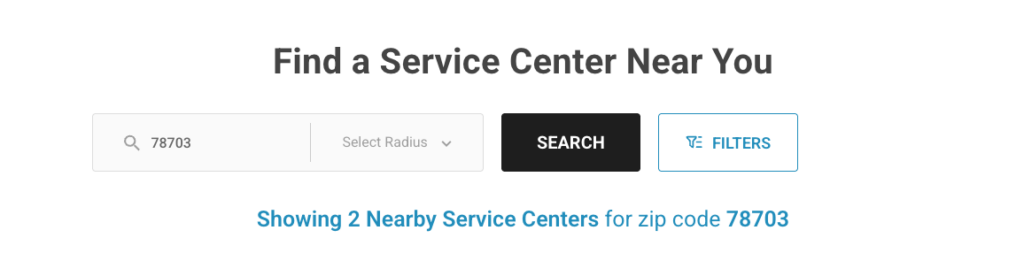
After customers search for a ZIP Code, eLocate displays nearby store locations along with the available search and filter options.
Customers can use the Filters button to narrow their results based on the filter categories you’ve created.
If you’ve enabled the Radius Filter, customers can also choose a distance from the Select Radius dropdown to find stores within a specific range.
Store locator showing search results with filter options, a Select Radius dropdown, store information, and map.
Want to customize how customers find your store locations?
Learn more: Global Filters, Radius Filter
Store Location Details
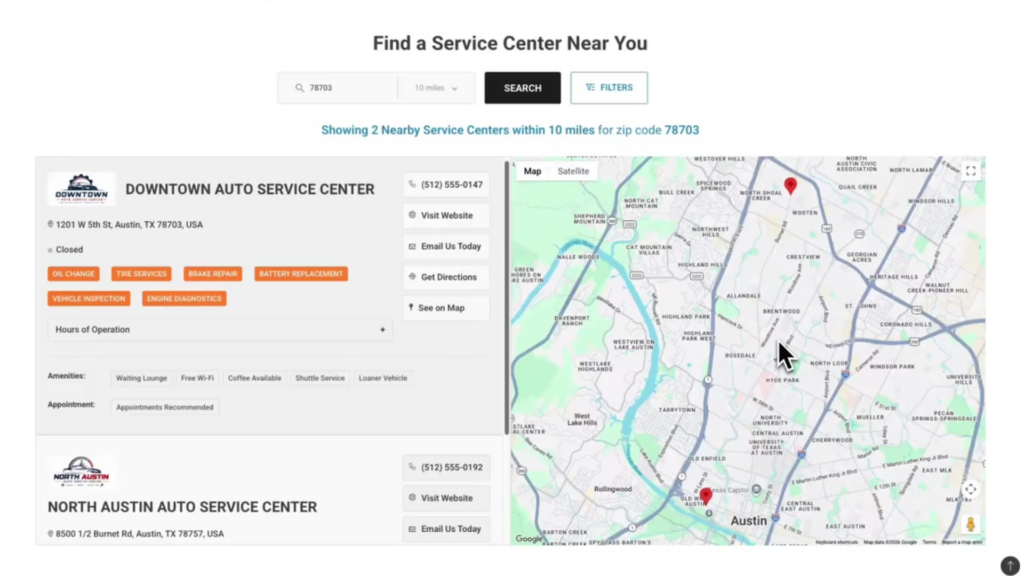
Each store location displays the information you’ve added in eLocate, such as its name, address, hours of operation, contact information, services, and other details.
Customers can also view the store’s location on the map and use the available actions, such as visiting the store website, getting directions, or contacting the store.
Store location showing its address, hours of operation, contact options, filters, and map location.
Want to update the information customers see?
Learn more: Stores
Additional Features #
You can also add optional features to give customers more information while they search for a store.
Custom Text on Filter Pop-up #
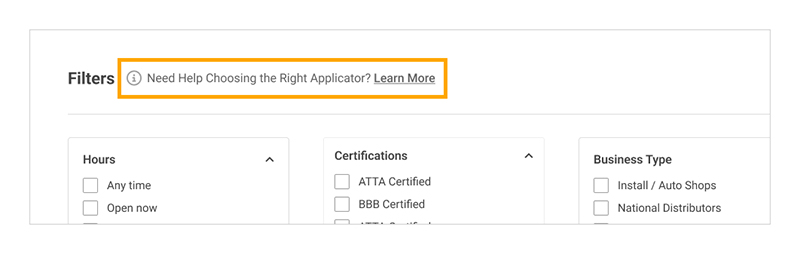
Add a custom message to the filter pop-up to provide helpful information or direct customers to another page.
Filter pop-up showing a custom message and link.
Want to add a message to your filter pop-up?
Learn more: Custom Text on Filter Pop-up
Extra Tabs #
Add up to three additional tabs to highlight information such as promotions, special services, FAQs, or other details you’d like customers to see.
Store locator showing additional tabs with information below the search and results area.

Want to add extra tabs to your store locator?
Learn more: Extra Tabs
What’s Next? #
Now that you’ve seen what your customers will experience, you’re ready to test your store locator and make sure everything is working as expected before sharing it with customers.


