Table of Contents
- How can I change the background color for the footer?
- How can I turn on or off the copyright notice or theme credits?
- How can I include my social media links in the footer?
- How can I customize the social media hashtag?
- How can I add or remove payment icons?
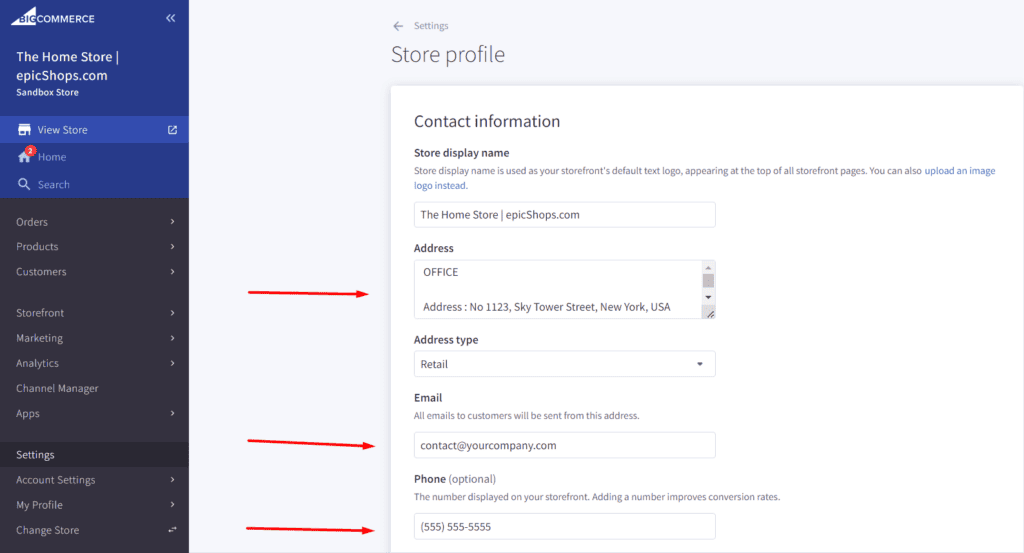
- Where can I change the content in the "Store Information" section?
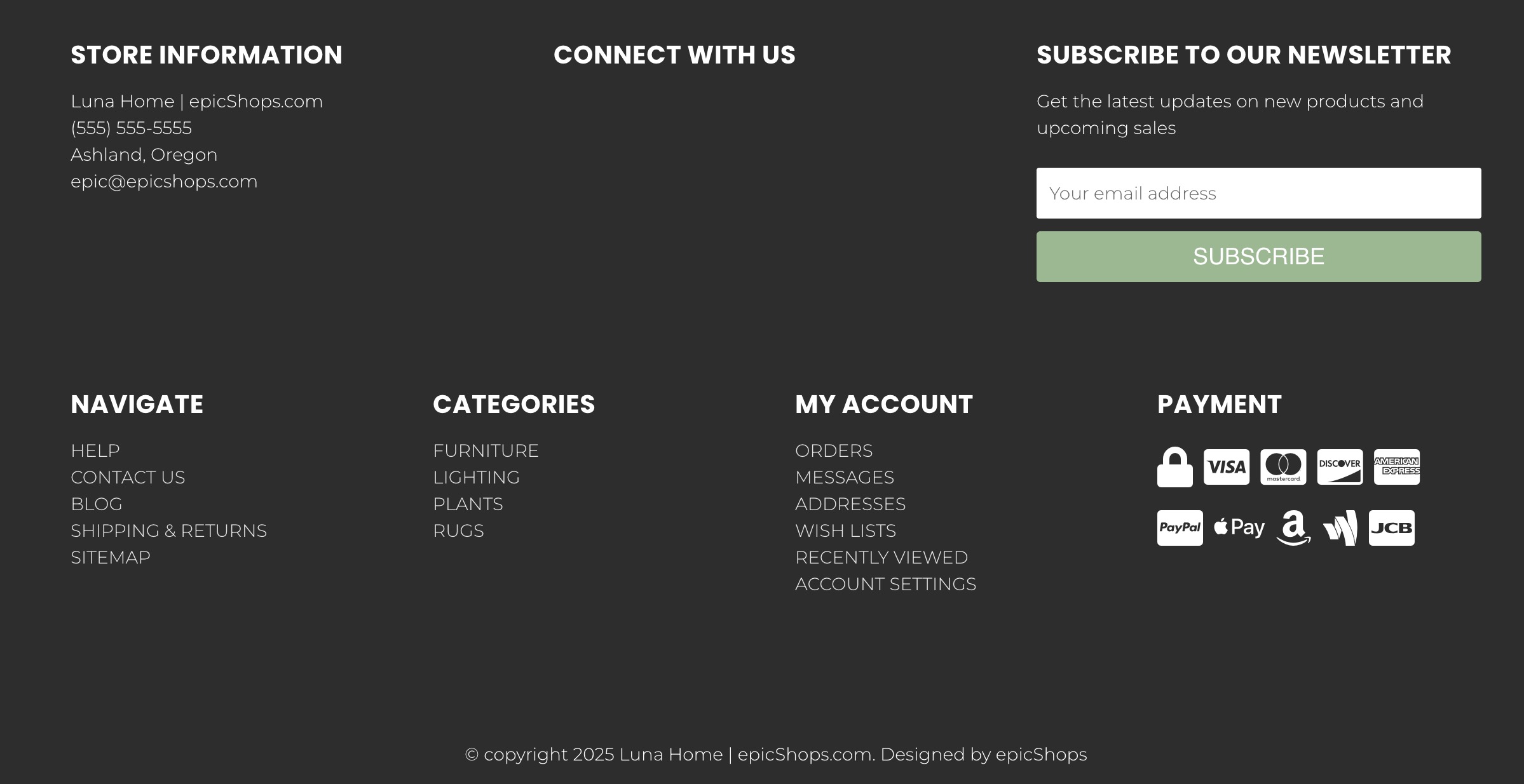
Footer content that displays at the bottom of every page on your site
How can I change the background color for the footer? #
- In the theme customizer, go to the epicFooter section.
- In the Main footer subsection, click the color icon to pull up the picker.
- You may also click the (+) button to enter a Hex code or use a slider instead.

How can I turn on or off the copyright notice or theme credits? #
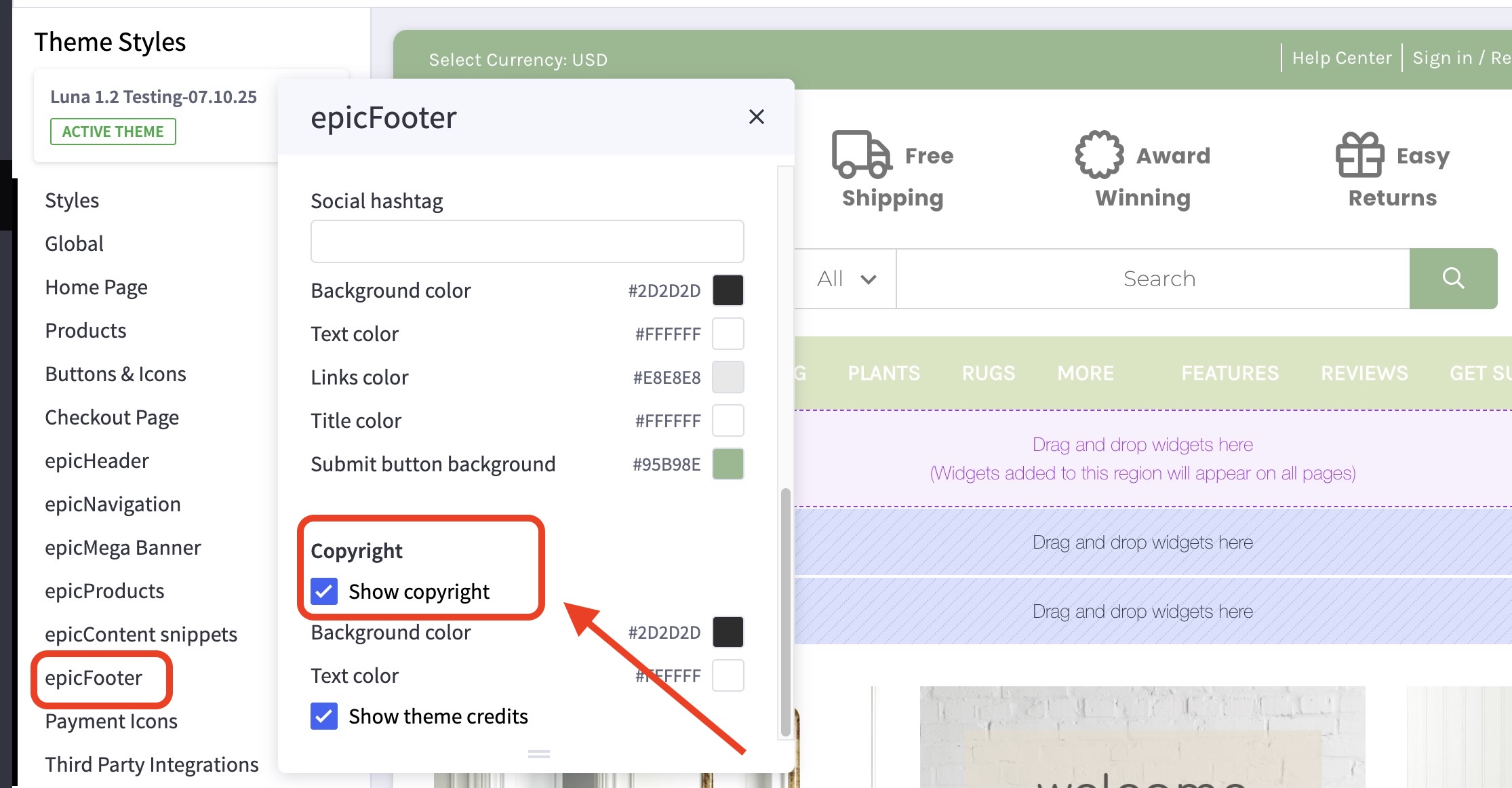
- In the theme customizer, go to the epicFooter section.
- In the Copyright subsection, check/uncheck the boxes for these features.
How can I include my social media links in the footer? #
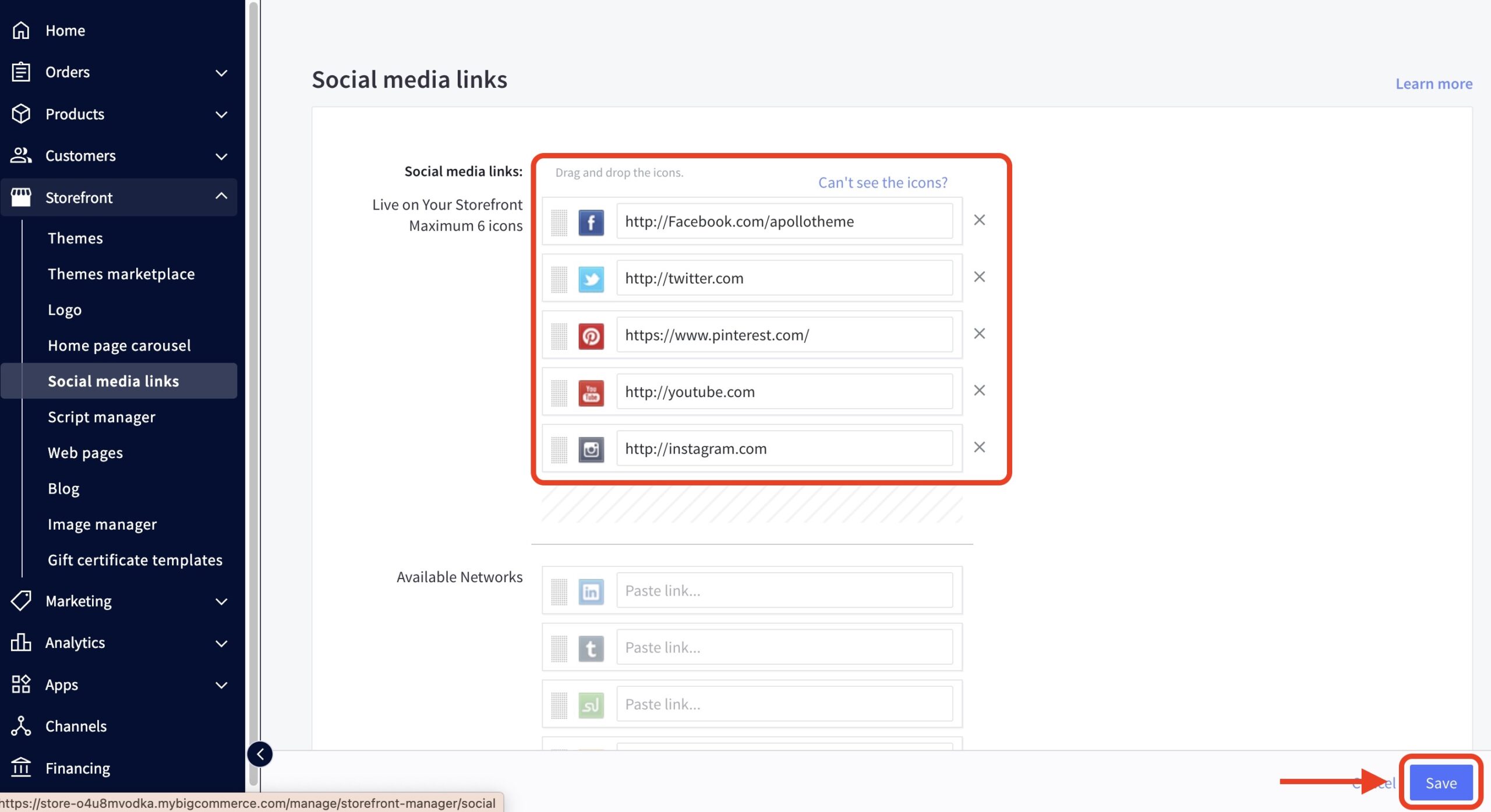
- In the BigCommerce backend, go to Storefront > Social Media Links
- Input your appropriate information in the fields provided.
- Don’t forget to click Save at the bottom right corner.
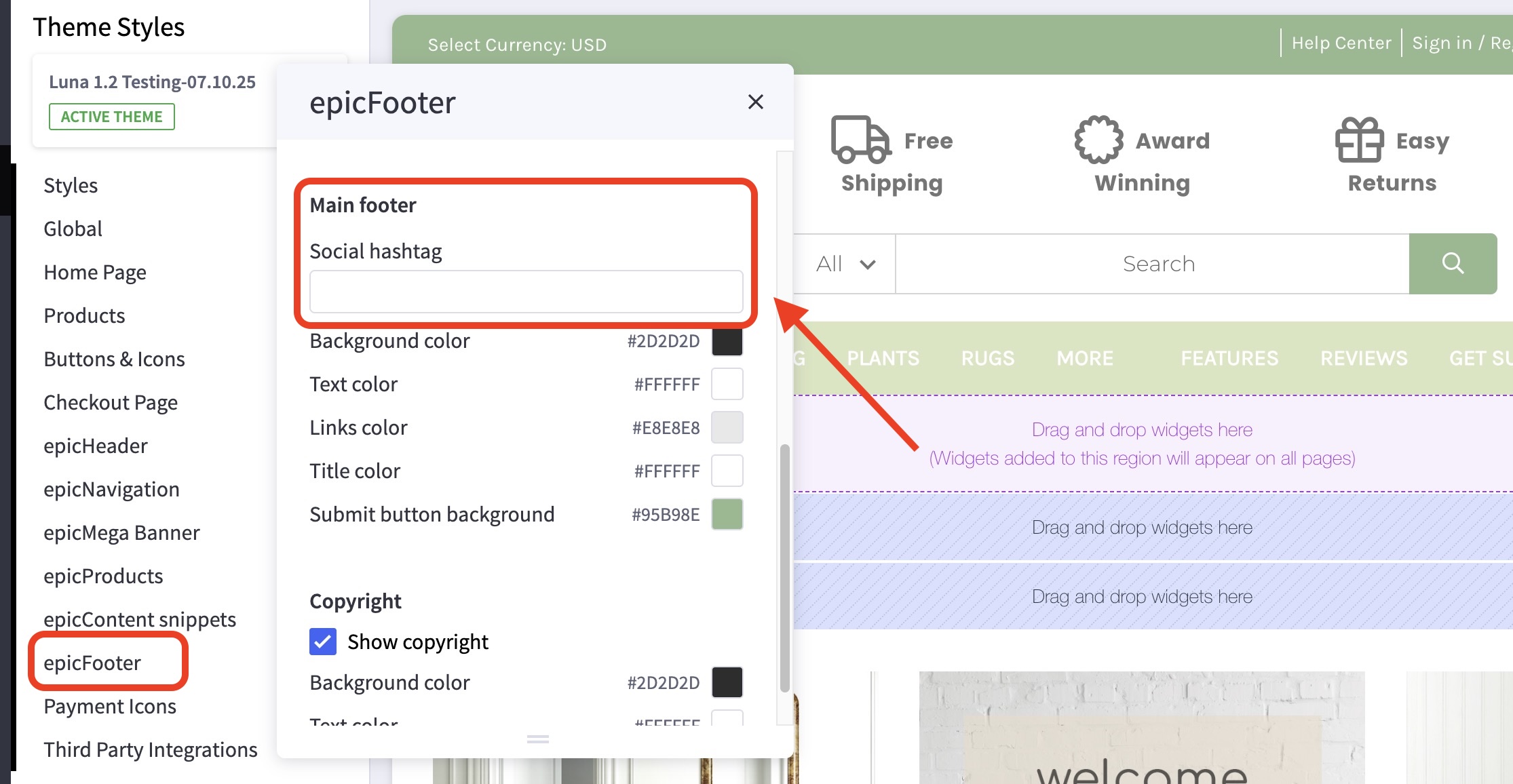
How can I customize the social media hashtag? #
- In the theme customizer, go to the epicFooter section.
- Scroll down to the Main footer subsection and use the text field.
How can I add or remove payment icons? #
- In the theme customizer, go to the Payment Icons section.
- Toggle the checkboxes to enable the payment icons you’d like to display.

Where can I change the content in the “Store Information” section? #
- In the BigCommerce dashboard, go to Settings > Store Profile.
- Enter the address, email, and phone number in the fields provided.