
On this page
The top narrow bar above the main header
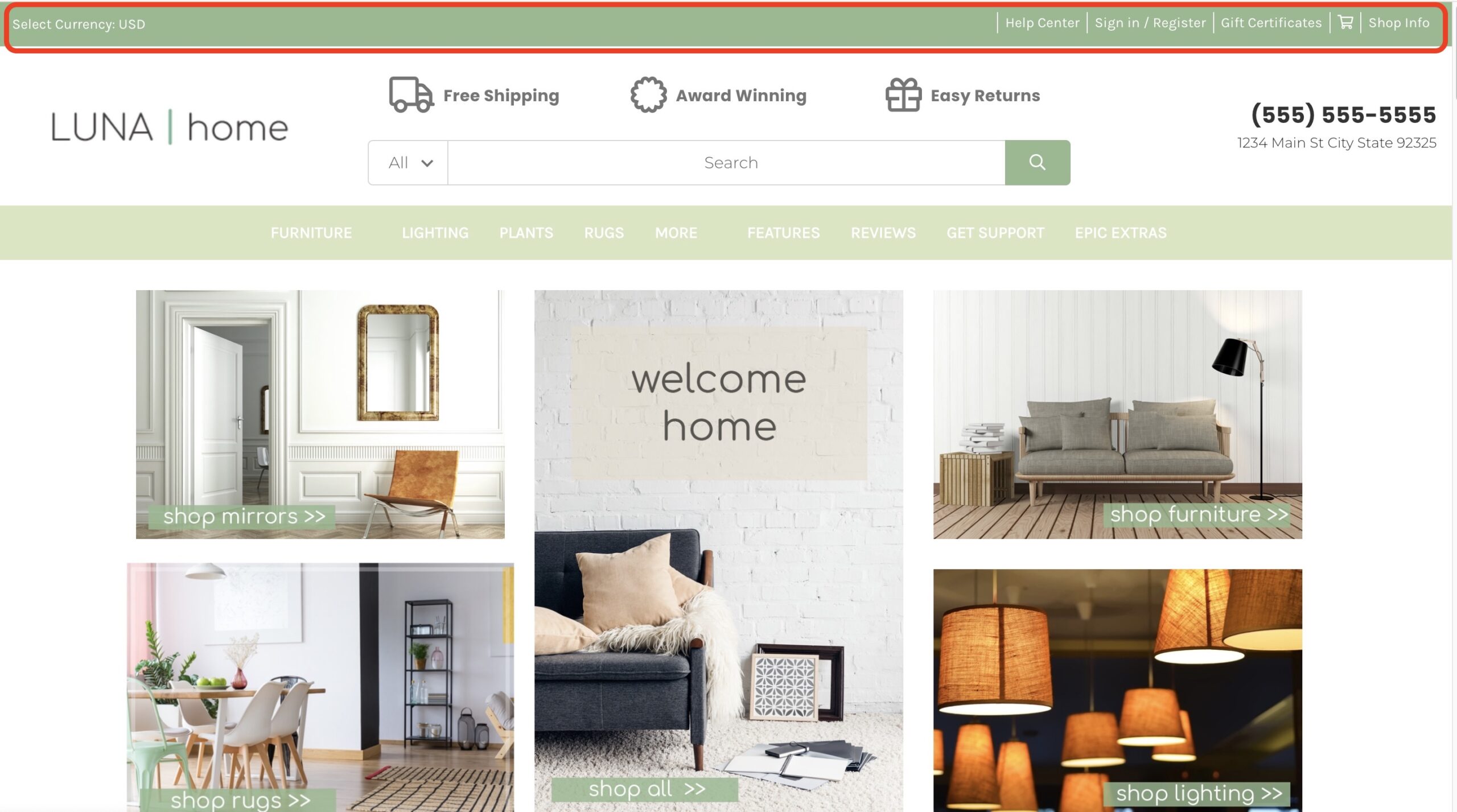
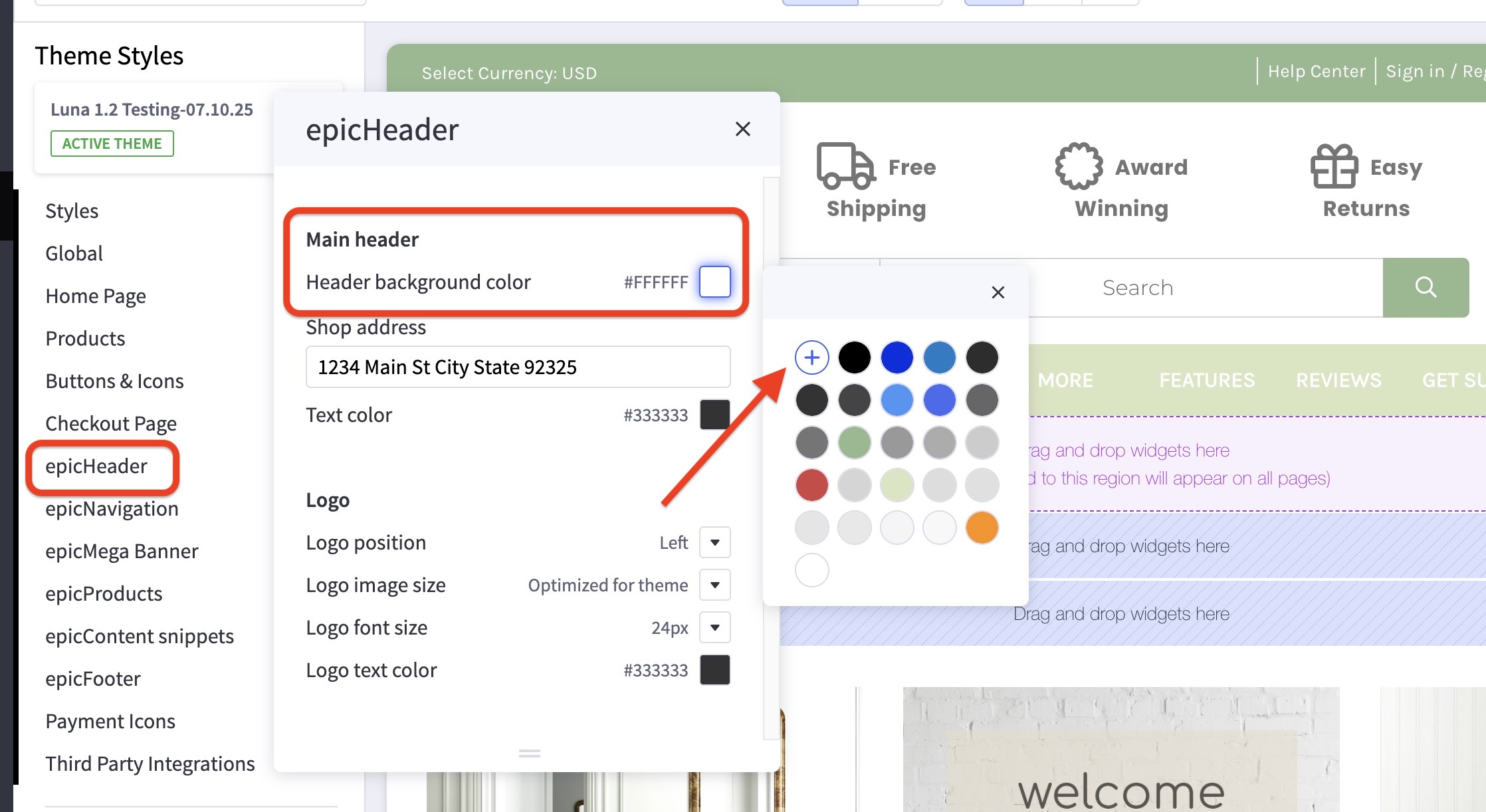
How can I change the overall header background color? #
- In the theme customizer, go to the epicHeader section and scroll down to the
Main header subsection. - Click the color palette icon to select from the list of options.
- You can click the (+) button to type in a Hex code or to use the slider.
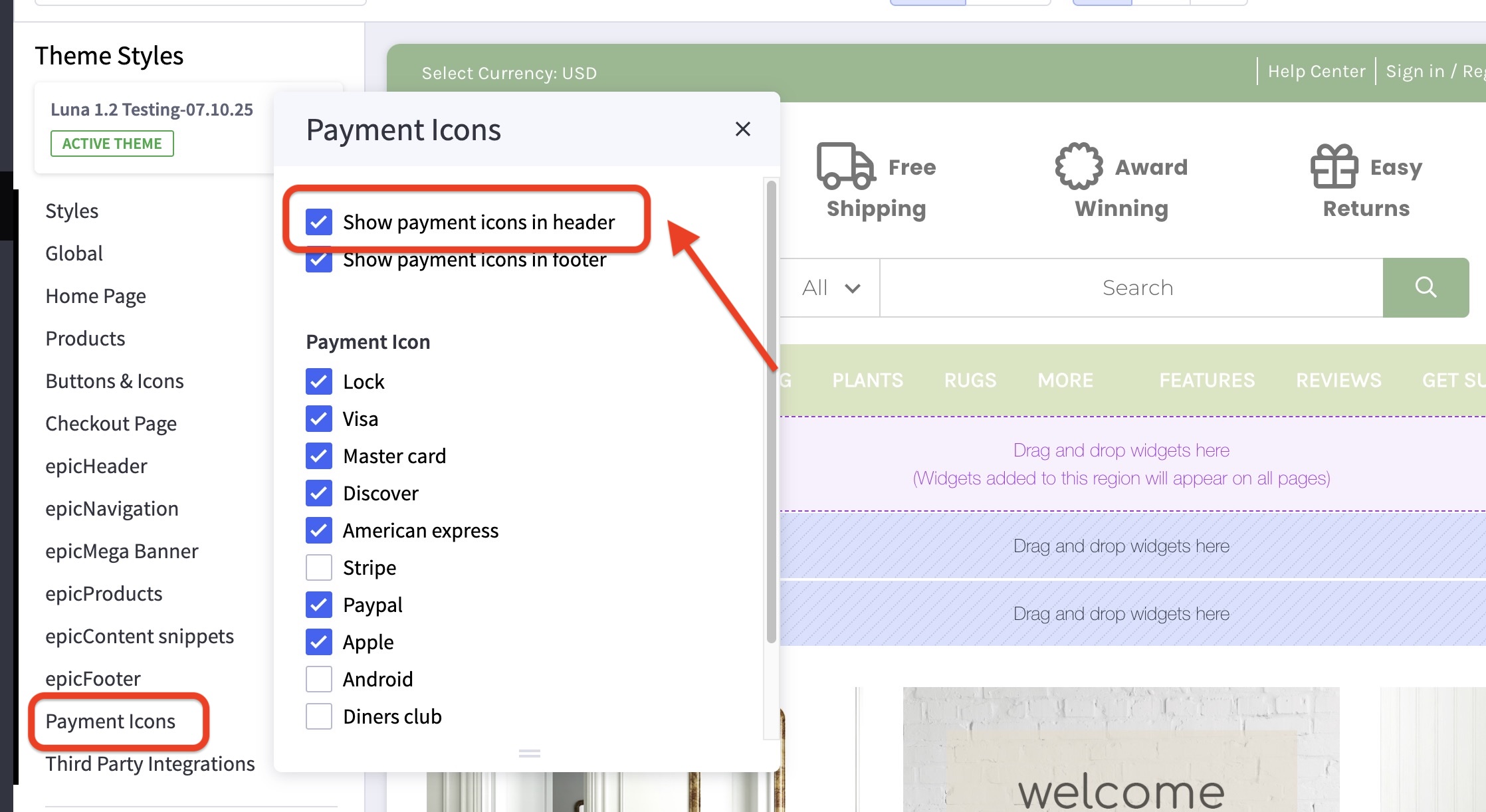
How can I show payment icons in the header? #
- In the theme customizer, go to the Payment Icons section
- Check the box that says Show payment icons in header.
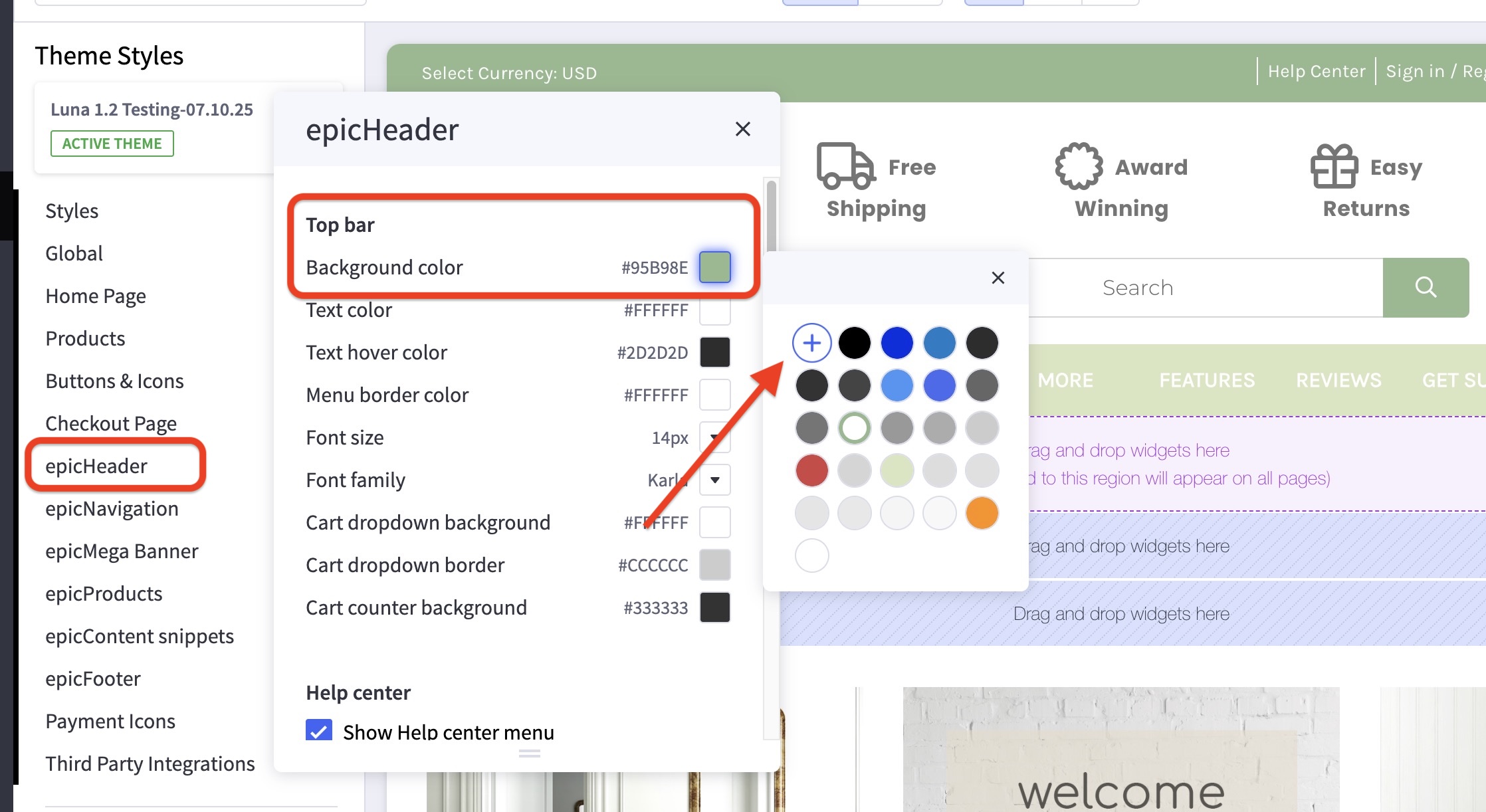
How can I change the colors, font, and styling of the top bar? #
- In the theme customizer, go to the epicHeader section
- The first section labeled Top Bar controls this area.
- Click the color palette icon to select from the list of options.
- You can click the (+) button to type in a Hex code or to use the slider.
How do I enable different currencies? #
- From the BigCommerce dashboard, go to Store Setup > Currencies.
- Manage what currencies you’d like to display.


