
Table of Contents
Customize the slide-out informational page that appears from the “shop info” button
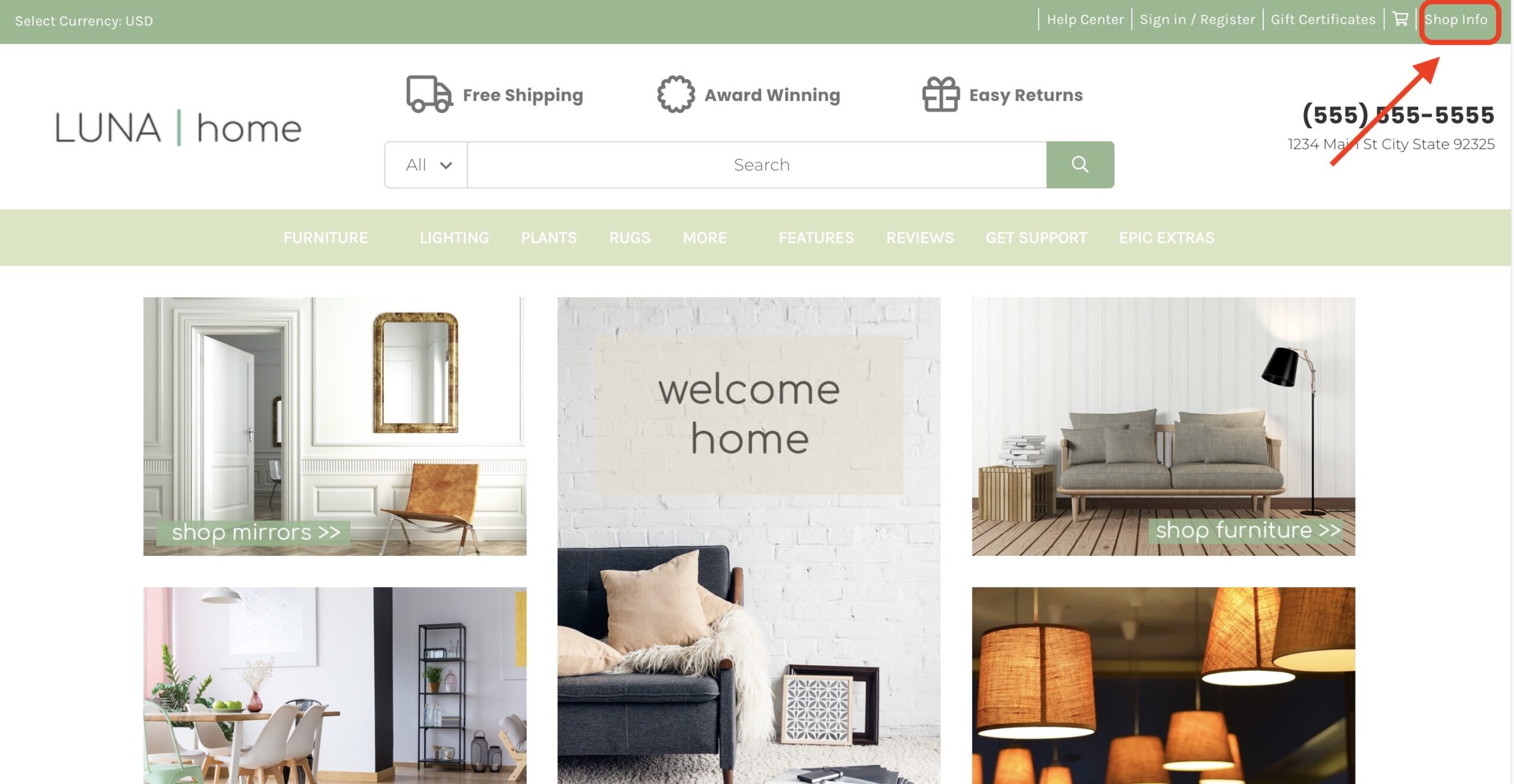
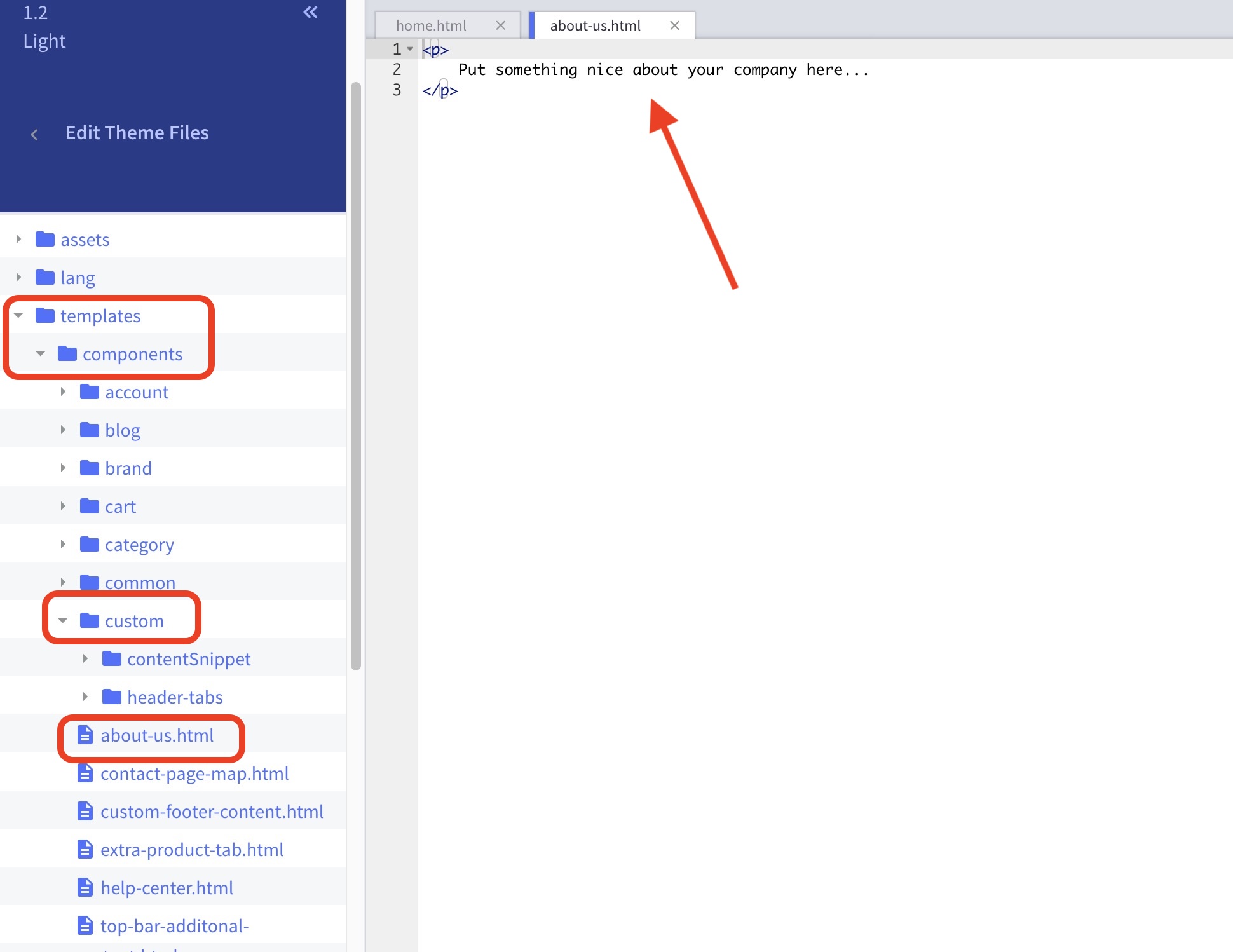
Where do I load the “About Us” text? #
- In the theme files, templates > components > custom > about-us.html and edit line 2.
- Click Save and apply file at the bottom right of the page.
How can I change the background or text color for the slider? #
- In the theme customizer, go to the epicHeader section.
- Scroll down to the Shop Info subsection.
- Click the color icon beside Background Color to pull up the palette. You may also click the (+) button to enter a Hex code or use a slider instead.

How can I change the “Contact Us” information in the slider? #
- In the BigCommerce dashboard, go to Store Setup > Store Profile.
- Enter the address, email, and phone number in the fields provided.

How are the links in the “Information” column generated? #
These are generated based on your sub-level web pages, in the BigCommerce dashboard under Storefront > Web Pages.
How can I change the “About Us” image? #
- In the theme customizer, go to the epicHeader section.
- Scroll down to the Shop Info subsection and input your image partial filepath URL in the field provided.


