On this page
Change your logo settings for the header
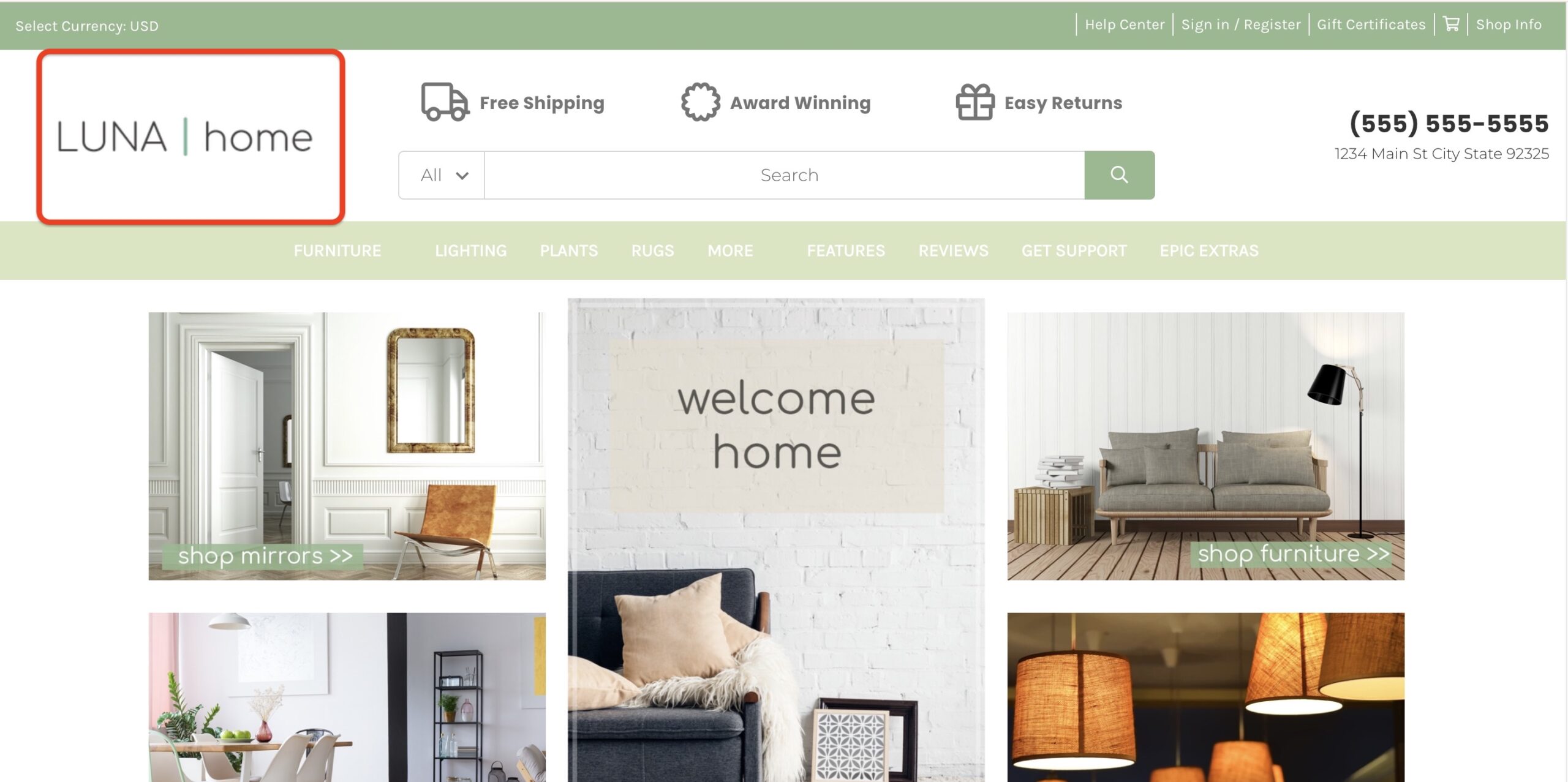
How do I change my store logo image? #
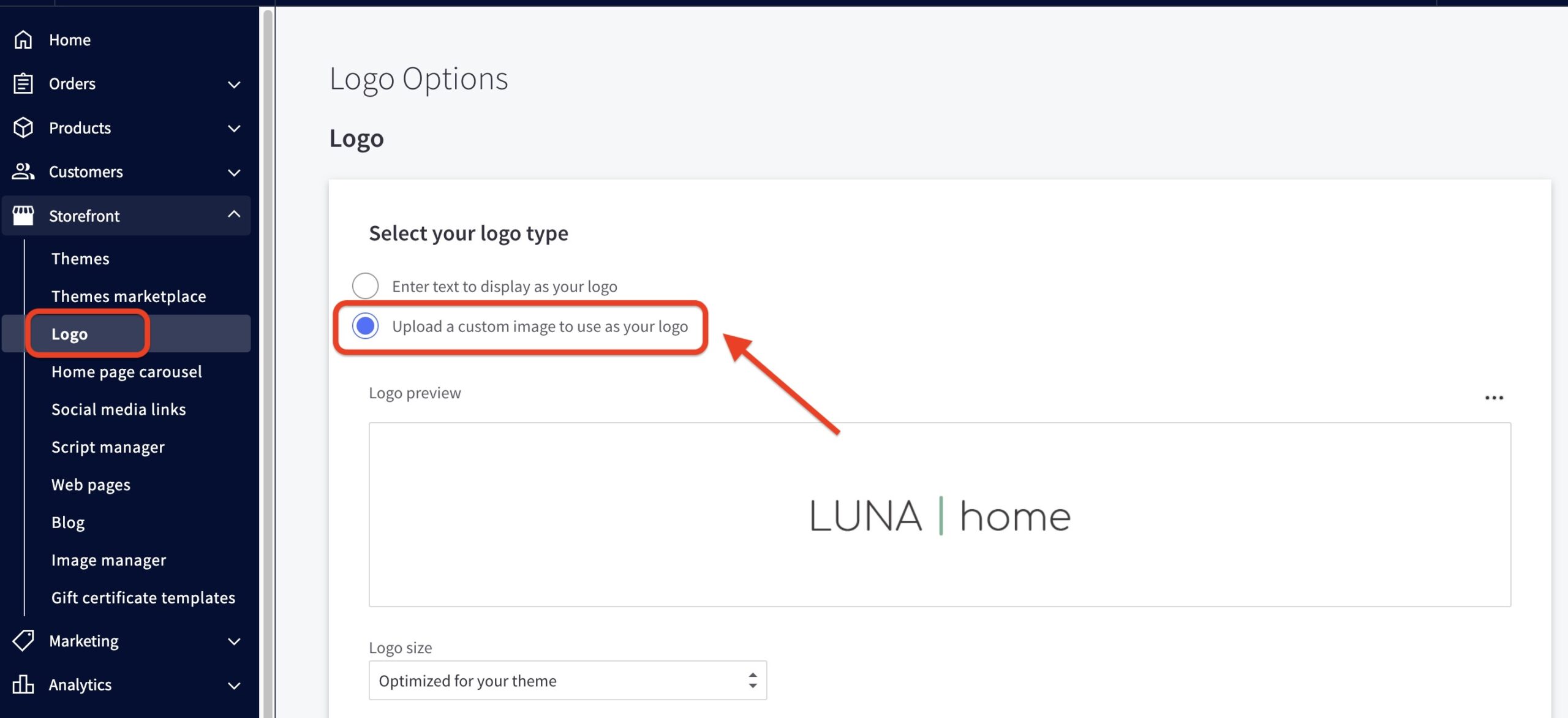
- From the BigCommerce dashboard, go to Storefront > Logo
- Select Upload a custom image to use as your logo > upload your logo.
How can I change the position and size of the logo? #
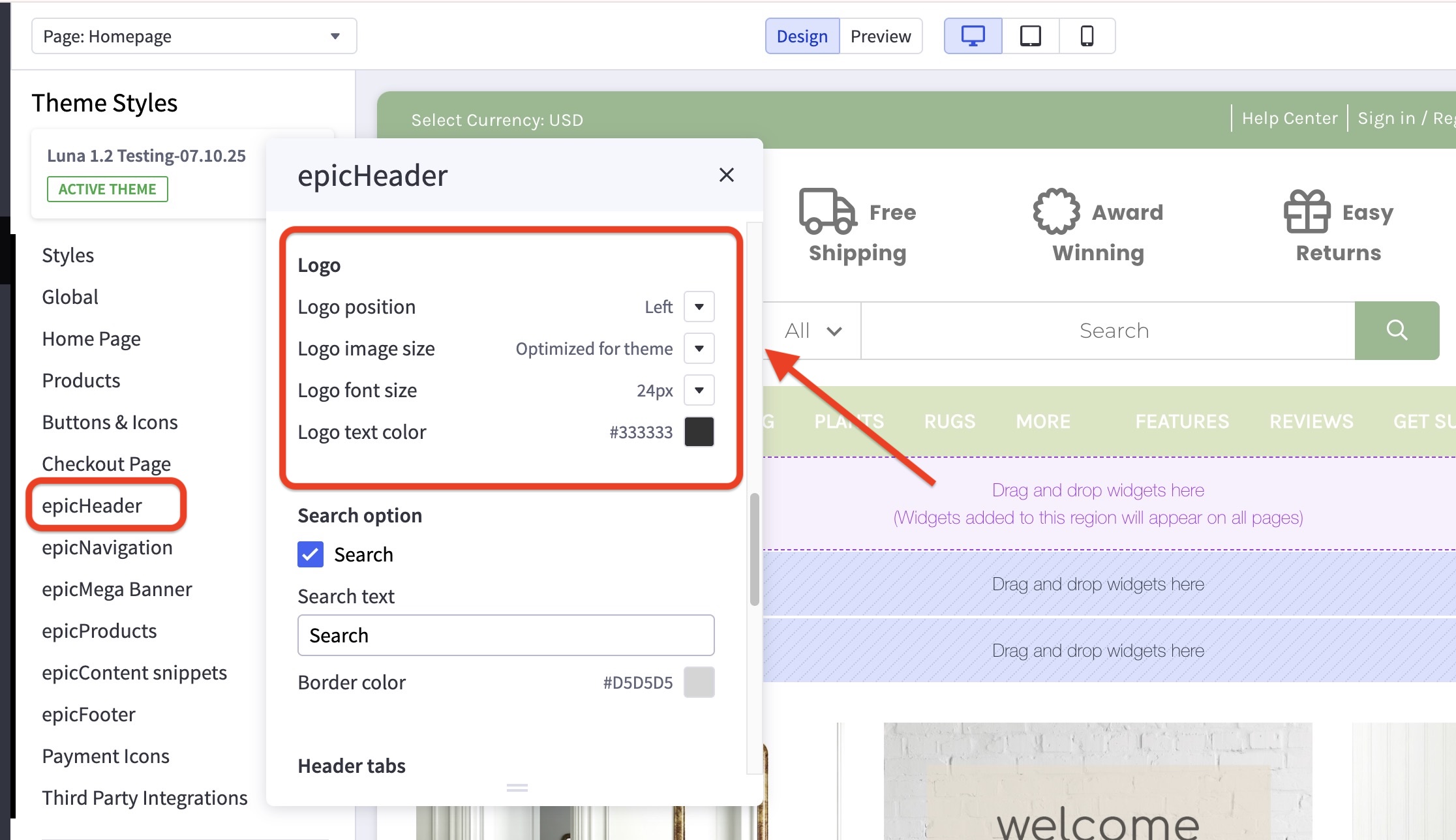
- In the theme customizer, go to the epicHeader section.
- Scroll down to the Logo subsection to adjust your logo display settings.
How do I change the favicon in the browser tab? #
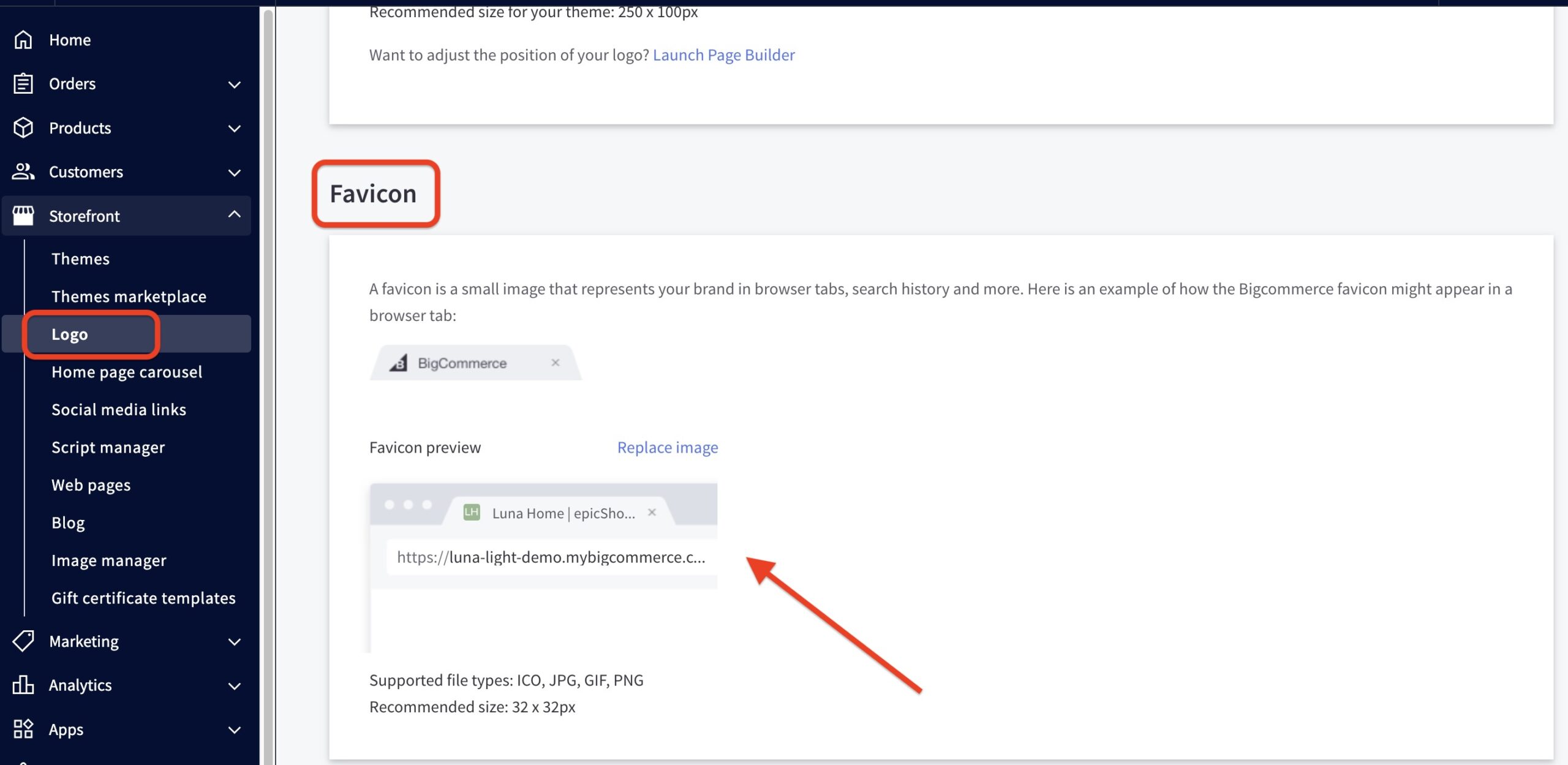
- From the BigCommerce dashboard, go to Storefront > Logo.
- Scroll down to the Favicon (a small image that represents your brand in browser tabs, search history, and more.) section > upload your logo.
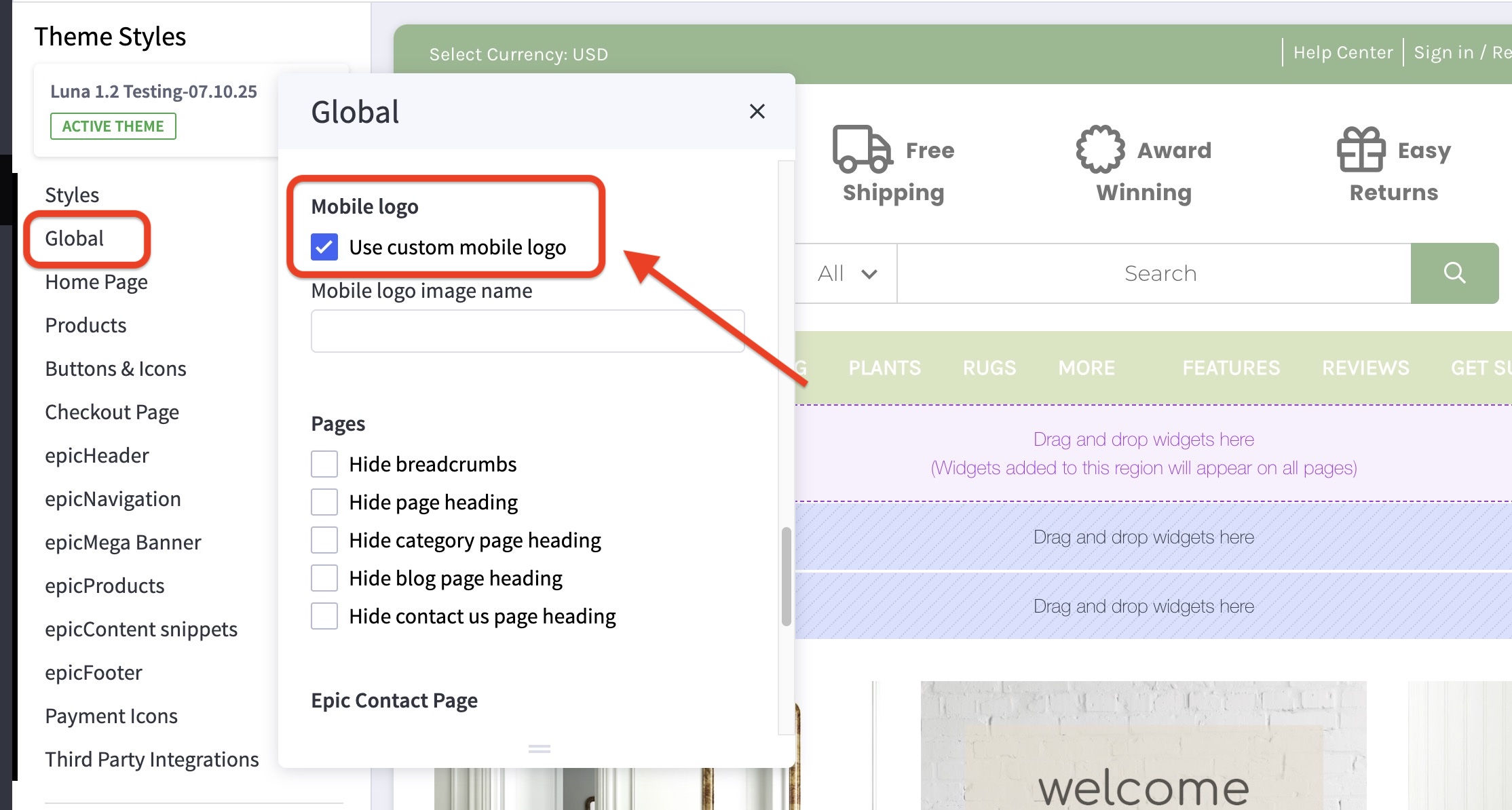
How can I set a custom mobile logo? #
- In the theme customizer, go to the Global section.
- Scroll down to the Mobile Logo subsection and check Use custom mobile logo.
- Images are loaded in the BigCommerce image manager using partial filepaths.
Click here to view our guide on how to use Partial Filepaths.