
On this page
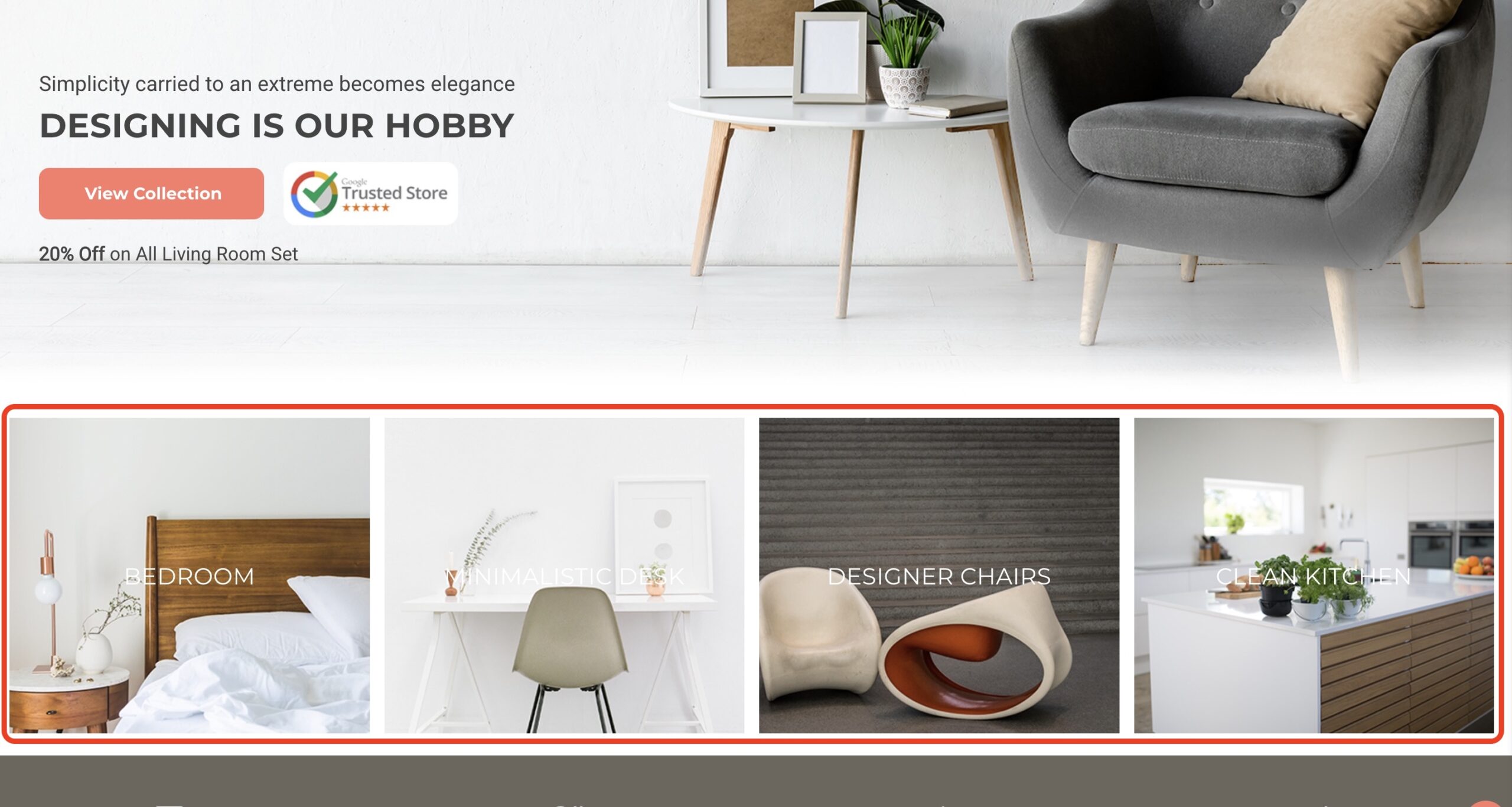
Category Banner Images are the main large images on the home page of your site. (Up to 4 Category Banners)
How do I turn on / off the Category Banner? #
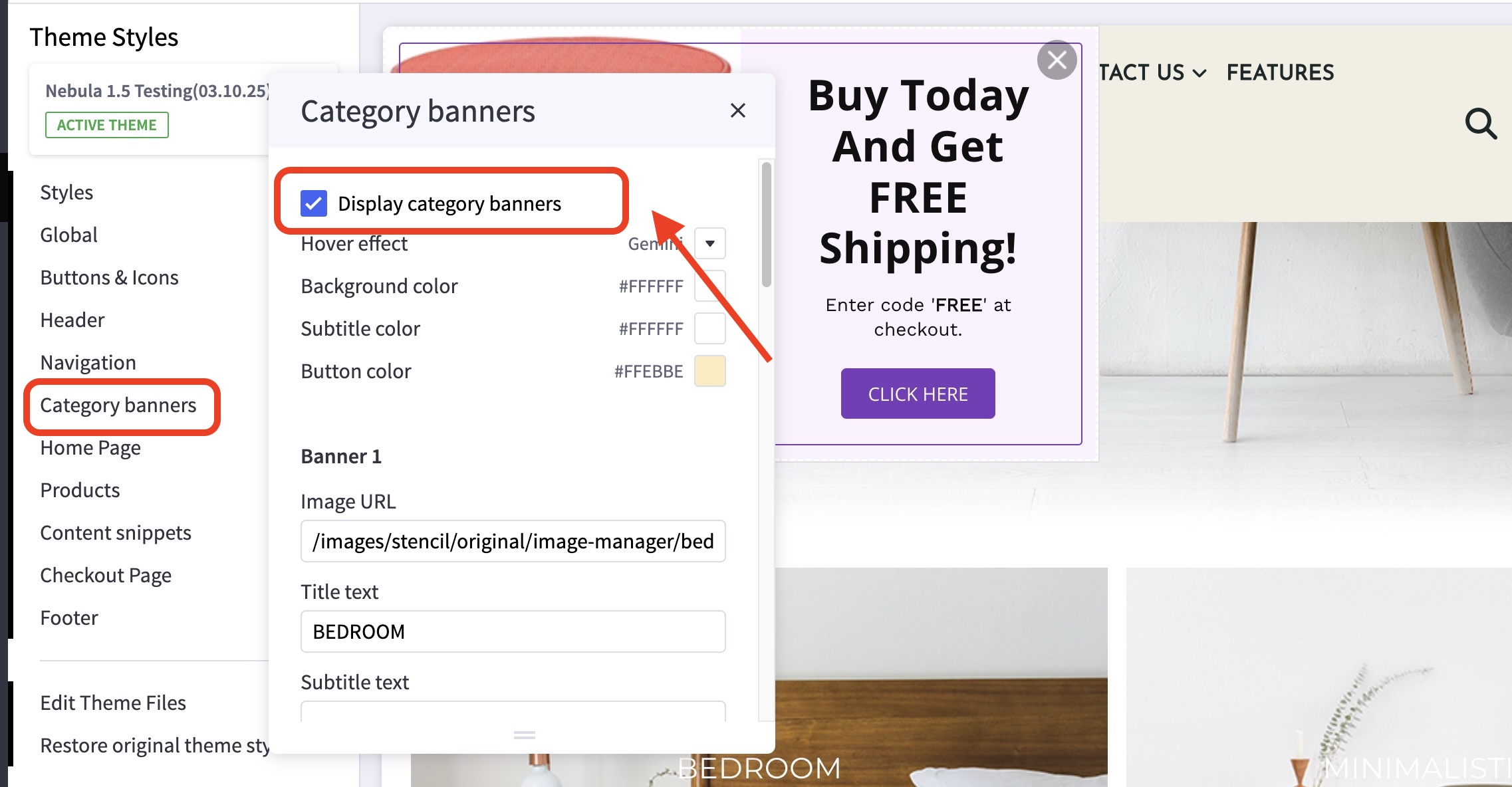
- In the theme customizer, go to the Category Banner section.
- Check/Uncheck Display category banner to toggle it on/off.
In what order are my banners displayed? #
Banners are numbered left to right. See the image below.
How do I change my banner images, links, and title? #
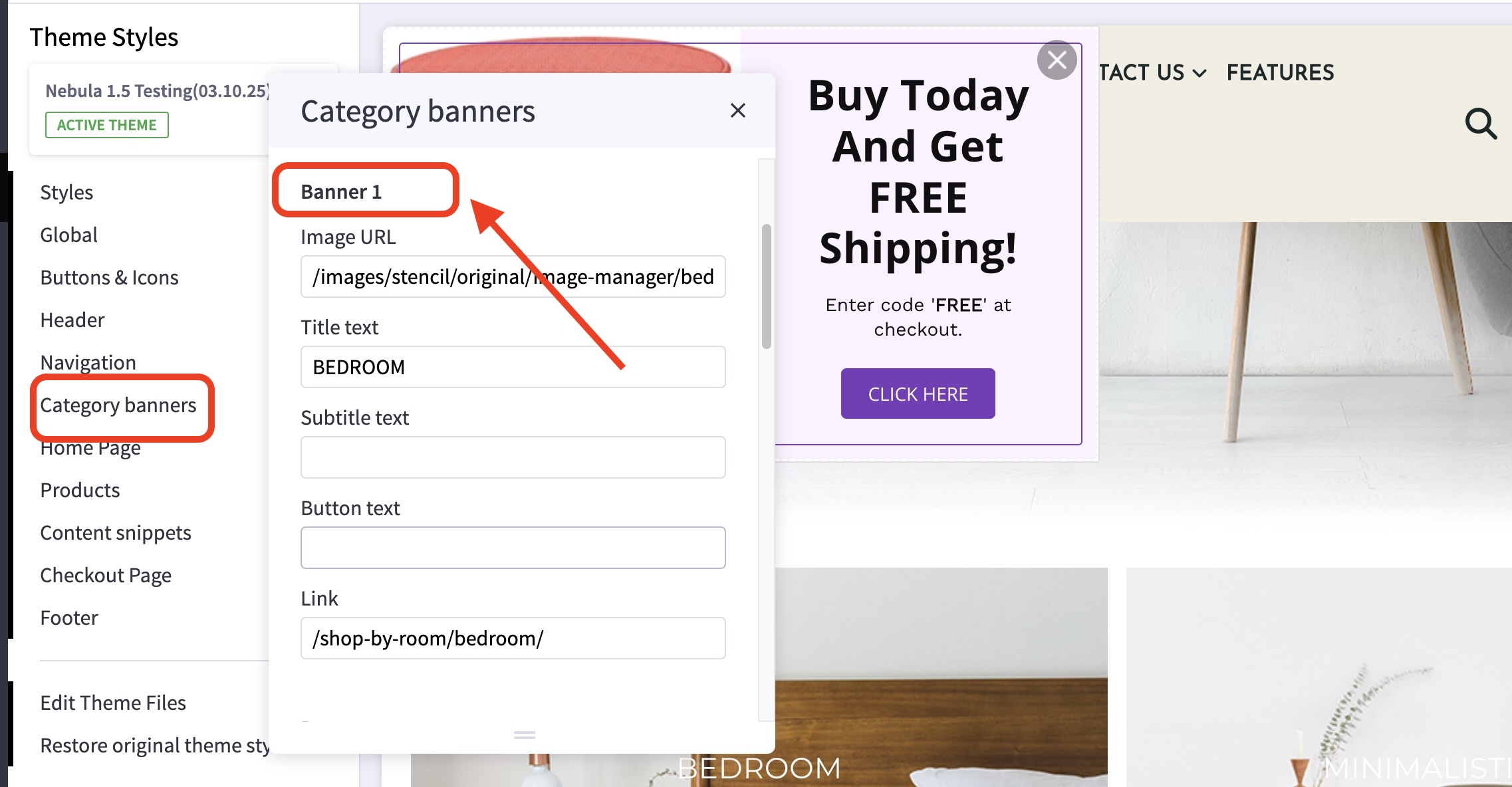
- In the theme customizer, go to the Category Banner section.
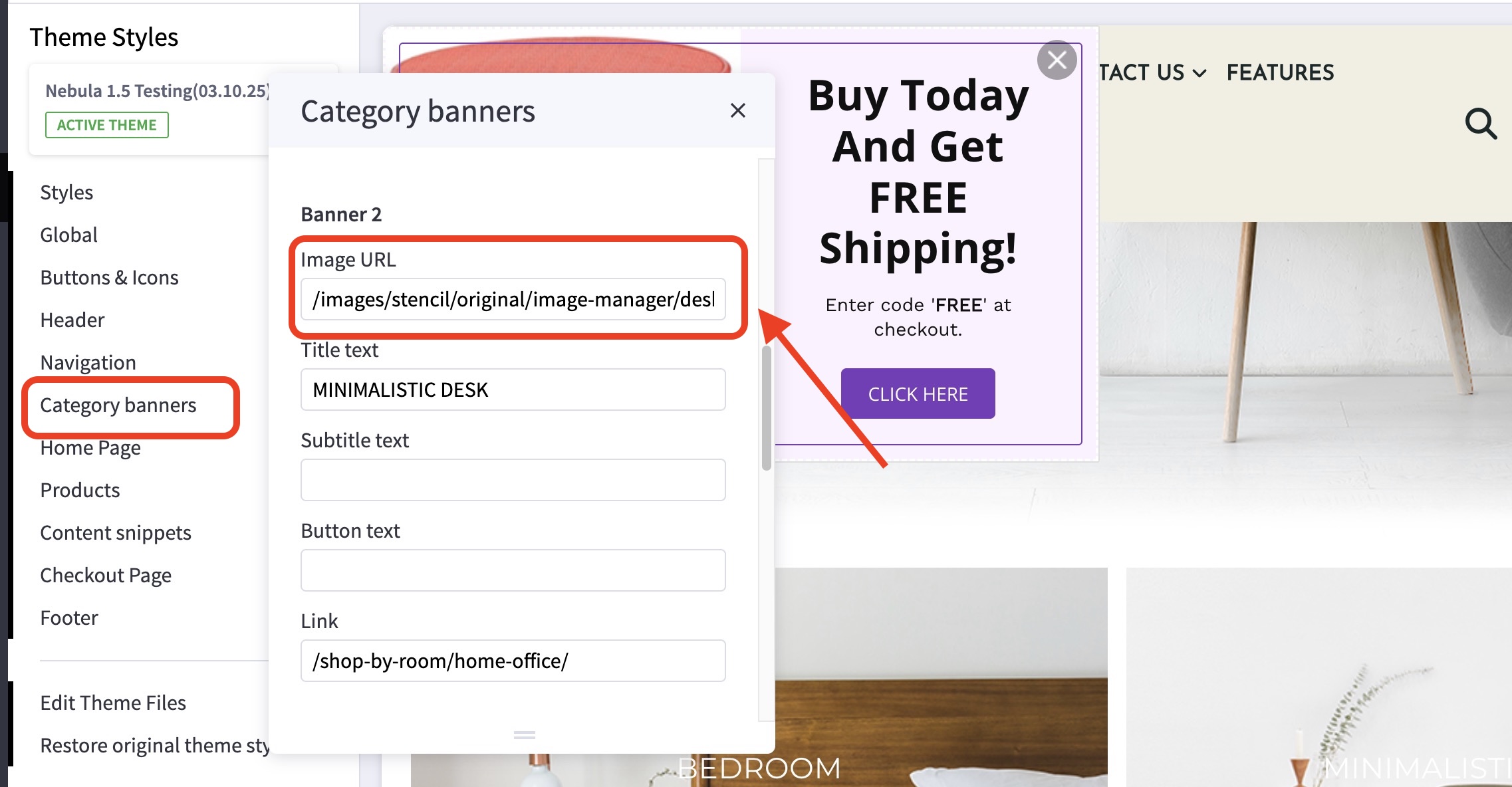
- Scroll down to the image slot number and change the image URL, link, and title.
- Images are loaded in the BigCommerce image manager using partial file paths.
Click here to view our guide on how to use Partial filepaths. - If you don’t want to display a specific banner, leave the Image URL blank.
What are the available banner hover effects? #
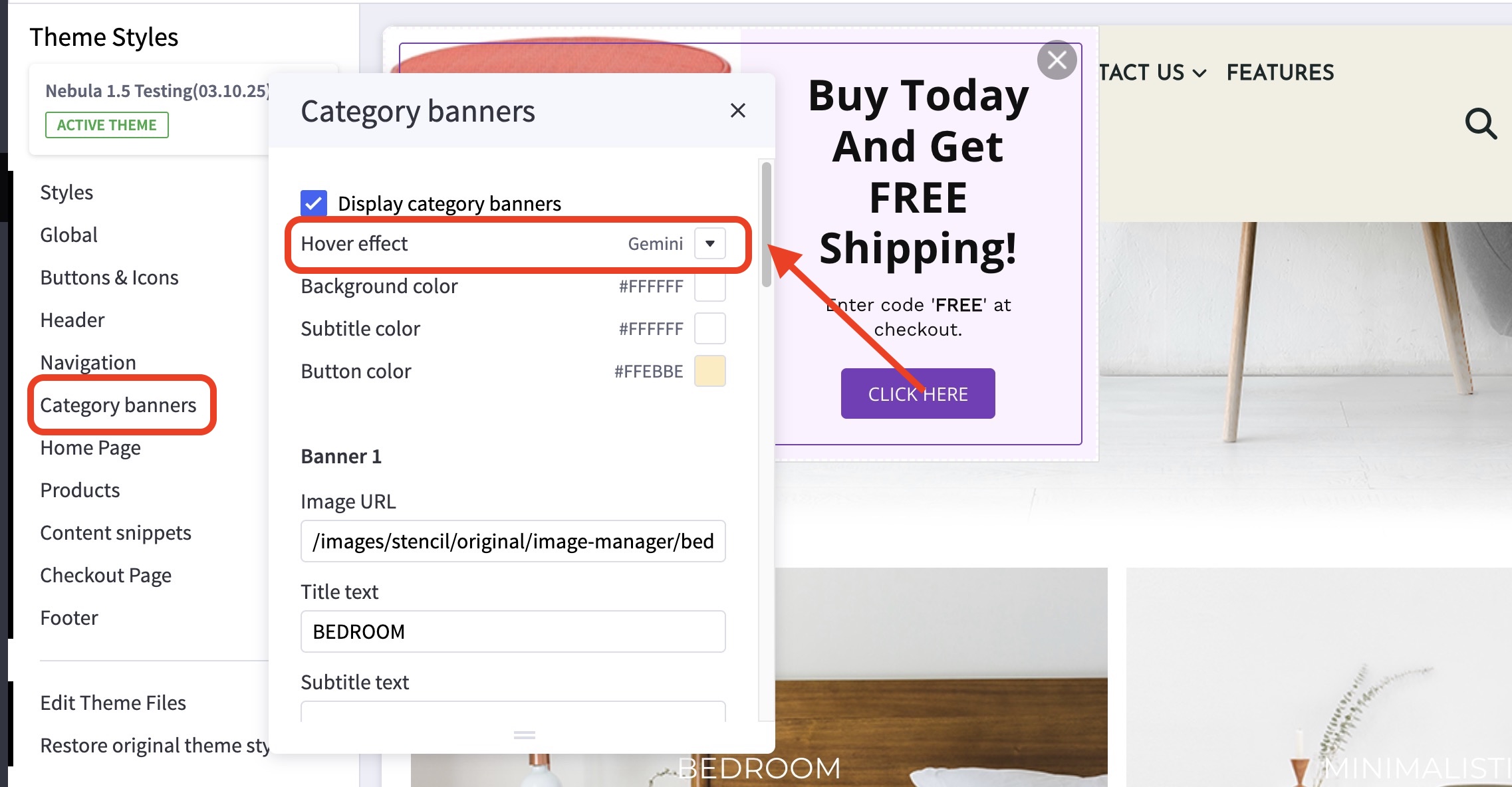
- You can change the banner style by going into the Category Banners section and clicking the dropdown beside “Hover effect”.
What size should my banner images be? #
Recommended dimension: #
- 800×800 pixels


