On this page
- How do I turn on / off the Header Banner?
- How many images can I have?
- How do I change my banner image?
- How do I change the header banner style?
- Can I change the transparency of my navigation menu for Header Style 3?
- How many banner categories can I use?
- How do I turn on / off the Top Bar?
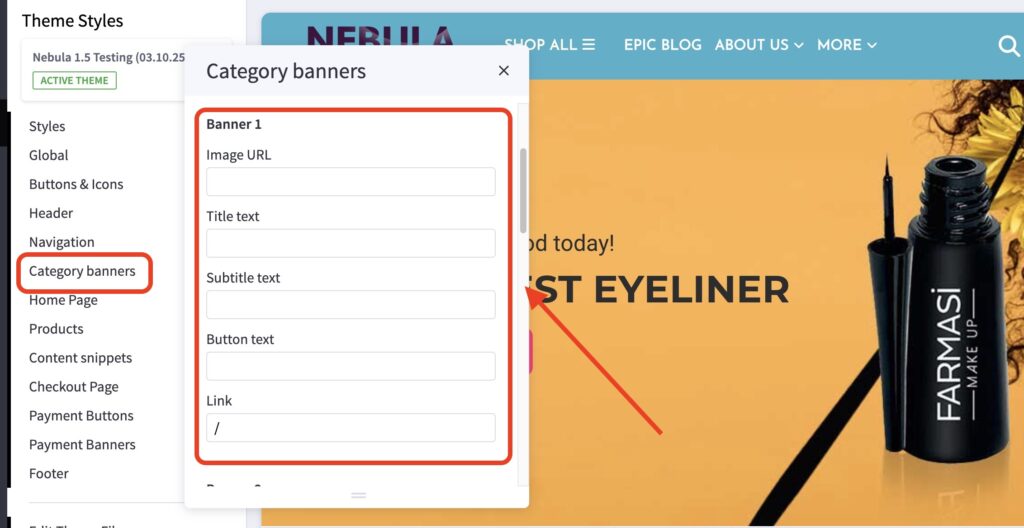
- How do I customize the colors in the banner categories?
- How do I change my banner categories links and title?
How do I turn on / off the Header Banner? #
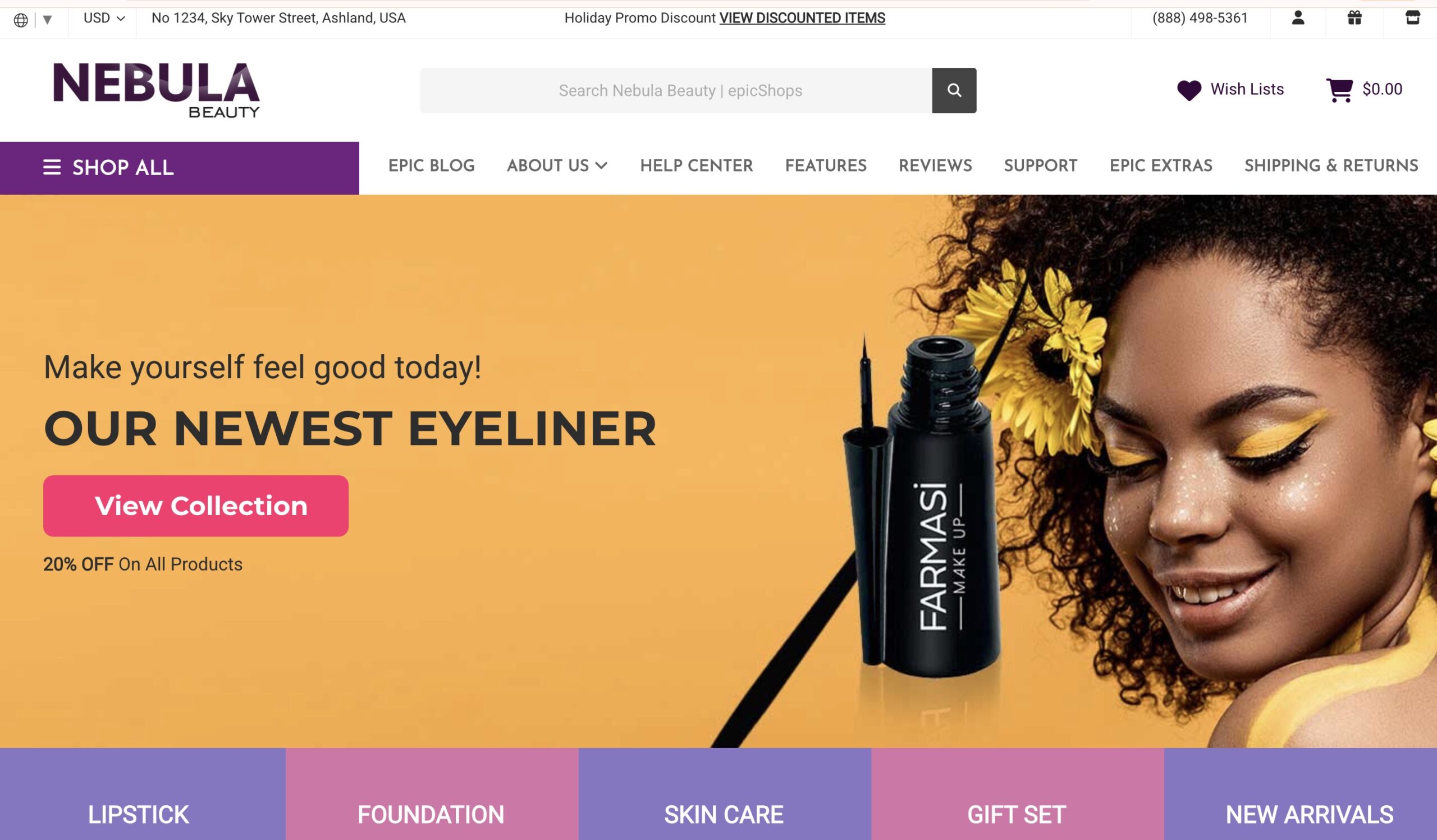
- In the theme customizer, go to the Header section and then go to the Header Banner.
- Check/Uncheck the Display header banner to toggle it on/off.

How many images can I have? #
- You can only have one image here.
How do I change my banner image? #
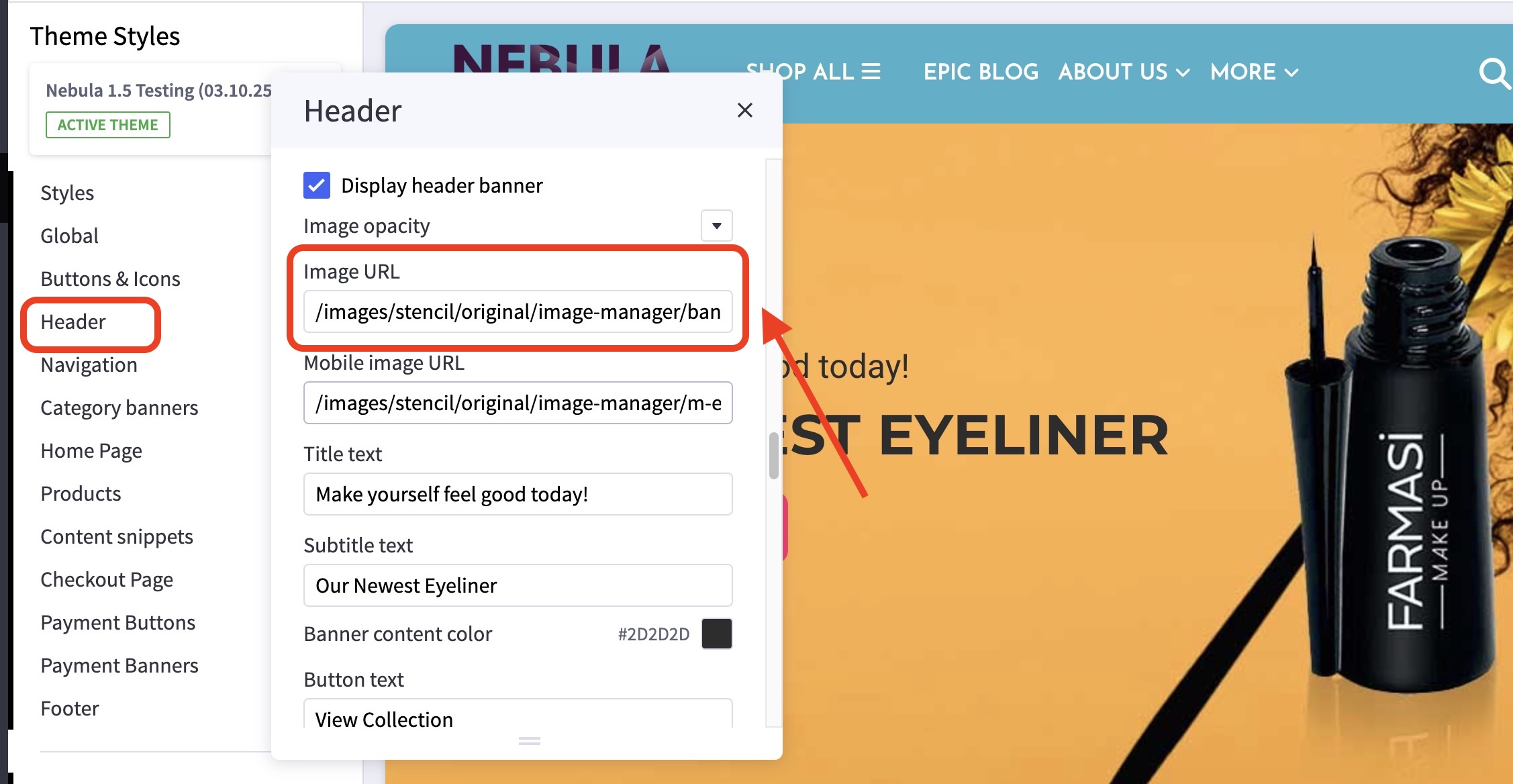
- In the theme customizer, go to the Header section.
- Scroll down to the Header Banner setting and input the image URL, link, and title.
- Images are loaded in the BigCommerce image manager using partial filepaths.
Click here to view our guide on how to use Partial Filepaths
How do I change the header banner style? #
- In the theme customizer, go to the Header section.
- From the Header style dropdown, select a style from 1-4

Style 1
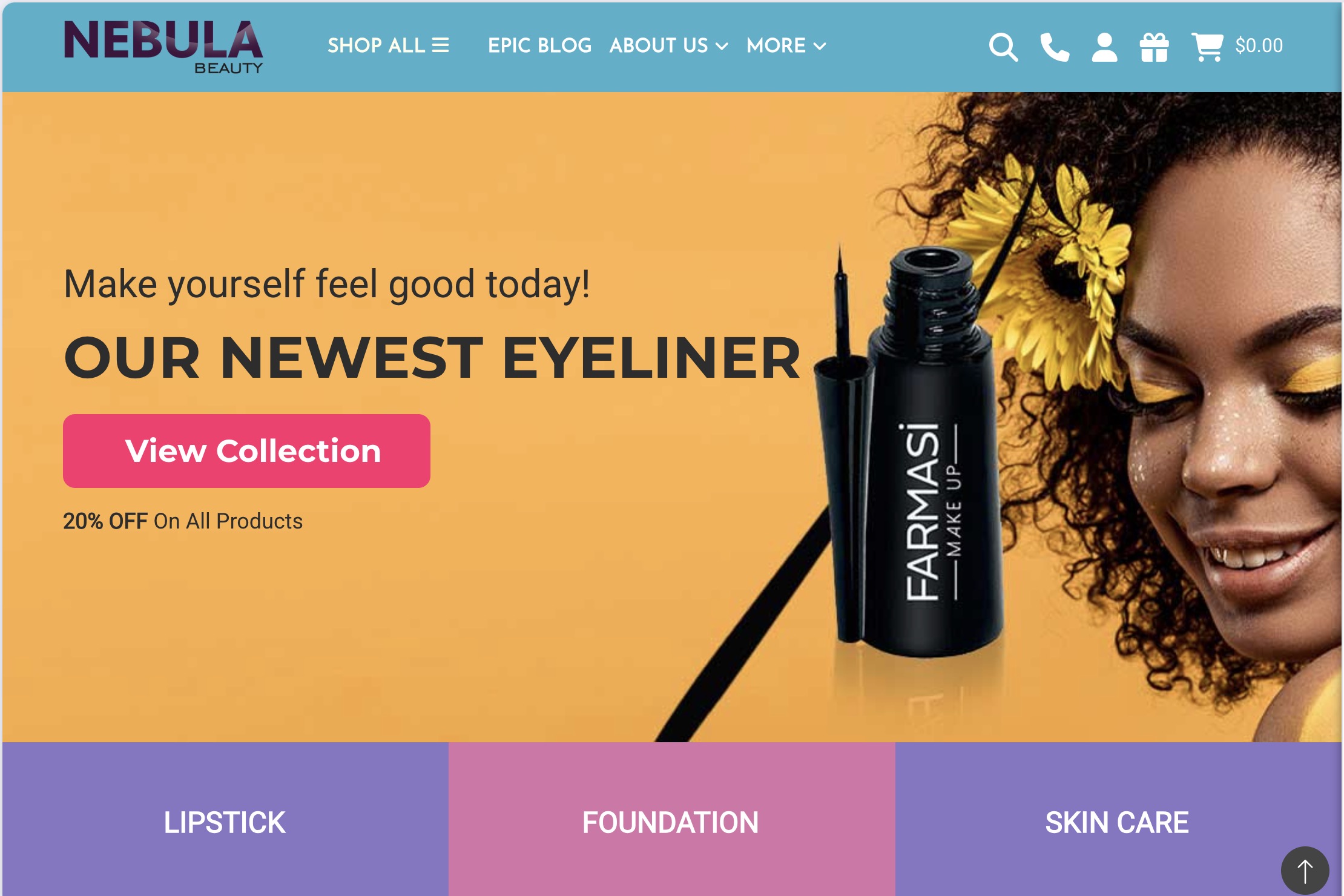
Style 2
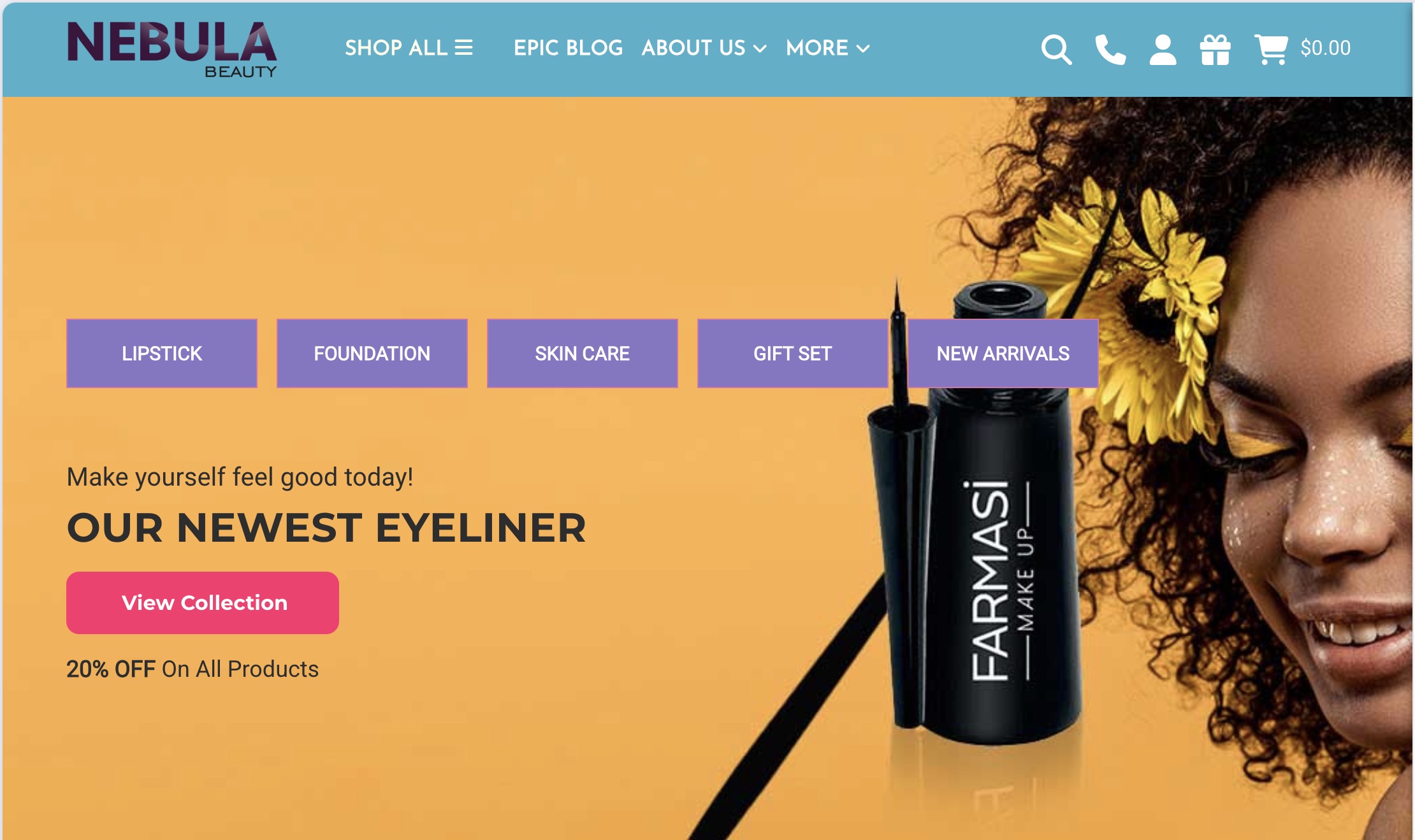
Style 3
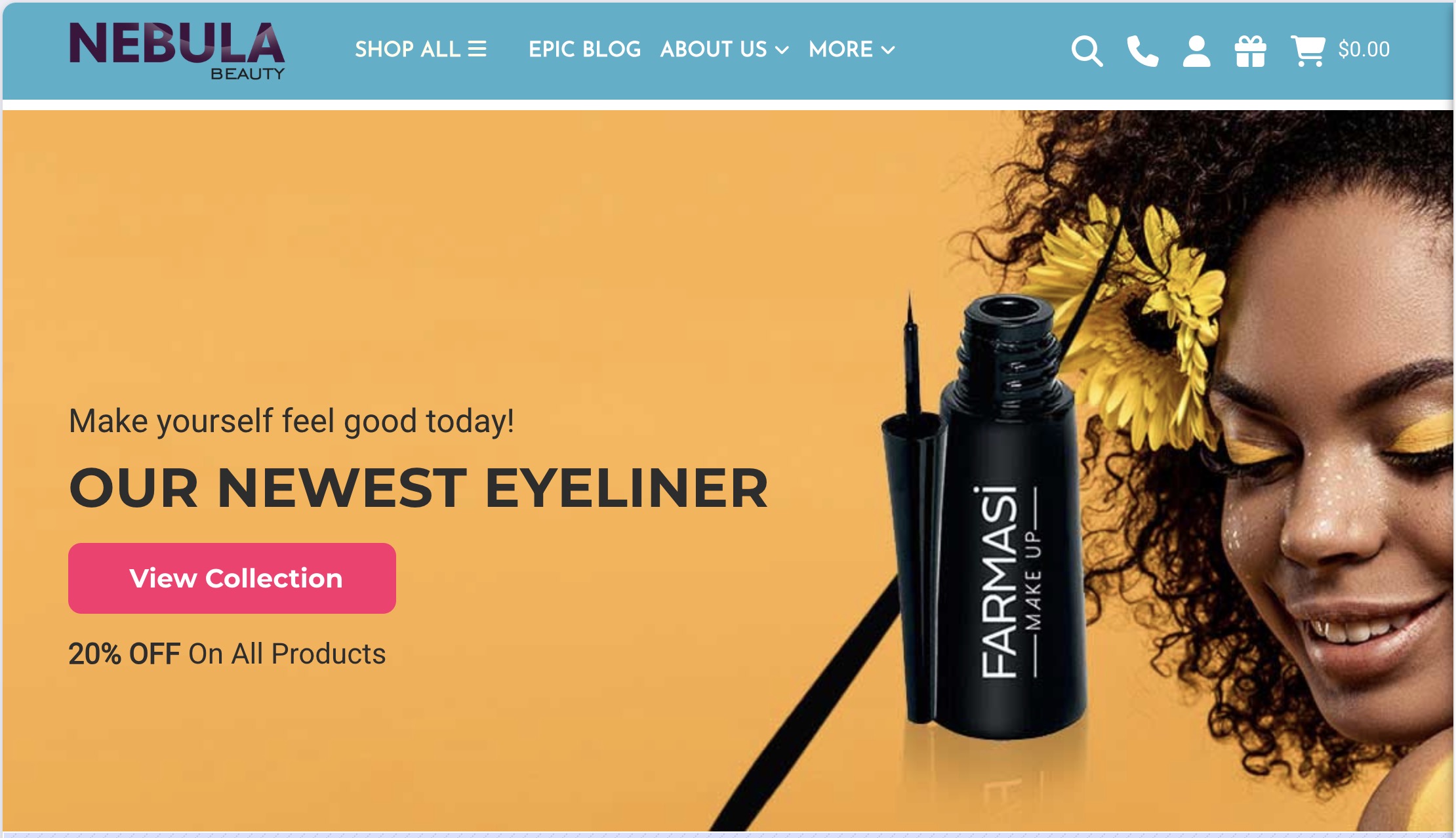
Style 4

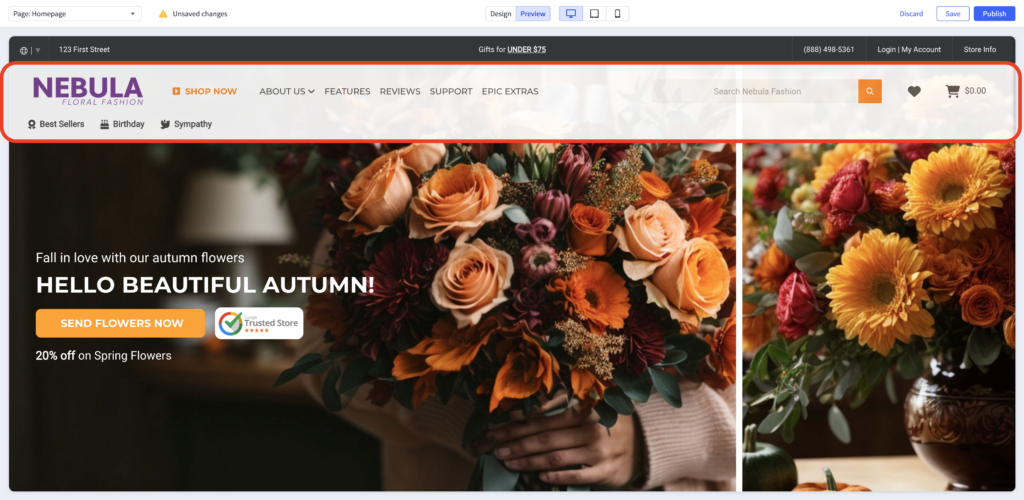
Can I change the transparency of my navigation menu for Header Style 3? #
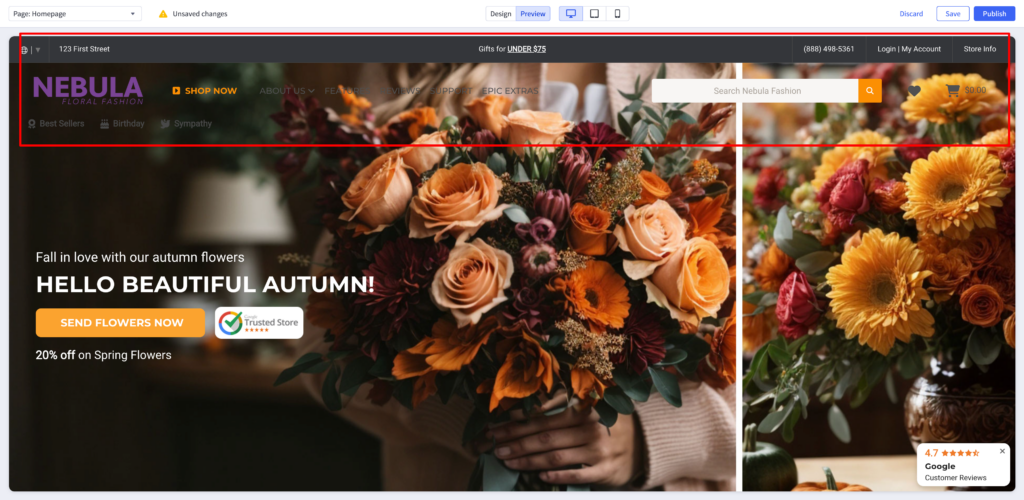
Yes, you can! To do this, kindly follow the steps below:
- Log into your BigCommerce Dashboard/Control Panel.
- Go to Storefront > Script Manager.
- Create a new script with the settings and script below:
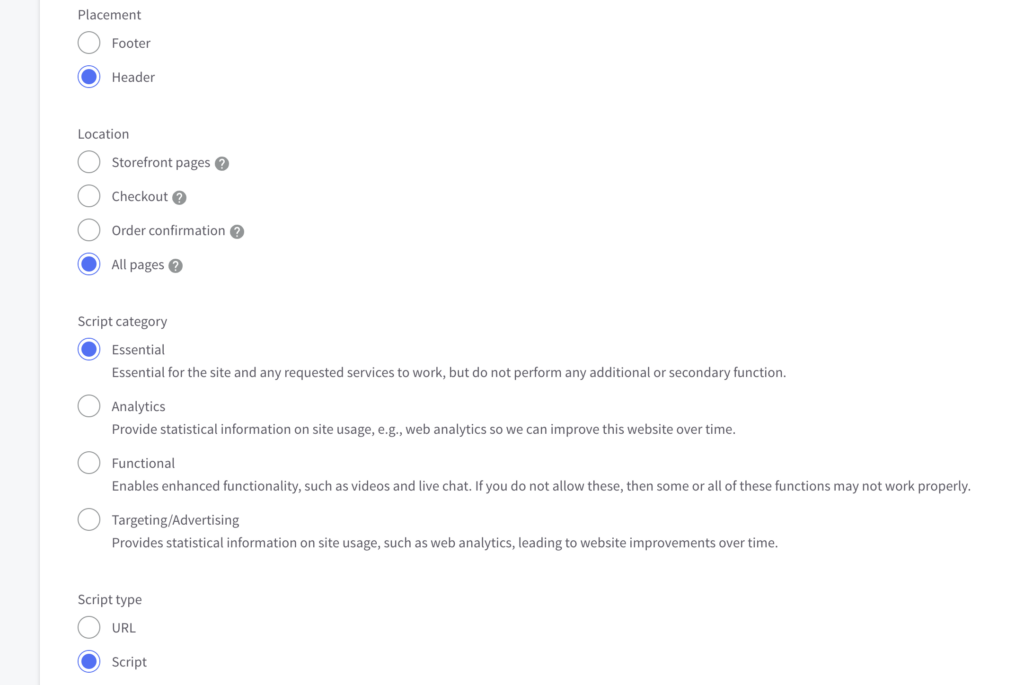
Please note that you can change the background color of your navigation menu by changing the hex color (#FFFFFF) on the script. For the transparency of the navigation menu, the value 1.0 on the opacity will make the part of the main banner/image behind the navigation menu not visible. You can start lowering its value if you wish to make the banner image a little bit more visible.
How many banner categories can I use? #
- You can have five (5) banner categories.
How do I turn on / off the Top Bar? #
- In the theme customizer, go to the Header section and then go to the Top Bar.
- Check/Uncheck the Display top bar to toggle it on/off.

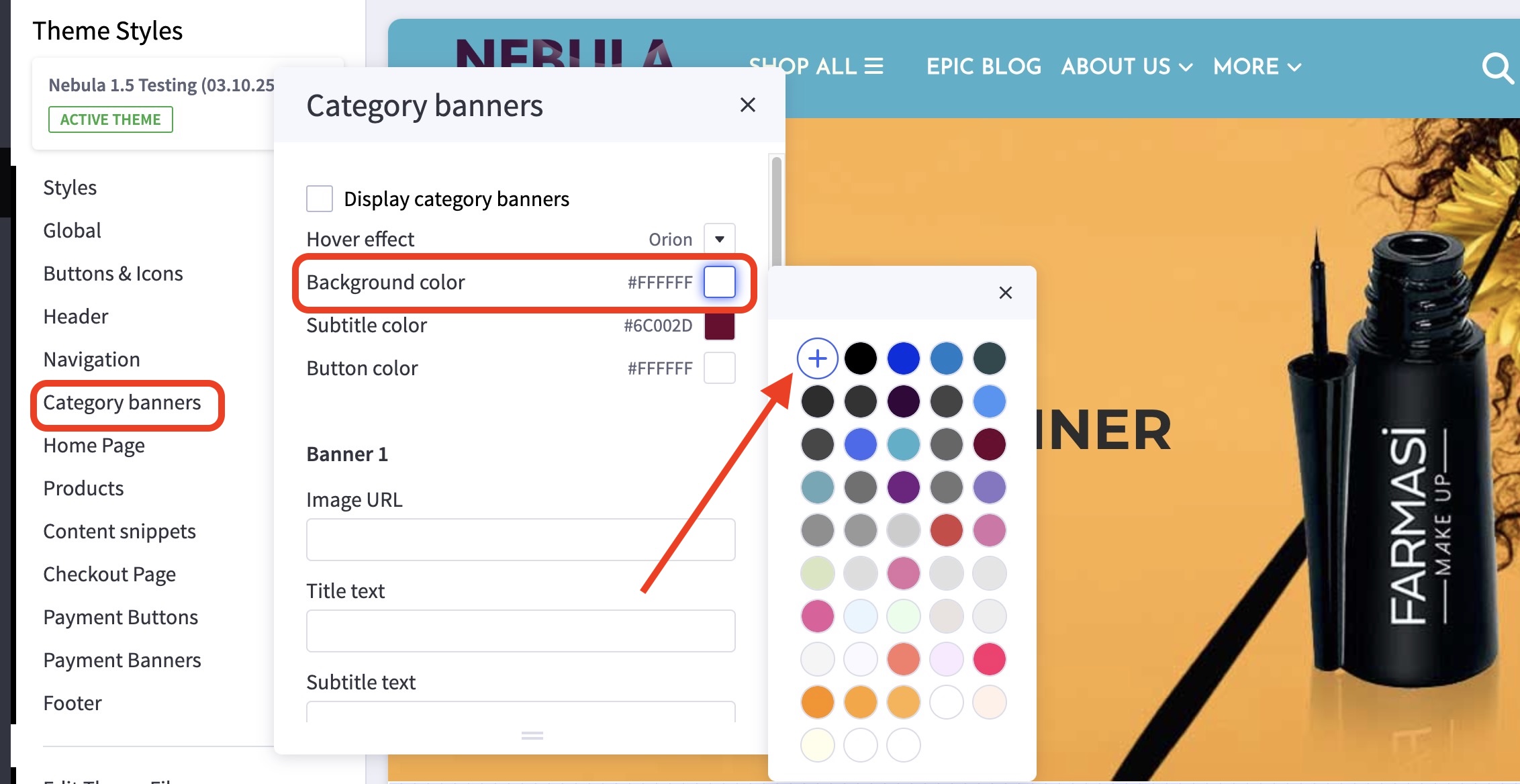
How do I customize the colors in the banner categories? #
- For color customizations, click the icon on the right side to pull up the color picker.
You may also click the (+) button to enter a Hex code or use a slider instead.
How do I change my banner categories links and title? #
- In the theme customizer, go to the Header Banner section.
- Scroll down to the indicated image slot number and input the image URL, link, and title.
- Images are loaded in the BigCommerce image manager using partial filepaths.
Click here to view our guide on how to use Partial Filepaths. - If you don’t want to display a specific slide, uncheck where it says “Display Slide #”.