Table of Contents
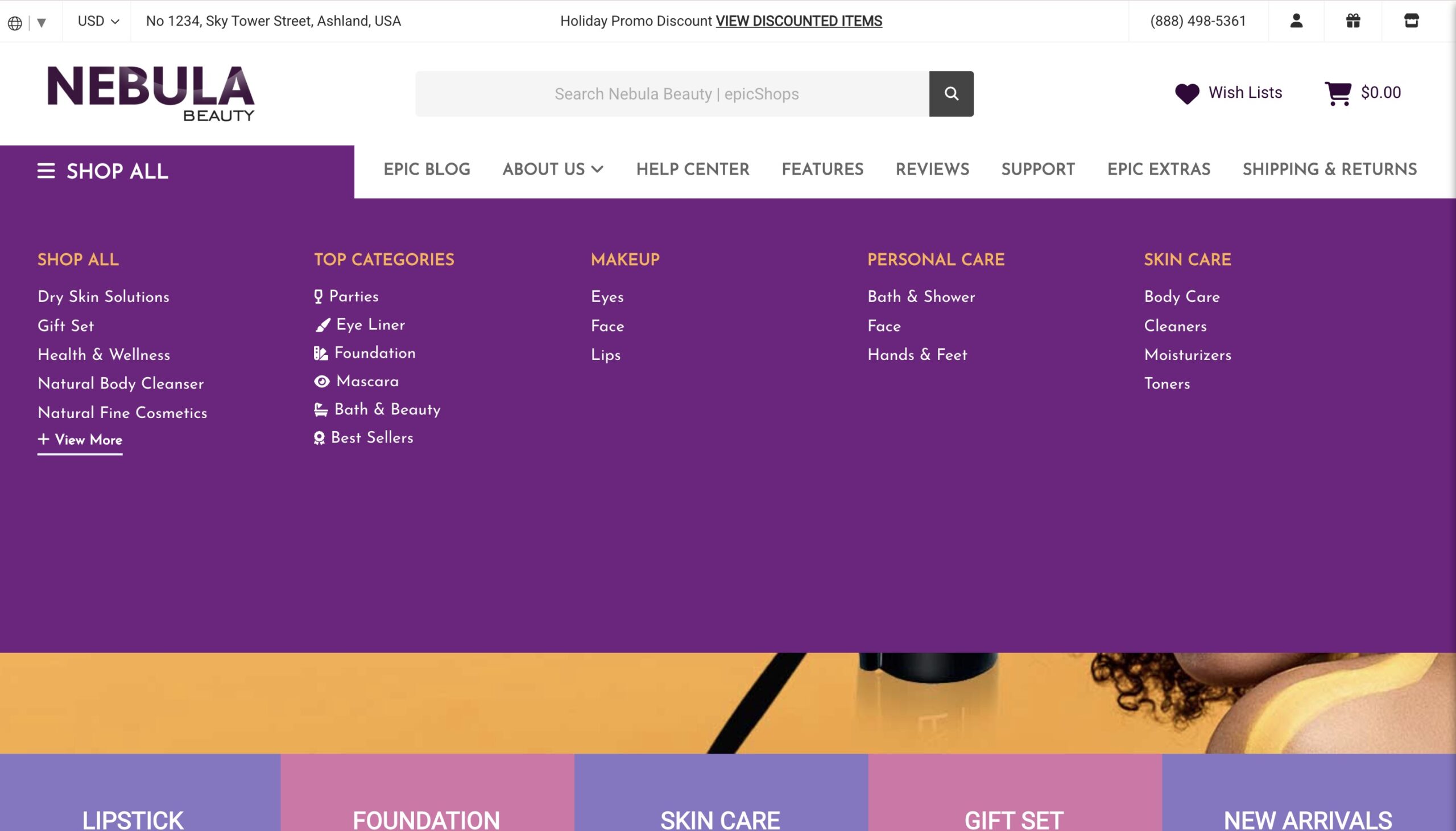
Styling and extra content for the main dropdown menu.
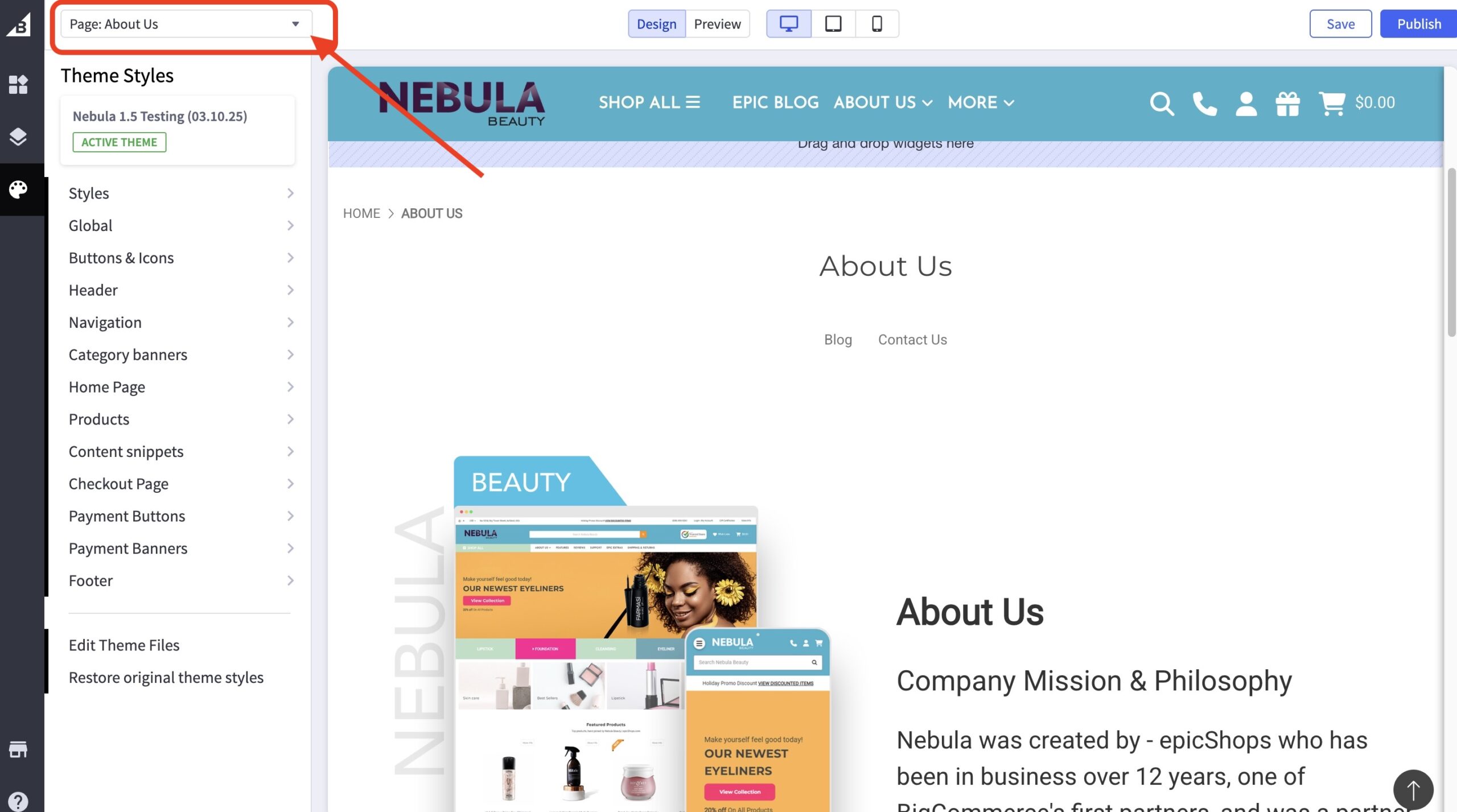
Where can I edit the “About Us” page? #
Go to Storefront > Themes. Click the Customize button. Once inside the Theme Customizer, kindly click the dropdown icon for you to go to the page you wish to update.
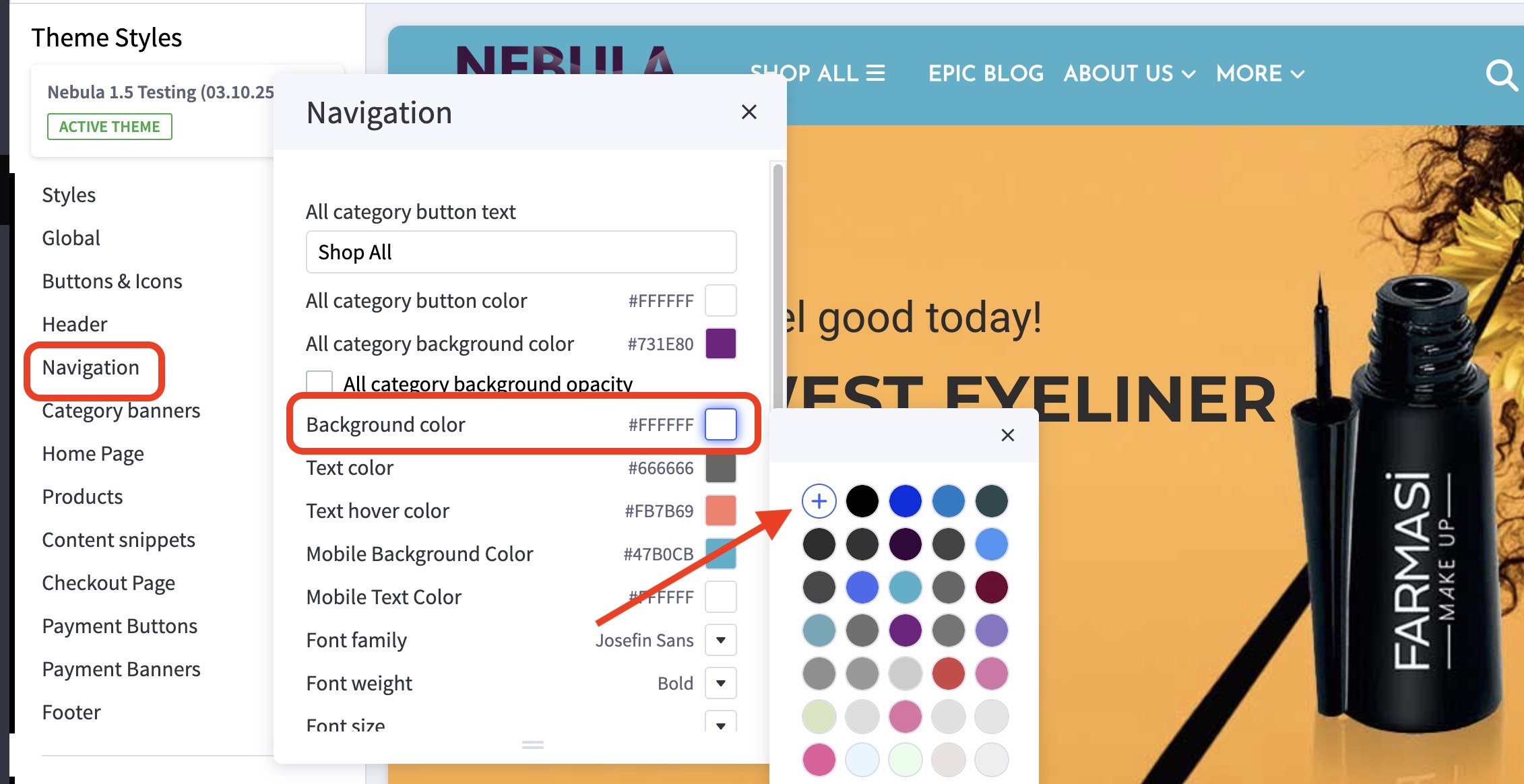
How can I change the background or text color for the navigation? #
- In the theme customizer, go to the Navigation section.
- Scroll down to the Background Color subsection.
- Click the color icon beside Background Color to pull up the palette. You may also click the (+) button to enter a Hex code or use a slider instead.
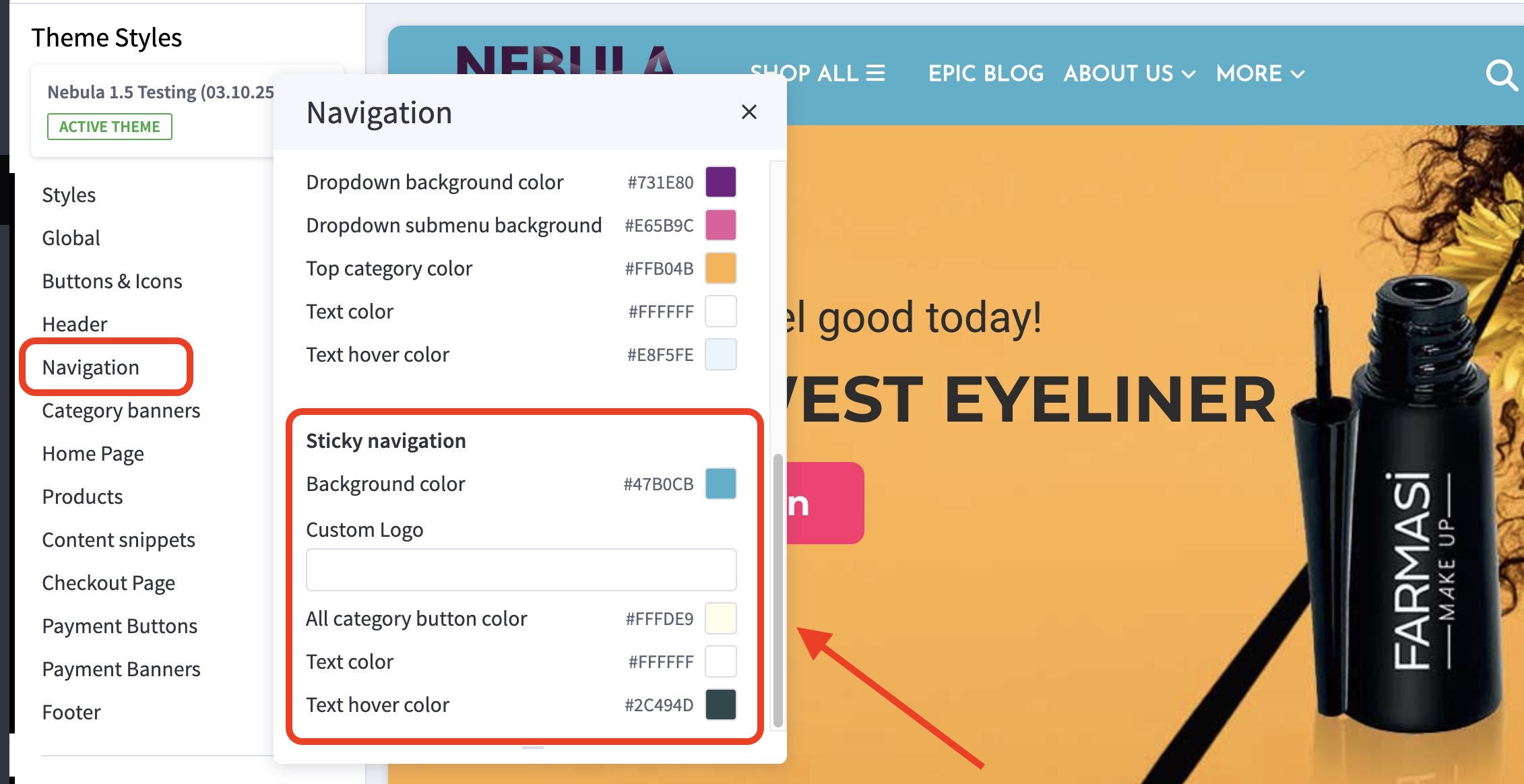
How can I change the background or text color for the sticky navigation? #
Can I use Font Awesome Icons or Color Swatch besides the menu categories? #
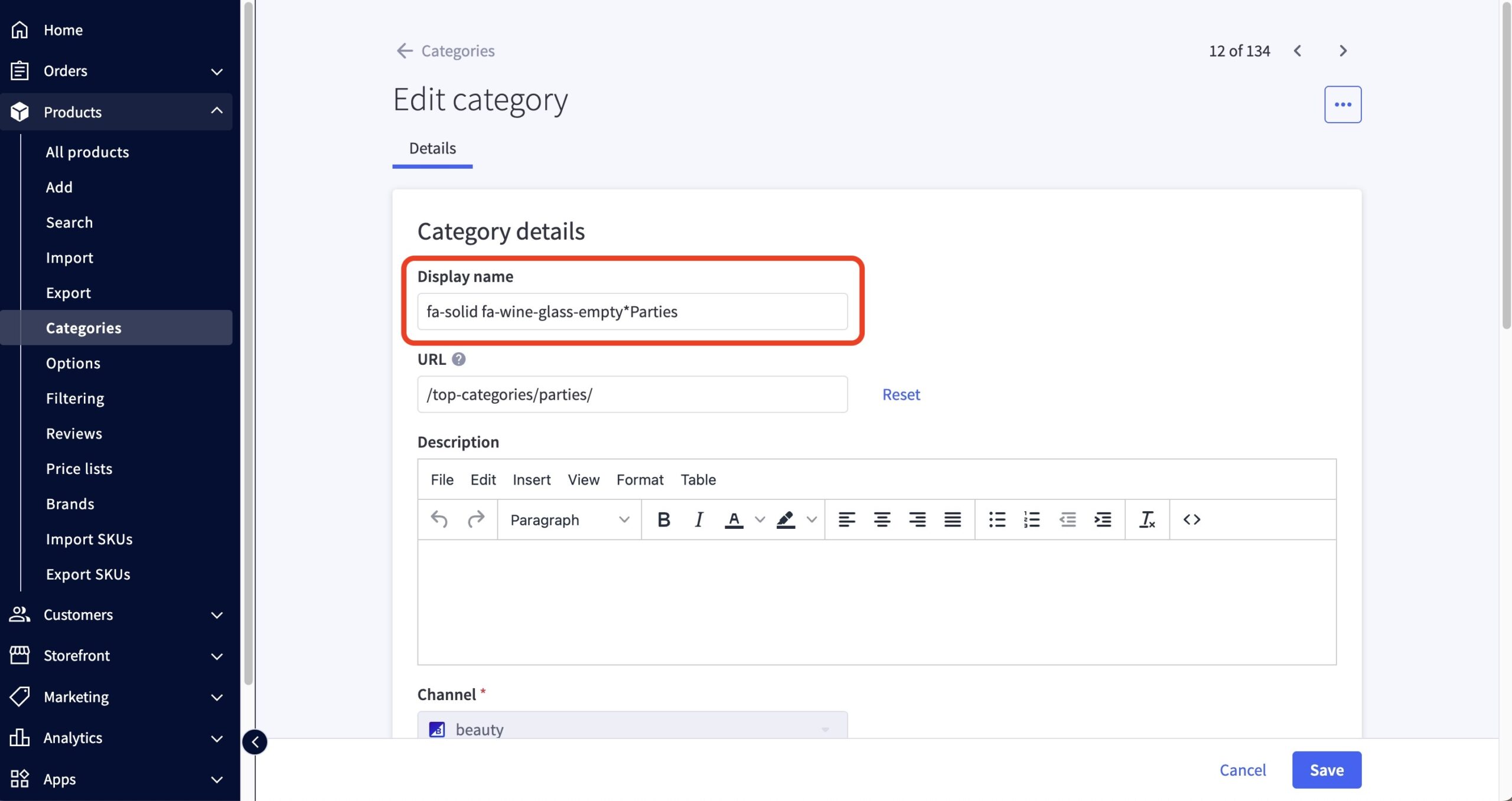
- Go to Products > Product Categories.
- Choose the category you wish to add the font awesome icons or color swatch.
- On the display name field, add the Font Awesome Code or Hex Color Code before the category name. Kindly make sure to add an asterisk (*) in between the code and the category name (Ex. fa-light fa-award*Best Sellers).