
Design Your Pop Card #
Design settings let you customize the appearance of your Pop Card, including its layout, text, colors, buttons, images, animations, and other visual elements.
To access Pop Card Settings:
1. Open the Pop Card you want to edit.
2. Select Design from the left menu.
The available design options may vary depending on:
- Quick Message or Opt-In
- Text Only layout
- Image Only layout
- Text with Image layout
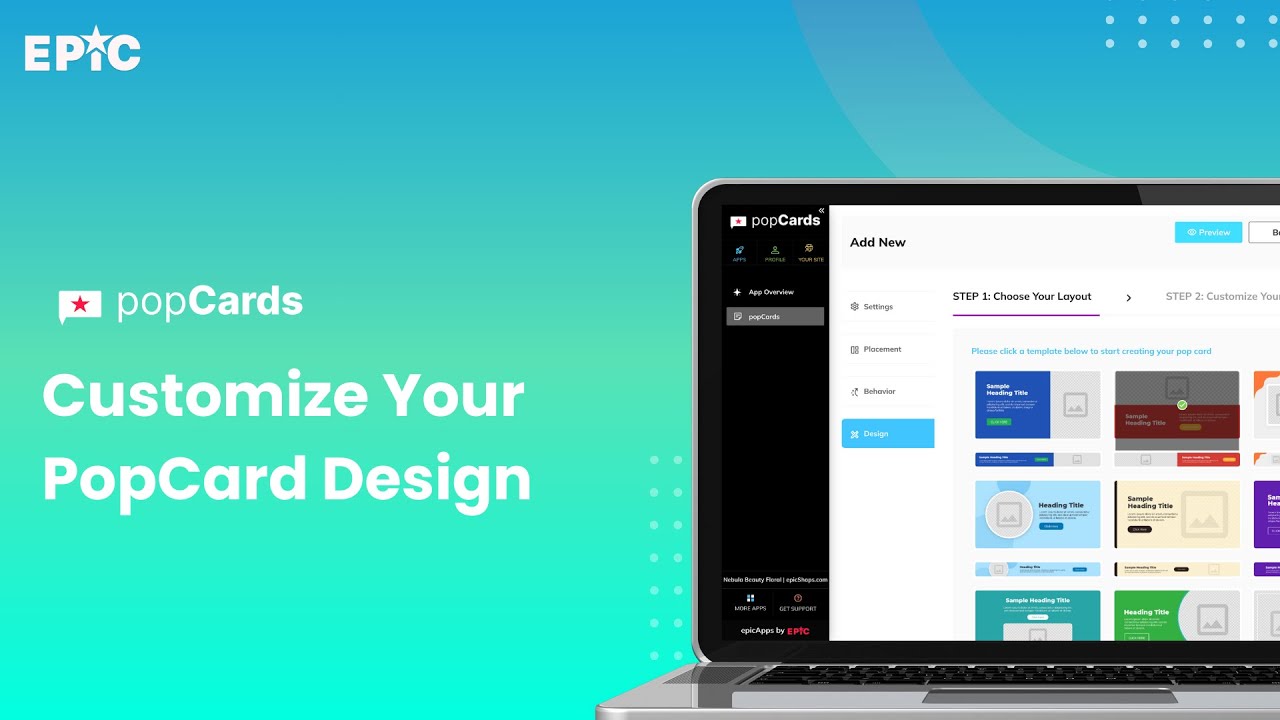
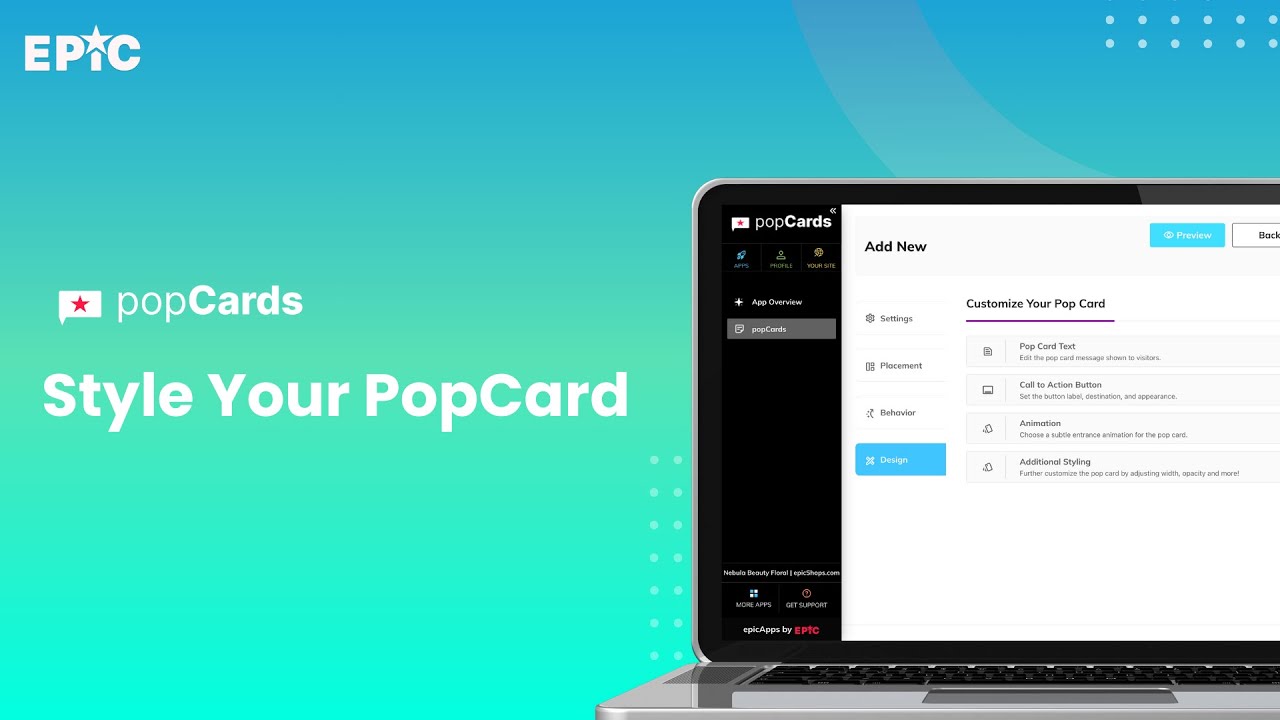
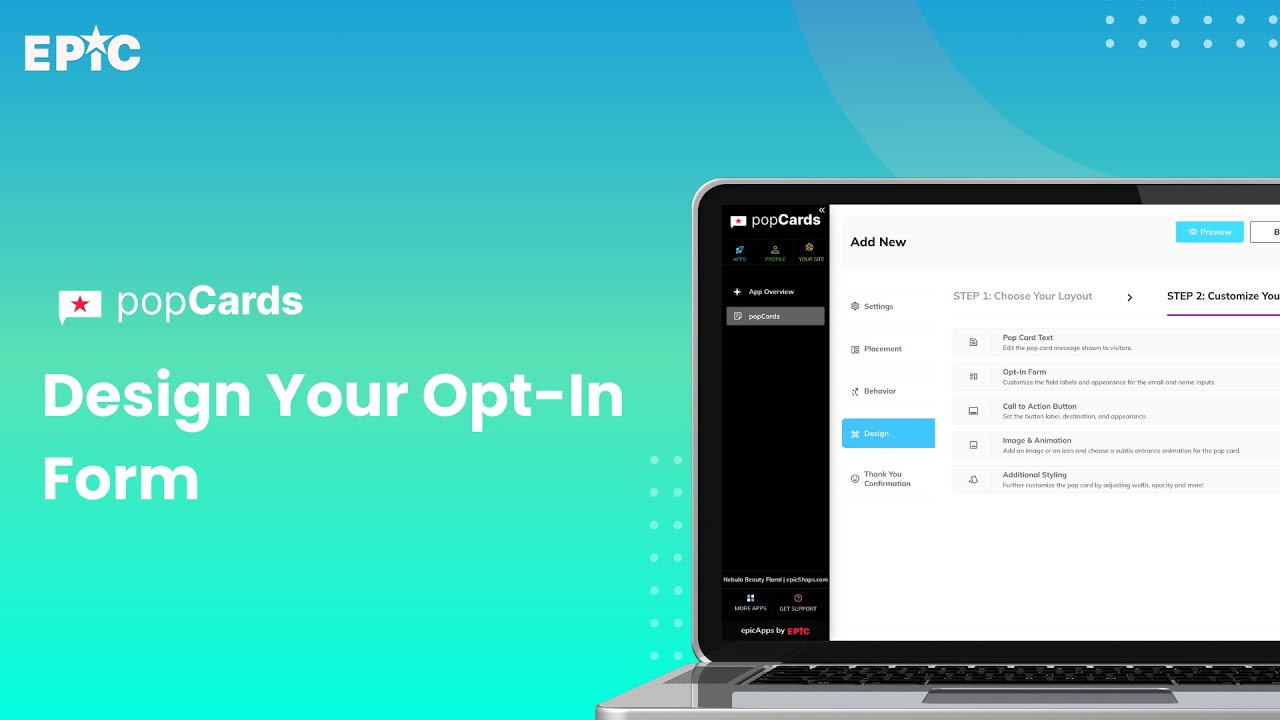
Learn how to customize your PopCard design, layout, and Opt-In form.
Available Design Options #
The available design settings depend on the Pop Card type and layout you’re working with.
Start by finding your Pop Card type below, then open the matching layout to see the customization options available for your setup.
The tables provide a quick reference of the settings you can customize. If you need step-by-step instructions, tips, or best practices, follow the guide links provided in each section.
Quick Message Pop Card #
#
| Customization Settings | Detailed Guide Reference |
| Pop Card Text ● Heading Text: Edit the heading text and adjust its font, size, and color. ● Body Text: Edit the body message and adjust its font, size, and color. | See Customizing Text ↗ |
| Call to Action Button ● Button Text: Edit the button label. ● Button Link: Choose where the button directs visitors and whether it opens in the same tab or a new tab. ● Colors: Set the button color. ● Font: Adjust font style, size, and color. | See Customizing Buttons ↗ |
| Animation ● Pop Card Animation: Select an entry animation for how the Pop Card appears. | See Customizing Animations ↗ |
| Additional Styling ● Width: Set the overall width of the Pop Card. ● Opacity: Adjust how transparent the Pop Card appears. ● Background Color: Set the background color for the Pop Card. ● Borders: Adjust border color and style. | See Customizing Additional Styling ↗ |
#
| Customization Settings | Detailed Guide Reference |
| Image & Animation ● Image: Upload or replace an image. ● Image Alt Text: Add descriptive text for the image (for accessibility and SEO). ● Image Link (Optional): Choose where the image directs visitors and whether it opens in the same tab or a new tab. ● Animation: Select an entry animation for how the Pop Card appears. | See Customizing Images ↗ See Customizing Animations ↗ |
| Additional Styling ● Opacity: Adjust how transparent the Pop Card appears. ● Borders: Adjust border color and style. | See Customizing Additional Styling ↗ |
#
Step 1: Choose Your Layout
Select a layout style for your Pop Card. Each option shows a sample design with a different arrangement of text and images. You’ll be able to customize the colors and overall look in the next step.
Step 2: Customize Your Pop Card
| Customization Settings | Detailed Guide Reference |
| Pop Card Text ● Heading Text: Edit the heading text and adjust its font, size, and color. ● Body Text: Edit the body message and adjust its font, size, and color. | See Customizing Text ↗ |
| Call to Action Button ● Button Text: Edit the button label. ● Button Link: Choose where the button directs visitors and whether it opens in the same tab or a new tab. ● Colors: Set the button color. ● Font: Adjust color, font style, and size. | See Customizing Buttons ↗ |
| Image & Animation ● Image/Icon: Upload or replace an image or set an icon. ● Image Alt Text (If using an image): Add a description of the image to help with accessibility and search engines. ● Animation: Select an entry animation for how the Pop Card appears. | See Customizing Images or Icon ↗ See Customizing Animations ↗ |
| Additional Styling ● Width: Set the overall width of the Pop Card. ● Opacity: Adjust how transparent the Pop Card appears. ● Background/Secondary Colors: Customize the Pop Card’s main background color and the accent color used in the design. ● Borders: Adjust border color and style. | See Customizing Additional Styling ↗ |
Opt-in (Collect Email) Pop Card #
#
| Customization Settings | Detailed Guide Reference |
| Pop Card Text ● Heading Text: Edit the heading text and adjust its font, size, and color. ● Body Text: Edit the body message and adjust its font, size, and color. | See Customizing Text ↗ |
| Opt-in Form ● Email Fields: Set placeholder/label text, background color, corner styles, font, text color, and font size. ● First Name Fields: Set placeholder/label text, background color, corner styles, font, text color, and font size. | See Customizing the Opt-in Form ↗ |
| Call to Action Button ● Button Text: Edit the button label. ● Button Link: Choose where the button directs visitors and whether it opens in the same tab or a new tab. ● Colors: Set the button color. ● Font: Adjust font style, size, and color. | See Customizing Buttons ↗ |
| Animation ● Pop Card Animation: Select an entry animation for how the Pop Card appears. | See Customizing Animations ↗ |
| Additional Styling ● Width: Set the overall width of the Pop Card. ● Opacity: Adjust how transparent the Pop Card appears. ● Background Color: Set the background color for the Pop Card. ● Borders: Adjust border color and style. | See Customizing Additional Styling ↗ |
#
Step 1: Choose Your Layout
Select a layout style for your Pop Card. Each option shows a sample design with a different arrangement of text and images. You’ll be able to customize the colors and overall look in the next step.
Step 2: Customize Your Pop Card
| Customization Settings | Detailed Guide Reference |
| Pop Card Text ● Heading Text: Edit the heading text and adjust its font, size, and color. ● Body Text: Edit the body message and adjust its font, size, and color. | See Customizing Text ↗ |
| Opt-in Form ● Email Field: Set placeholder/label text, background color, corner styles, font, text color, and font size. ● First Name Field: Set placeholder/label text, background color, corner styles, font, text color, and font size. | See Customizing the Opt-in Form ↗ |
| Call to Action Button ● Button Text: Edit the button label. ● Button Link: Choose where the button directs visitors and whether it opens in the same tab or a new tab. ● Colors: Set the button color. ● Font: Adjust color, font style, and size. | See Customizing Buttons ↗ |
| Image & Animation ● Image/Icon: Upload or replace an image or set an icon. ● Image Alt Text (If using an image): Add a description of the image to help with accessibility and search engines. ● Animation: Select an entry animation for how the Pop Card appears. | See Customizing Images or Icon ↗ See Customizing Animations ↗ |
| Additional Styling ● Width: Set the overall width of the Pop Card. ● Opacity: Adjust how transparent the Pop Card appears. ● Background/Secondary Colors: Customize the Pop Card’s main background color and the accent color used in the design. ● Borders: Adjust border color and style. | See Customizing Background ↗ See Customizing Additional Styling ↗ |
Design Settings (Detailed Guide) #
Use these guides to configure each design element in detail. Each guide provides step-by-step instructions, helpful tips, and best practices to ensure your Pop Card looks and functions exactly how you want.
As you build your Pop Card, you may find yourself moving between different sections to adjust multiple settings. Feel free to use these guides as a reference whenever you need help fine-tuning your design.
Customizing Text #
Use the Text settings to customize the Heading and Body text of your Pop Card. Clear, easy-to-read text helps visitors quickly understand your message and take action.
Heading
- Heading Text – Enter your Pop Card title in the text editor. You can format your text using bold, italic, underline, bullets, or numbering.
- Heading Font – Choose a font for your heading from the dropdown menu.
- Heading Font Color – Click the color picker to choose a font color.
- Heading Font Size – Adjust the font size using the slider (14px–50px).
Body
- Body Text – Enter your supporting message in the text editor. Formatting options include bold, italic, underline, bullets, and numbering.
- Body Font – Choose a font for your body text.
- Body Font Color – Use the color picker to select a font color.
- Body Font Size – Adjust the font size using the slider (11px–30px).
Customizing Background #
Background colors help set the overall look and feel of your Pop Card.
Depending on the layout you’re using, you may see different background color options.
- Layouts with a single background color
Field available:- Background Color – Choose the main background color for your Pop Card.
- Layouts with a main and accent color
Fields available:- Main Background Color
- This is the primary color of your Pop Card, automatically set based on the layout you selected.
- Click the color picker to change it if you want a different primary background.
- Secondary Background Color
- This is the accent color used throughout the design, such as wavy edges, decorative elements, or layout accents.
- It is part of the selected layout and helps create the overall visual style of the Pop Card.
- Click the color picker to adjust it if you’d like a different accent color
- Main Background Color
Customizing Buttons #
Use Button settings to customize how your Pop Card button looks and where it takes your visitors.
Buttons are one of the most important parts of your Pop Card because they encourage visitors to take action.
Button Text
- Enter Label – Enter the text you want to display on the button (for example, Shop Now, Claim Offer, Subscribe).
- Keep your button short and action-oriented so visitors immediately understand what happens when they click it.
Button Link (Redirection)
- Destination URL – Enter the full page link where visitors should land after clicking.
- Example: https://yourstore.com/collections/sale
- Open link in New Tab – Check this box if you’d like the link to open in a separate browser tab.
Button Colors
- Button Background Color – Click the color picker to choose the button’s background color.
- Button Font Color – Click the color picker beside Text Color to choose the button text color.
Button Font & Size
- Button Font – Choose a font from the dropdown menu.
- Button Font Size – Adjust the font size using the slider (0px–100px).
Choose a size that is easy to read while still fitting comfortably within your button design.
Preview Your Button
Click Preview to see how your button looks within the Pop Card.
Review the text, colors, and size to make sure the button is easy to read, stands out from the background, and fits well within your layout.
Customizing Images or Icon #
Images and icons can help draw attention to your message and add visual interest to your Pop Card.
Use them to support your content, highlight key information, or reinforce your brand.
You’ll start by choosing whether to use an image or an icon. Select one of the radio buttons:
1. Use an Image
- Upload an Image
- Click the upload field, drag and drop a file, or browse from your device.
- Supported formats: JPG and PNG.
- Maximum Height: 75px.
- Image Alt Text
- Enter a short description of the image to help visitors using assistive technologies and improve search visibility.
- Image Link (Optional)
- Destination URL – Enter the full page link where visitors should be redirected when they click the image.
- Example: https://yourstore.com/collections/sale
- Open link in New Tab – Check this box if you’d like the destination page to open in a separate browser tab.
- Destination URL – Enter the full page link where visitors should be redirected when they click the image.
This can be helpful when linking to promotions, special campaigns, or additional information that customers may want to review without leaving their current shopping experience.
2. Use an Icon
- Choose an Icon from Materialize
- Visit materializecss.com to browse the full list of available icons.
- Paste the name of a Materialize icon in this field.
- Icon Size
- Adjust the size of your chosen icon using the slider (50px–150px).
Customizing Animations #
Animations help draw attention to your Pop Card and can make important messages more noticeable.
Animation Settings:
PopCard Animation
- Choose how your Pop Card will appears on the page from the dropdown menu.
- Options include: No Animation, Fade In, Slide Right, Slide Left, Slide Down, Slide Up, Zoom In, Roll In, Rotate In, Shake, Flash, Bounce, Flip, Swing.
Customizing Additional Styling #
This section lets you adjust borders, sizing, transparency, and background colors for your Pop Card. (Some styling options change depending on the layout you selected.)
Width
Use the slider (350px–700px) to adjust how wide your Pop Card appears.
Opacity
Adjust how transparent or solid your Pop Card appears using the slider (0–100%).
Background Colors
Depending on your Pop Card type and layout, you may see one or more background color options.
- Background Color — Choose the main background color for your Pop Card.
- Secondary Background Color — Adjust the accent color used in the selected layout, such as decorative elements or design accents.
Background Border Color
Click the color selector to pick a border color.
Background Border Style
Choose from:
- None – No border
- Solid – A continuous line
- Dotted – A line made of dots
- Dashed – A line made of dashes
- Inset – A recessed border effect
Customizing Opt-in Form #
The Opt-in Form is where visitors enter their information, such as their email address or first name.
A clear, easy-to-use form can help encourage signups, so it’s worth taking a few moments to customize the look and feel.
You can customize text, colors, corners, fonts, and sizes for each field.
1. Email Field
- Field Text – Enter the text that appears inside the email field before the visitor starts typing.
Example: “Enter your email address” - Field Background Color – Choose the background color for the field using the color picker.
- Field Corner Style – Choose a corner style from the dropdown:
- Rounded Corners
- Slightly Rounded
- Squared Corners
- Font – Select a font from the dropdown menu.
- Font Color – Choose the color of the text displayed inside the field.
- Font Size – Use the slider (0px–100px) to adjust the text size.
2. First Name Field
- Field Text – Enter the text that appears inside the first name field before the visitor starts typing. Example: “Enter your first name”
- Field Background Color – Choose the background color for the field using the color picker.
- Field Corner Style – Choose a corner style from the dropdown:
- Rounded Corners
- Slightly Rounded
- Squared Corners
- Font – Select the font style from the dropdown.
- Font Color – Choose the color of the text displayed inside the field.
- Font Size – Use the slider (0px–100px) to adjust the text size.
Best Practices for Opt-in Forms #
- Keep field text simple and clear — Short placeholders such as “Your email” or “First name” are often easier to scan than longer instructions.
- Keep it consistent — Use the same font and corner style across all fields for a cleaner look.
- Check contrast — Make sure text is easy to read against the field background color.
- Test on mobile — Review your form on a mobile device whenever possible to ensure text remains readable and fields are easy to use on smaller screens.
Review Your Pop Card Design #
Before saving or publishing your Pop Card, take a moment to review the overall experience from your customer’s perspective.
We recommend checking:
✔ the design on desktop
✔ the design on mobile
✔ text is easy to read
✔ buttons are easy to find and click
✔ images display correctly
✔ colors match your storefront branding
✔ the overall design supports your campaign goal
✔ test the Opt-in Form (if applicable)
Make adjustments as needed until the Pop Card looks and behaves the way you intend.


