
Test Your Rewards Setup #
Now it’s time to see your program from your customer’s point of view.
Because goLoyalty becomes visible on your storefront once it’s turned on, the best way to review your setup is to visit your site and experience it yourself.
Open your storefront quickly #
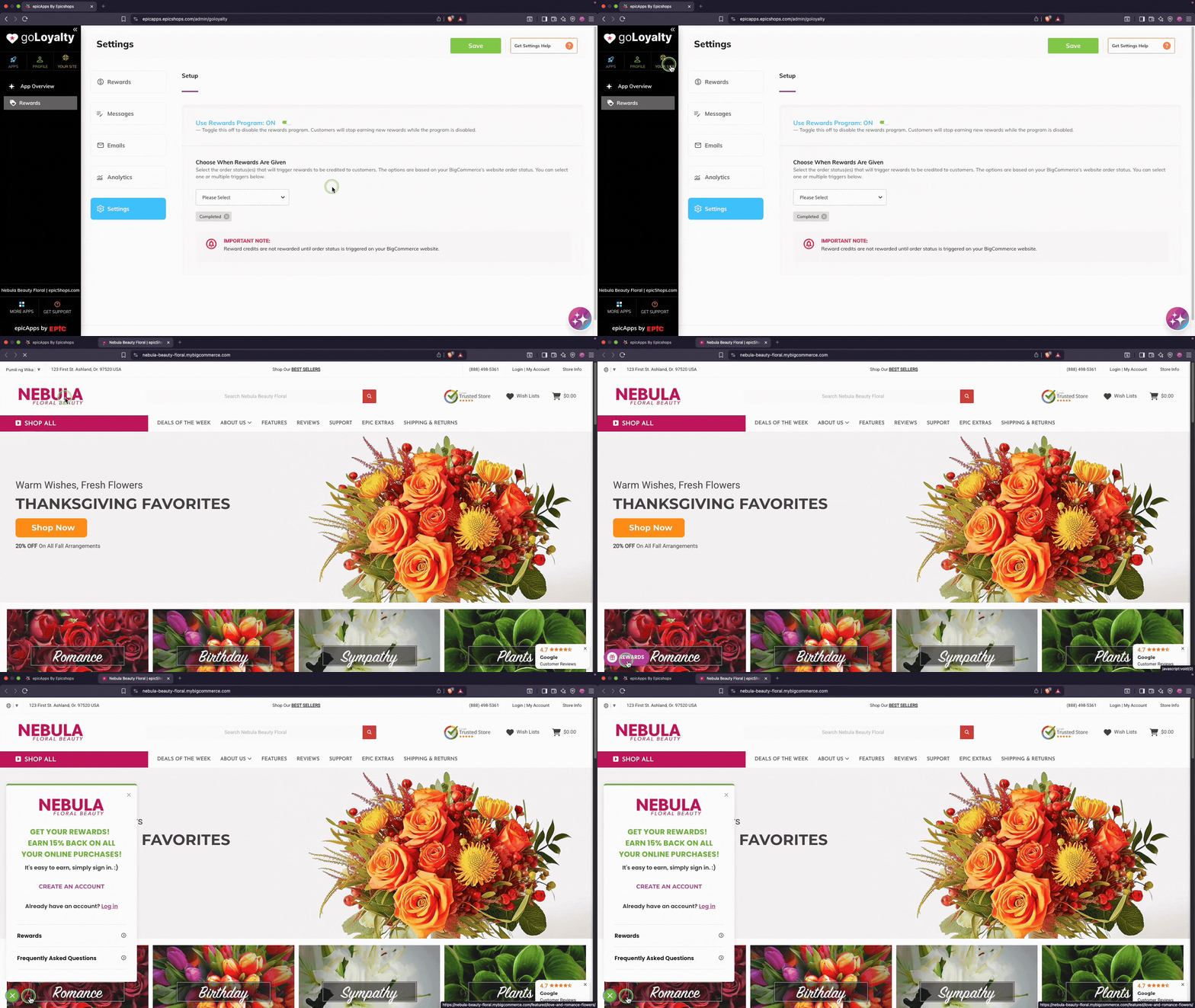
Inside goLoyalty, click Your Site in the left sidebar.
Your store will open in a new tab so you can immediately check how rewards appear.
What to look for #
We recommend confirming:
✔ rewards messages appear in the right places
✔ wording and colors match your brand
Test your emails (recommended) #
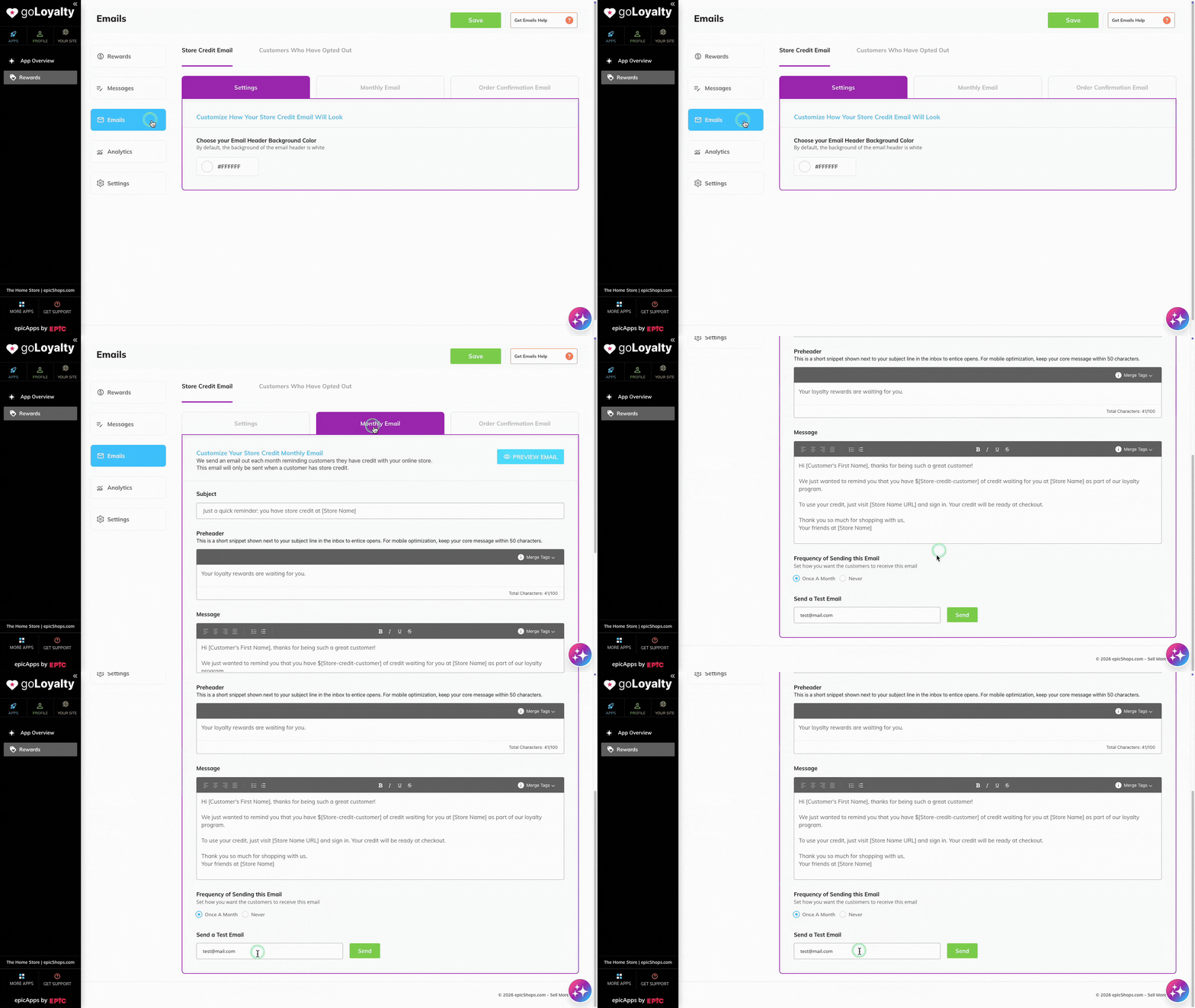
You can send a sample email to yourself to preview how reward notifications will look.
This is the fastest way to confirm your branding and messaging without placing an order.
Don’t see your updates? #
If recent changes aren’t visible yet, refresh your storefront.
Some updates may take a short moment to apply.
Need to adjust something? #
Return to goLoyalty, update your settings, and save.
Changes apply right away.
Once everything looks right, your loyalty experience is ready for customers.


