
Overview #
You’re only a few steps away from sending your first review request.
In this guide, we’ll walk through the essential setup to help you get started. Don’t worry about making everything perfect just yet—epicSnap already includes ready-to-use email templates, so you can always come back later to personalize them.
Step 1 — Review Your Email Templates #
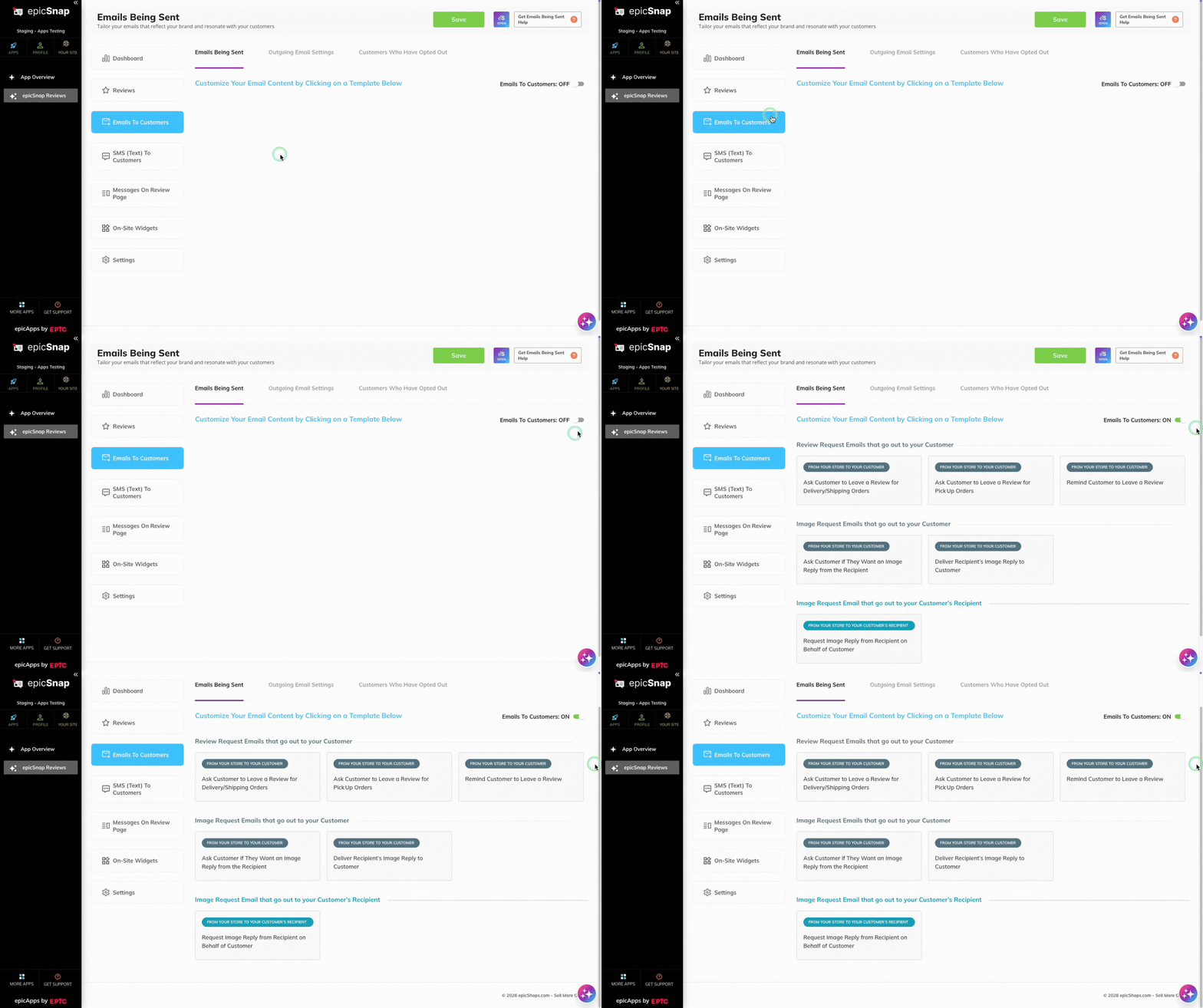
Open Emails to Customers → Emails Being Sent.
Take a few minutes to review the email templates your customers will receive.
epicSnap already includes ready-to-use email templates, so you don’t need to create emails from scratch. If you’d like, you can personalize the content later to better match your brand and tone.
Learn more: Set Up Review Request Emails
Step 2 — Update Your Sender Name #
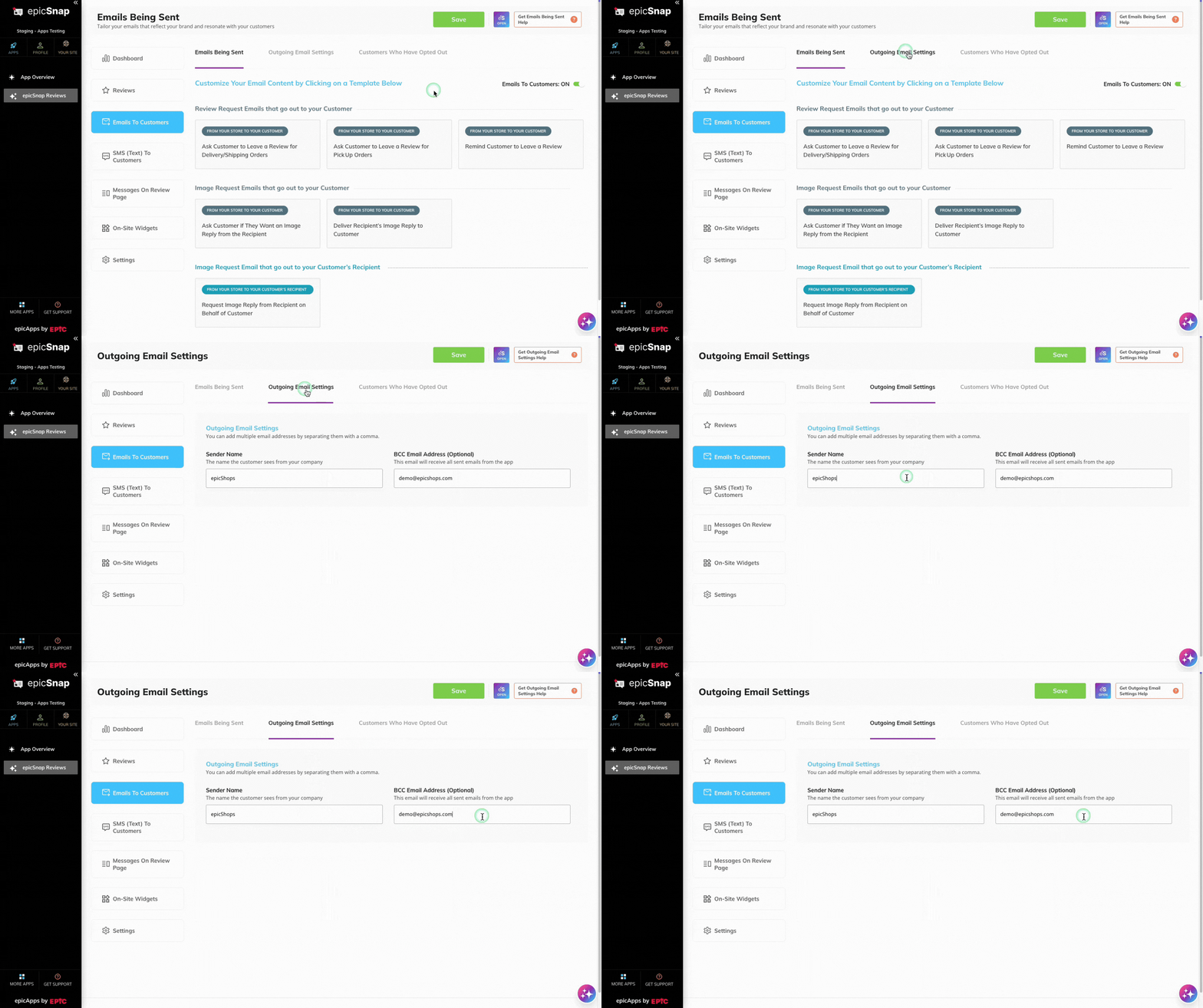
Open Emails to Customers → Outgoing Email Settings.
Update the Sender Name so customers can easily recognize your business when they receive review request emails.
For example:
From: Bloom & Petal Florist
Learn more: Set Up Outgoing Email Settings
Step 3 — Choose How You’ll Send Review Requests #
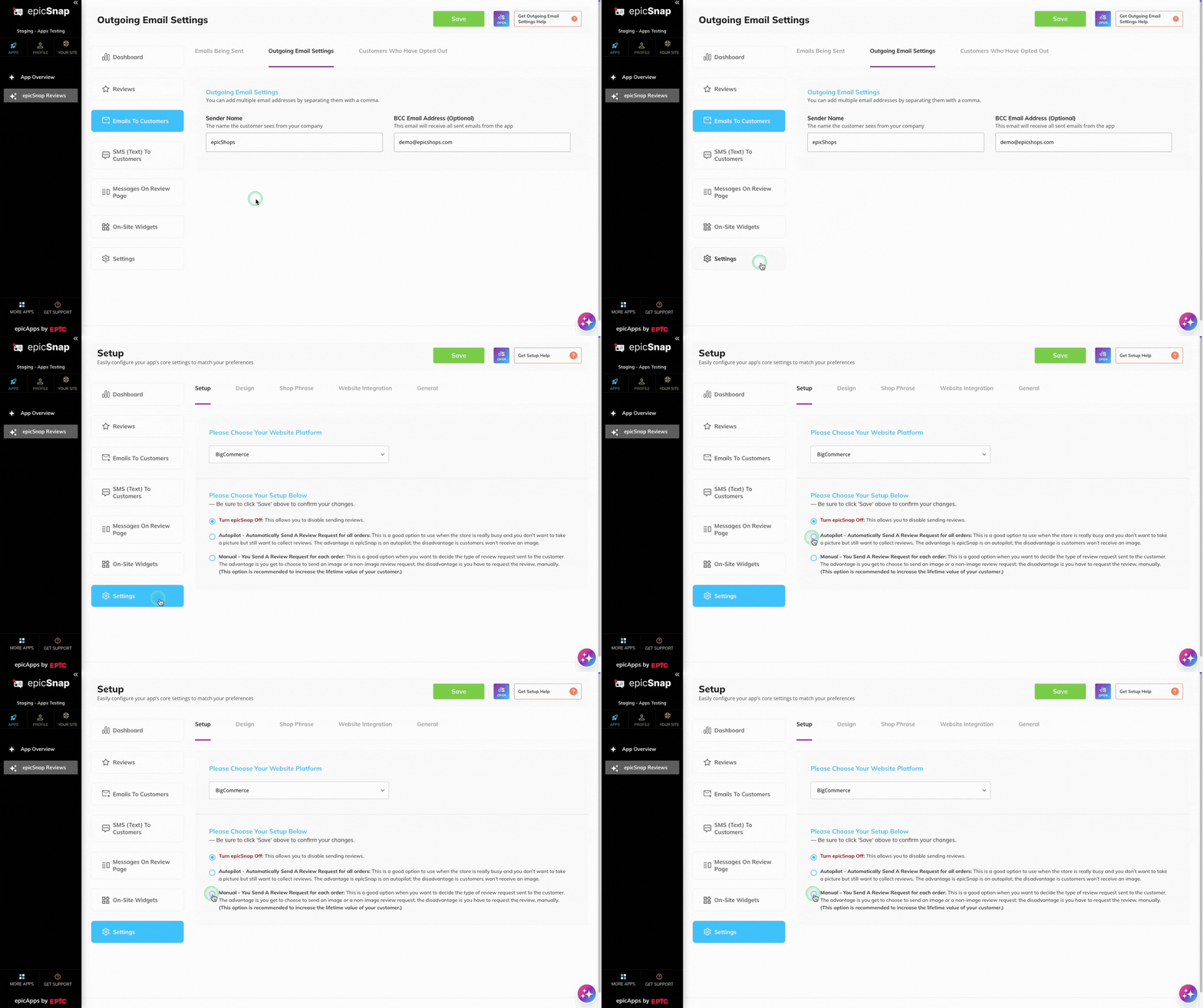
Open Settings → Setup.
Under Please Choose Your Setup Below, select one of the following:
- Autopilot — epicSnap automatically sends review requests based on the schedule you choose.
- Manual — You decide when to send each review request yourself using the epicSnap Mobile Web App, with the option to include a photo of the customer’s order.
If you’re still deciding which option is right for your business, see Choose Your Review Setup.
Step 4 — Complete Your Setup #
The remaining setup depends on the option you selected.
If you chose Manual #
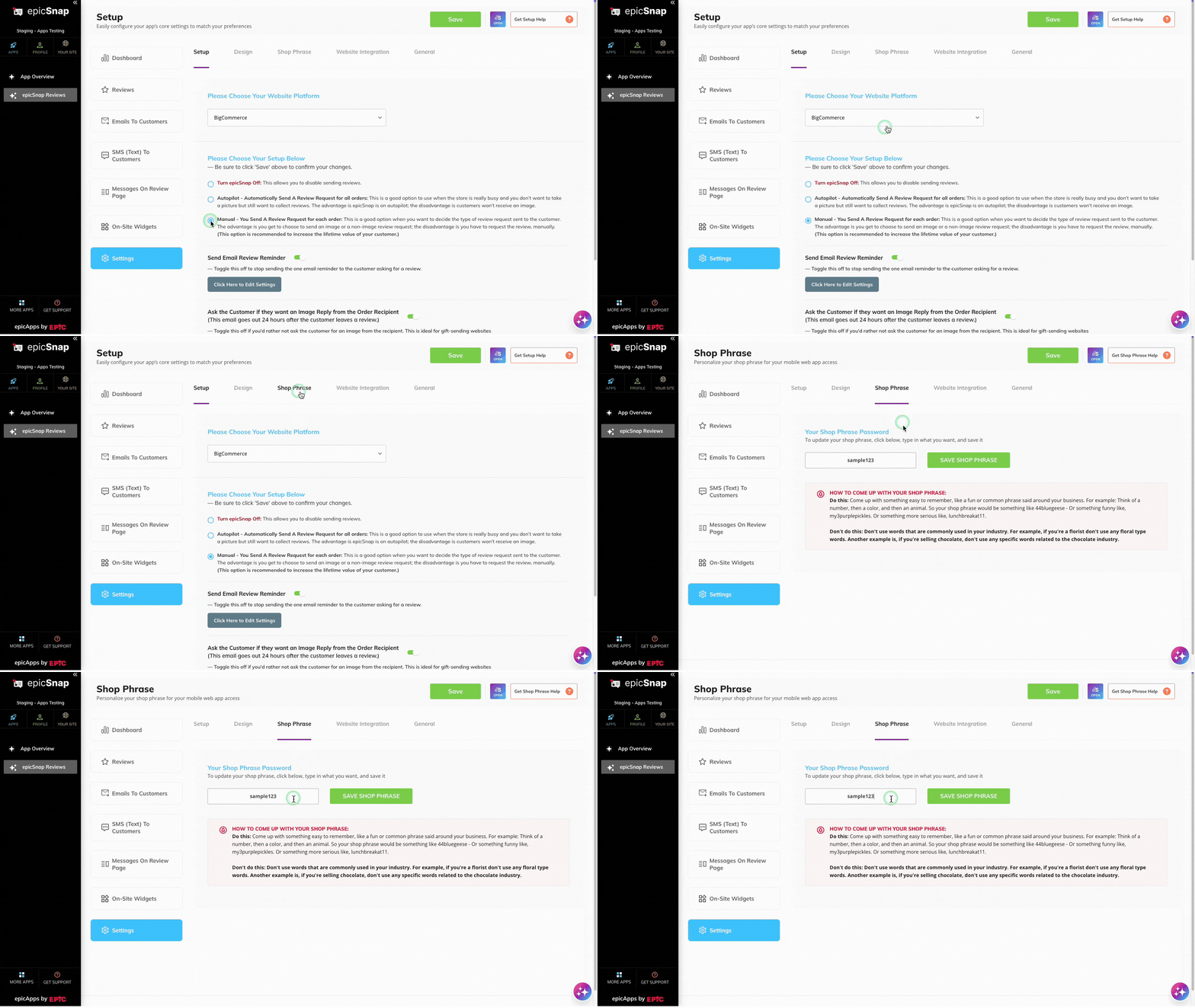
- Open Settings → Shop Phrase and create your Shop Phrase.
- Sign in to the epicSnap Mobile Web App using your Shop Phrase.
- Send your first review request.
Learn more:
If you chose Autopilot #
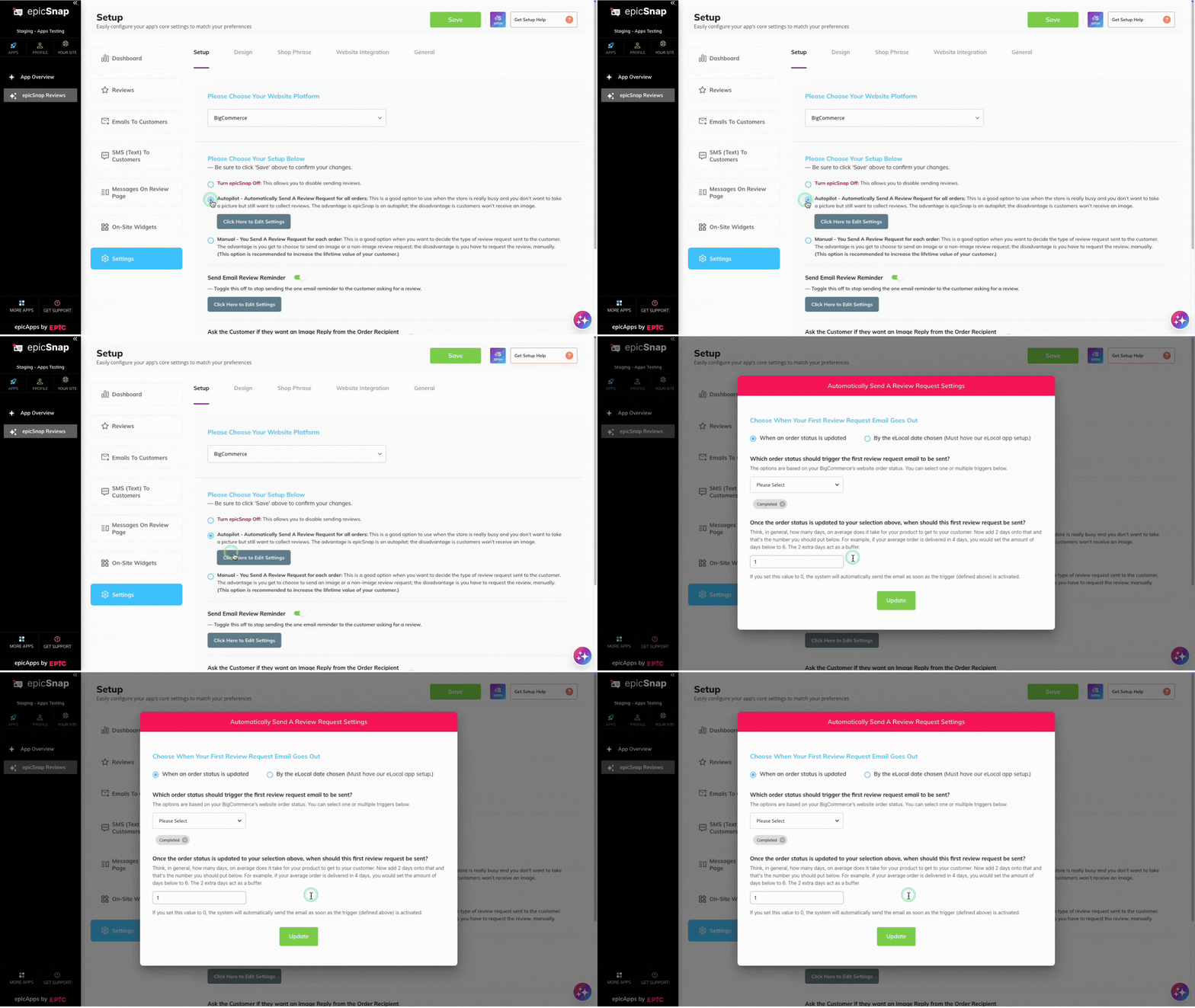
- Click Click Here to Edit Settings.
- Under Choose When Your First Review Request Email Goes Out, choose one of the following:
- When an order status is updated
- By the eLocal date chosen (requires Epic’s eLocal app)
- Complete the remaining setup based on your selection:
- If you chose When an order status is updated, select the order status that should trigger the review request. For example, Completed.
- If you chose By the eLocal date chosen, no additional trigger setup is needed.
- Enter how many days to wait before sending the first review request after the selected trigger.
- Click Update to save your settings.
Once you’ve finished, epicSnap will automatically send review requests based on the schedule you’ve chosen.
Optional
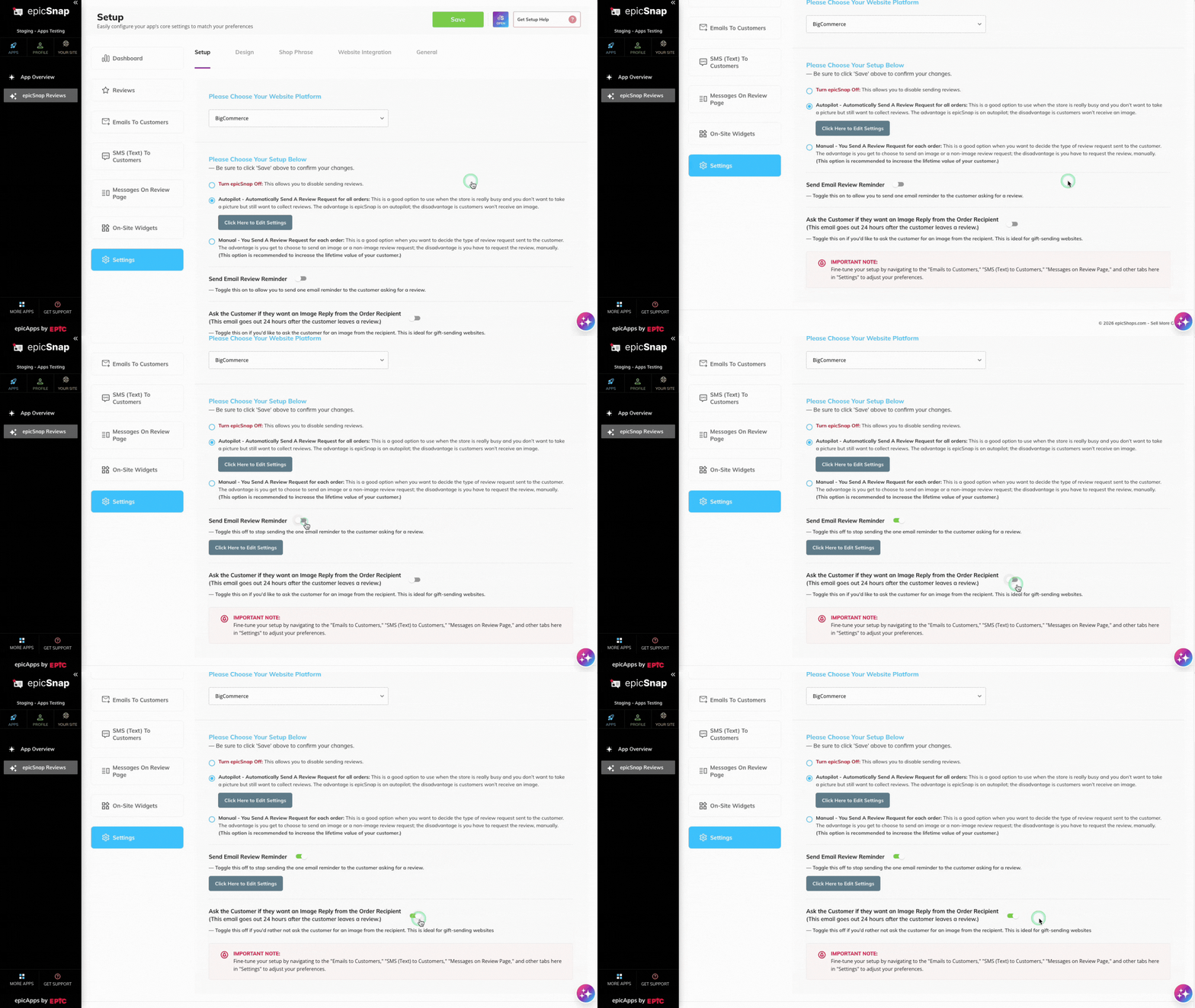
You can also turn on these features:
- Send Email Review Reminder — Automatically send a follow-up email to customers who haven’t left a review.
- Ask the Customer if They Want an Image Reply — Allow customers to request a photo from the order recipient after submitting a review.
Both options can be turned on or off at any time.
Learn more: Setup
Explore More Features #
Once you’re comfortable with the basics, you can explore additional features to get even more from epicSnap.
| Feature | What it helps you do |
|---|---|
| Customize Feedback Messages | Personalize the messages customers see after submitting a review. |
| On-Site Widgets | Display customer reviews on your BigCommerce storefront. |
| Design | Match your review pages and widgets to your brand colors. |
| Website Integration | Create a dedicated reviews page on your website. |
| Google Reviews | Add your Google Reviews link to encourage customers to leave reviews on Google. |
Each of these features is optional, so you can come back and set them up whenever you’re ready.
What’s Next? #
Great! Your first review request is ready.
Next, let’s take a look at what your customers will experience after they receive your review request.


