
How to Install epicSnap in BigCommerce #
You can install popCards directly from the BigCommerce App Marketplace.
To install the app:
1. Log in to your BigCommerce control panel.
2. Go to Apps → App marketplace.
3. Click the Discover apps in the App Marketplace.
4. In the search bar, type epicSnap.
5. Select epicSnap from the search results.
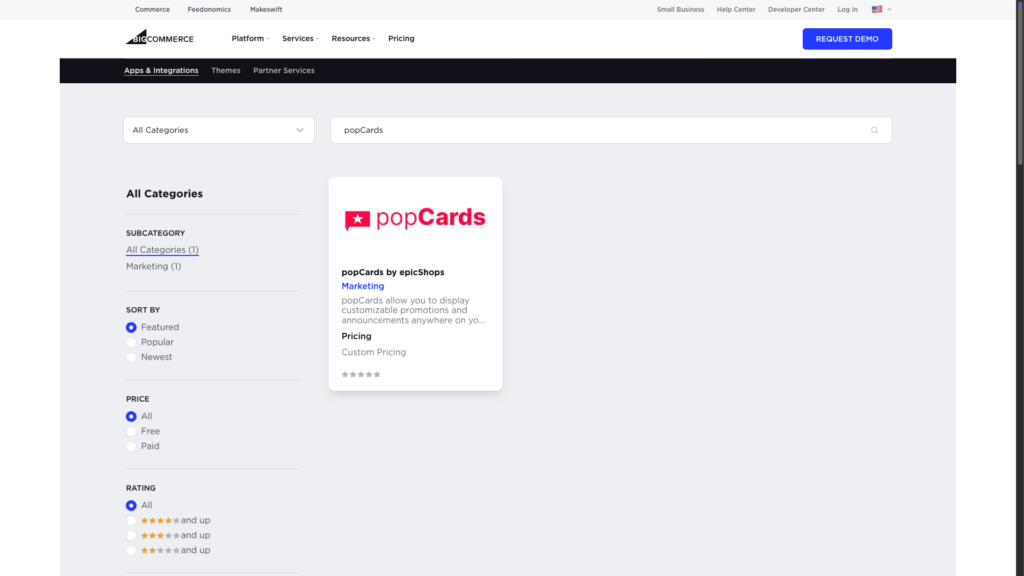
6. Click Get This App.
7. Under Existing BigCommerce store, click Log in to continue.
8. Click Install.
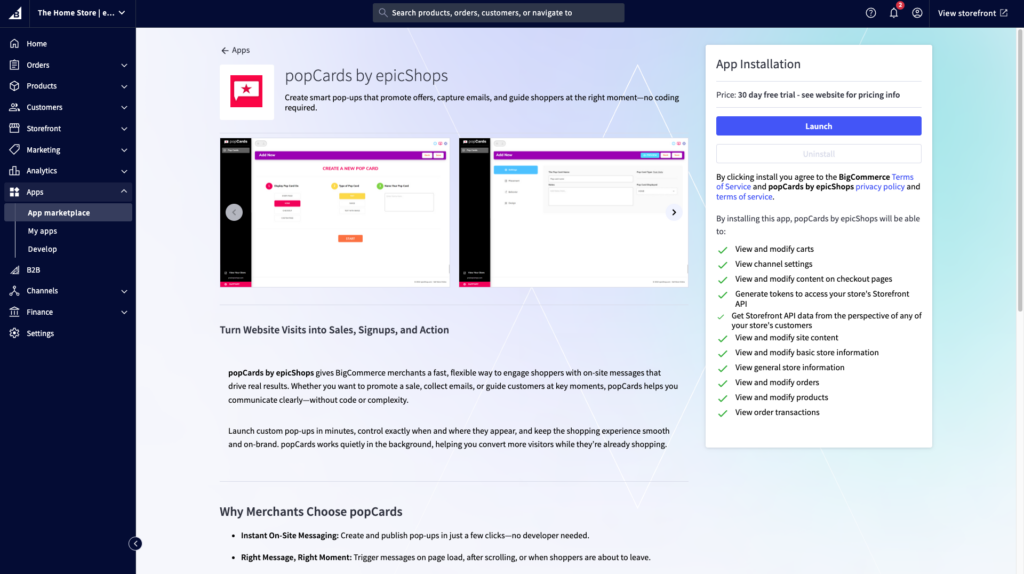
9. If prompted, log in to your account, then confirm or choose the store where you want epicSnap installed.
10. Review the permissions requested, then select the confirmation checkbox.
11. Click Confirm.
What happens next? #
After installation, you’ll be asked to Launch epicApps.
A new browser tab will open to the epicApps login page.
To continue:
1. Sign in using your BigCommerce account credentials.
2. Once logged in, you can open epicSnap and continue setup.


